Gravity Forms
Go to Forms → Forms and click Edit under the form you want to modify. This opens the drag-and-drop form editor.

On the right-hand side, browse the field types: Standard Fields (text, paragraph, dropdown, checkboxes), Advanced Fields (name, email, phone, address), and Post Fields. Click or drag a field to add it to your form.
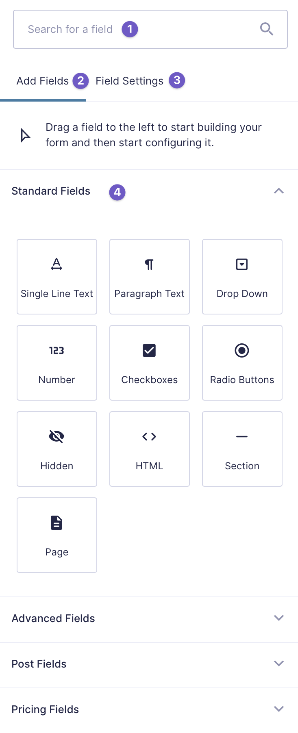
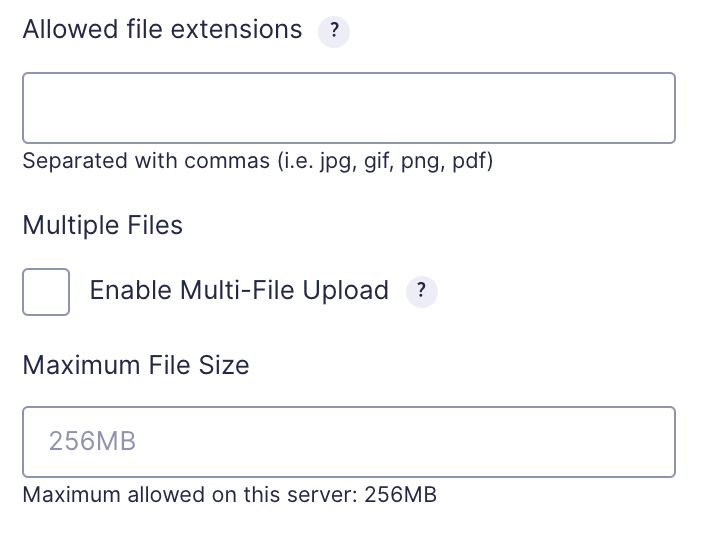
Click on the new field to open its settings. Set the Field Label, choose whether it’s Required, add placeholder text, and configure any choices (for dropdowns/checkboxes). Use the Appearance tab for layout options.
Click Update to save your changes. Then visit the page where the form is embedded and test the new field by submitting a test entry. Check the entry in Forms → Entries to confirm the data comes through.
Completed
If you are still experiencing issues, our support team is here to help.
Was this article helpful?