Gravity Forms
Open your form in the editor (Forms → Edit). From the Advanced Fields section on the right, drag the File Upload field into your form.
Click on the File Upload field to open its settings. In the Allowed file extensions box, enter the types you want to accept, separated by commas (e.g. pdf,doc,docx,jpg,png). Leave blank to allow all types.
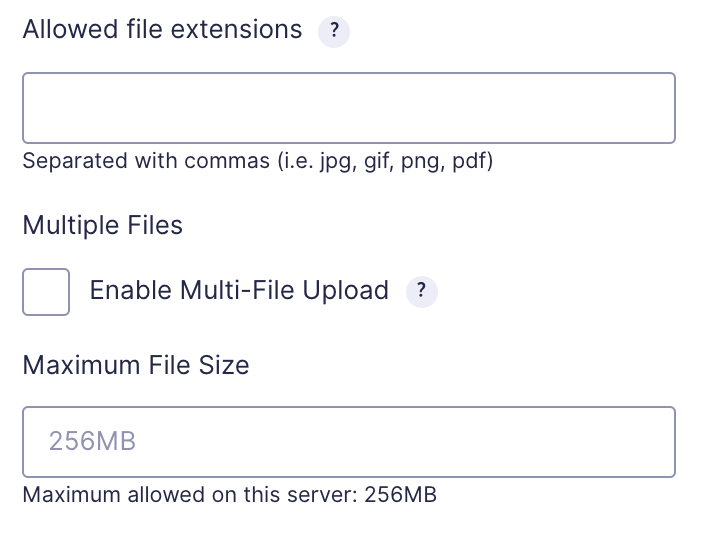
Under the field settings, set the Maximum File Size in MB. A sensible default is 5–10 MB for documents. If users need to upload larger files, speak to Innermedia about adjusting server limits.
Toggle Enable Multi-File Upload if you want visitors to attach more than one file. You can set a maximum number of files. Save and test by submitting a form with an attached file, then check the entry to confirm it was received.

Completed
If you are still experiencing issues, our support team is here to help.
Was this article helpful?