WPForms
Go to WPForms → Entries in your dashboard. You’ll see a list of all your forms. Click on the form whose submissions you want to view.
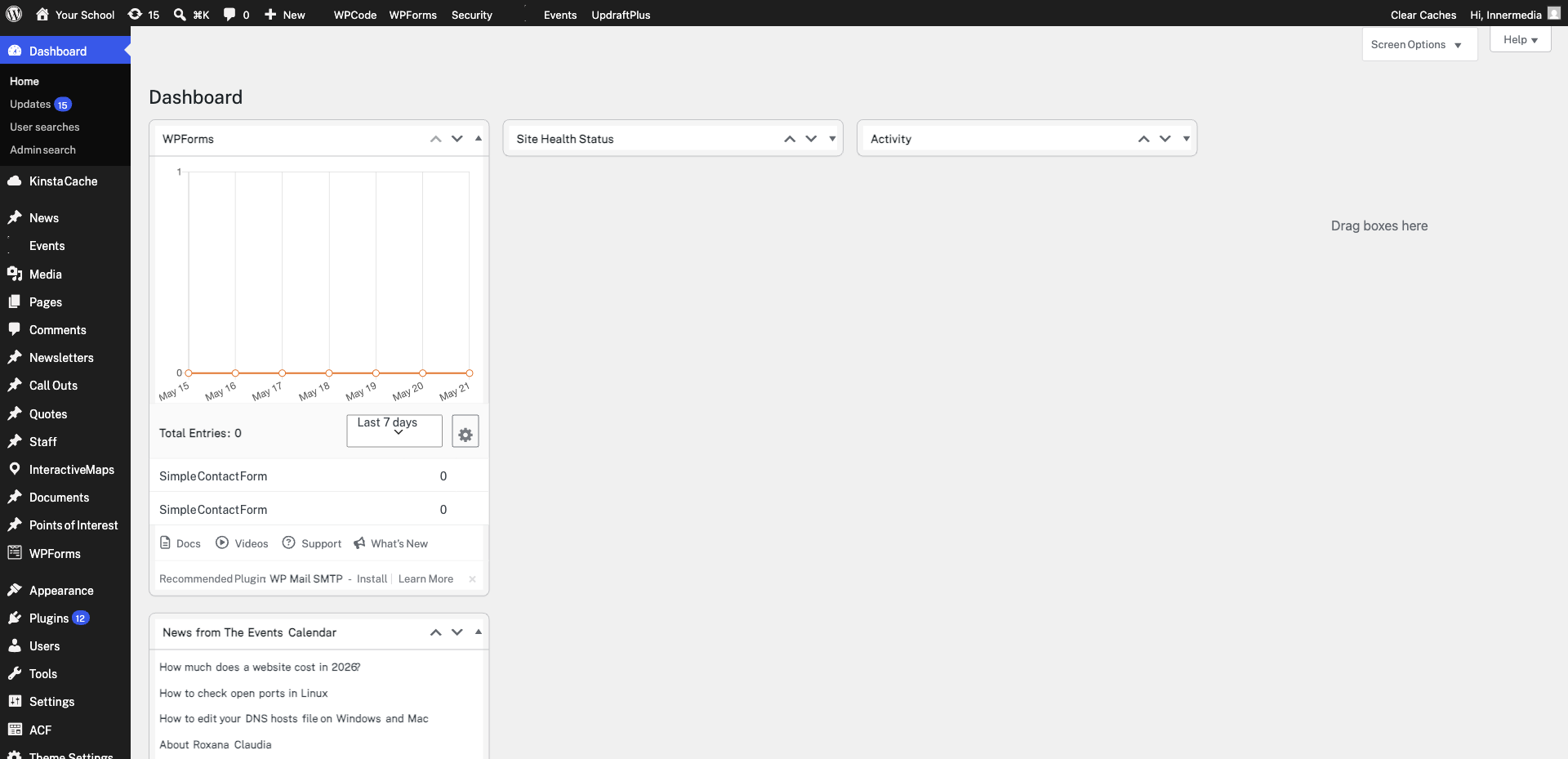
Click View next to any entry to see the full submission details. You’ll see every field the visitor completed, along with the date, time, and any additional metadata.
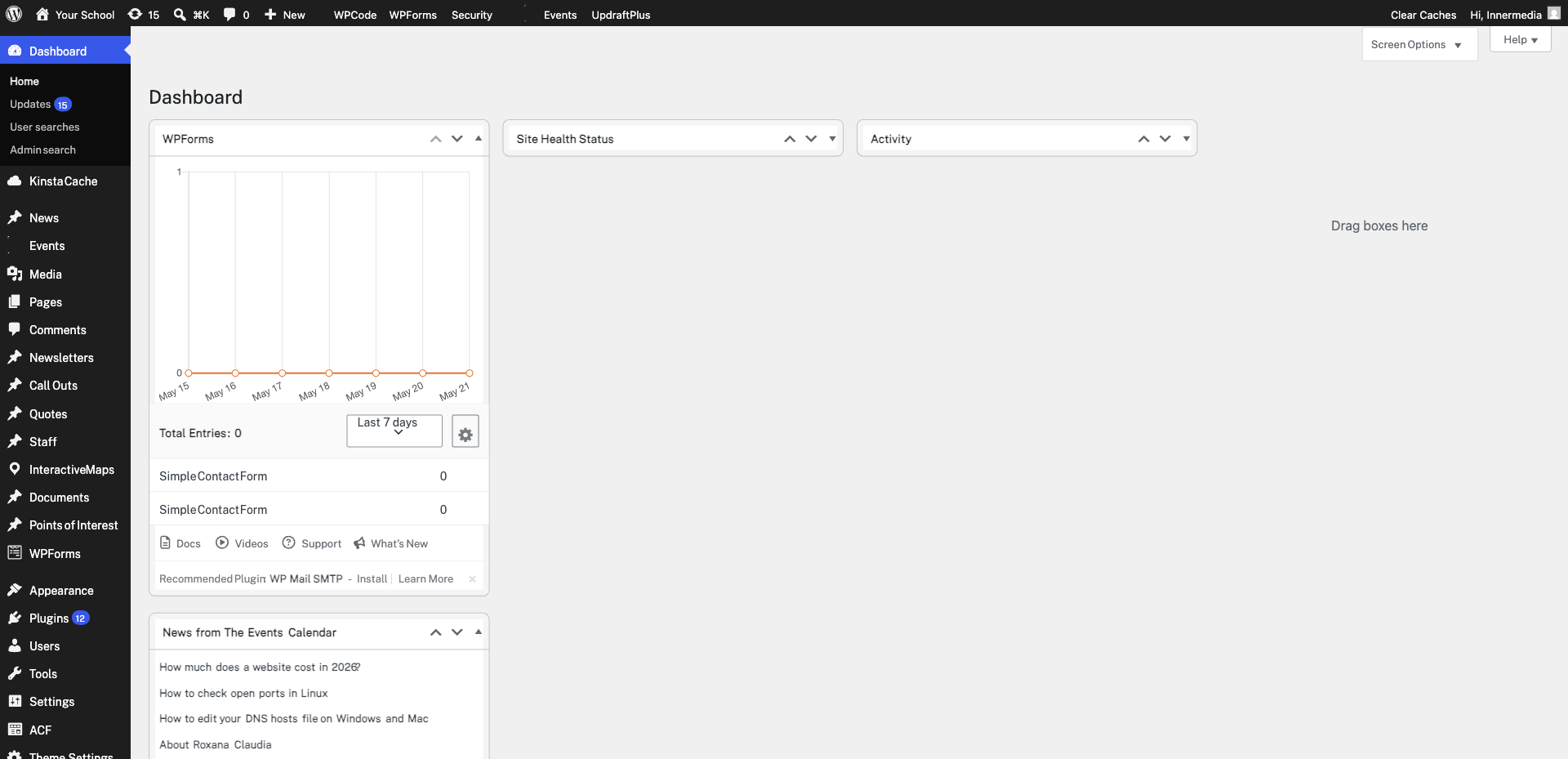
Use the Search box at the top to find specific entries by keyword. You can also filter by date using the date picker. This is helpful for finding a particular enquiry or generating period-specific reports.
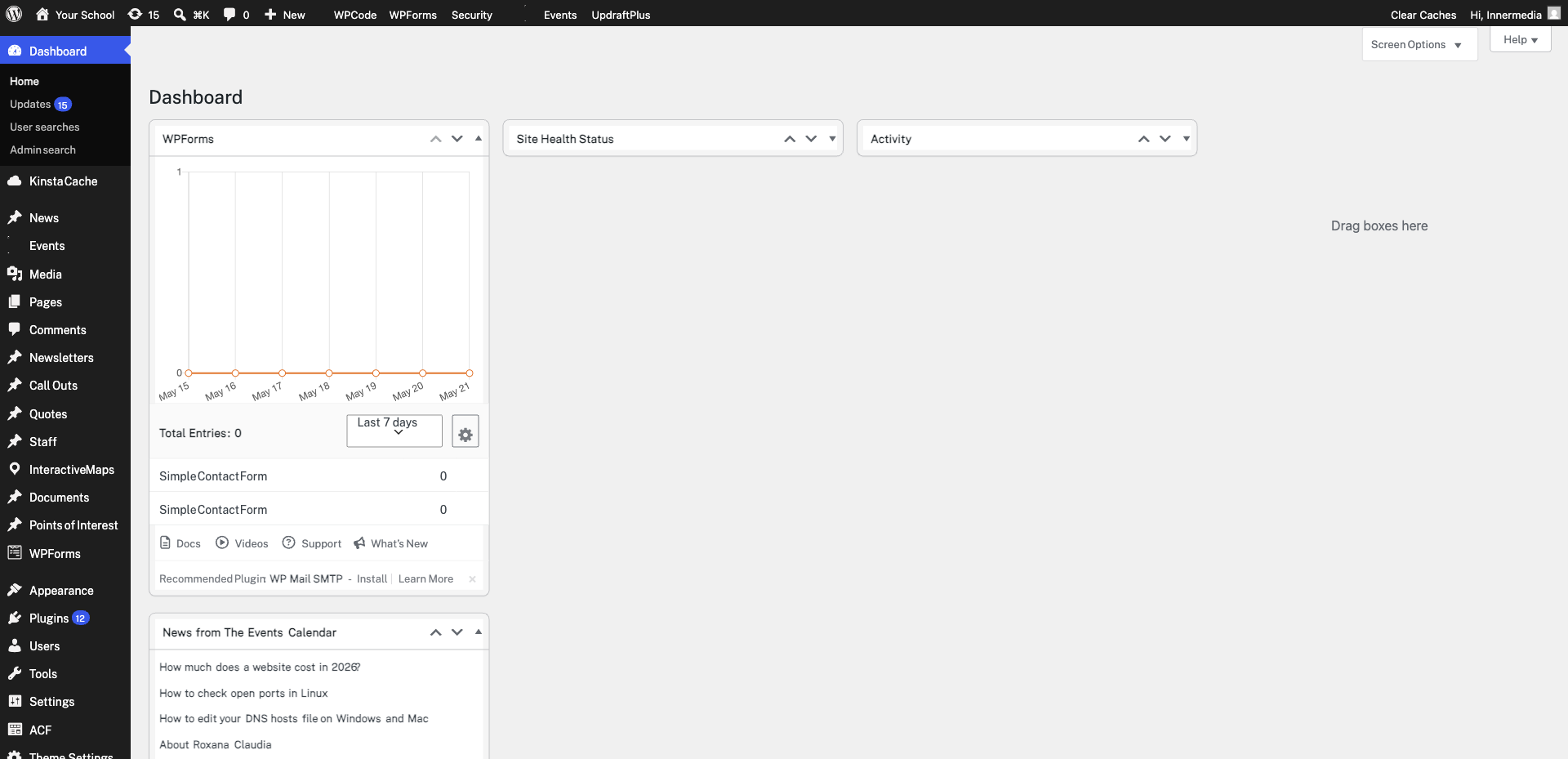
Click the star icon next to an entry to flag it for follow-up. You can also mark entries as read/unread. Use the bulk actions dropdown to manage multiple entries at once — such as marking several as read or deleting old test submissions.
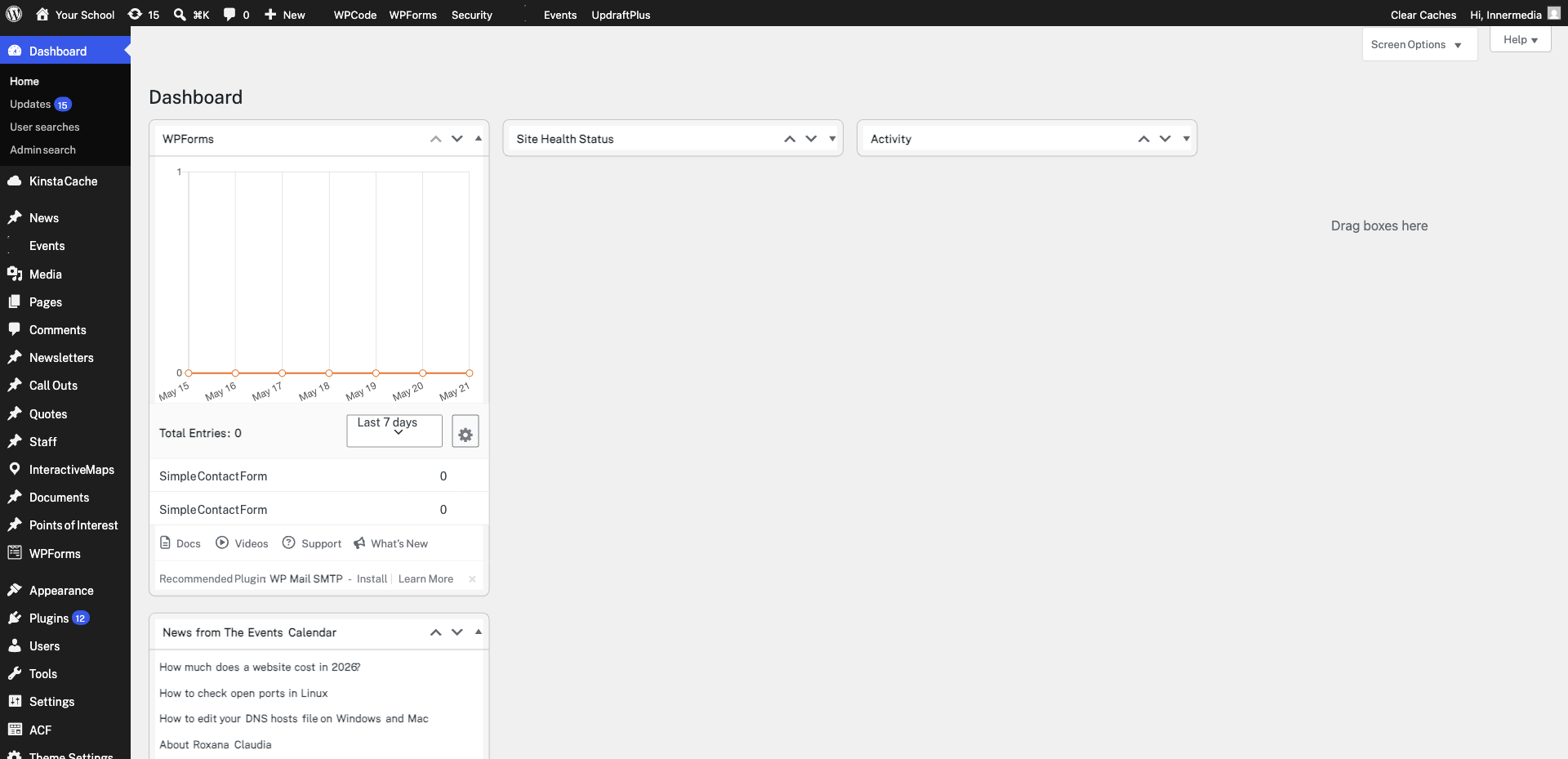
Completed
If you are still experiencing issues, our support team is here to help.
Was this article helpful?