INNERMEDIA
Contact Support
Support Base
WPForms
WPForms
Step 0 of 4 completed
1
Go to the Entries Page
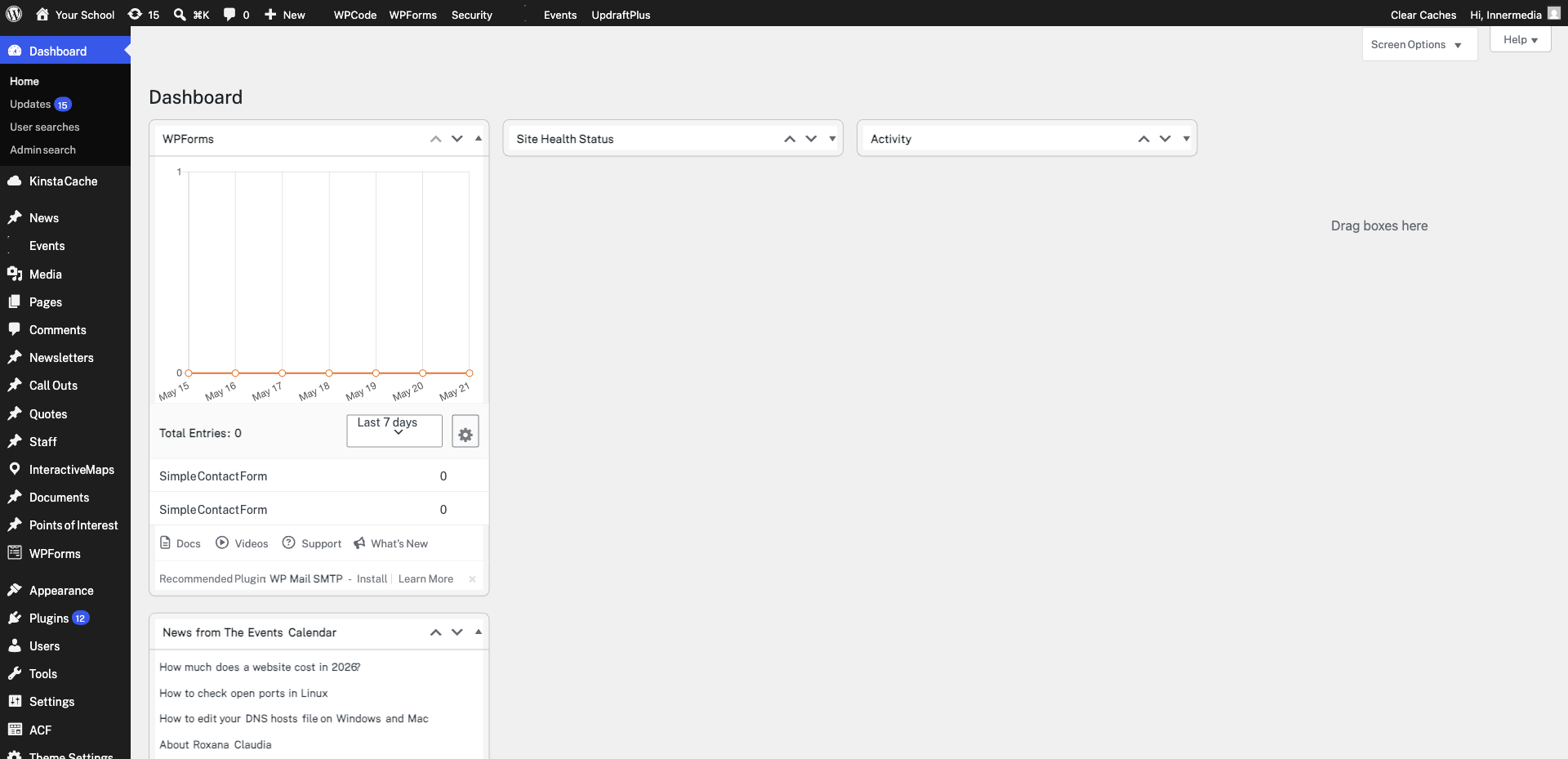
Navigate to WPForms → Entries in your dashboard. Click on the form whose submissions you want to export.
2
Click Export All
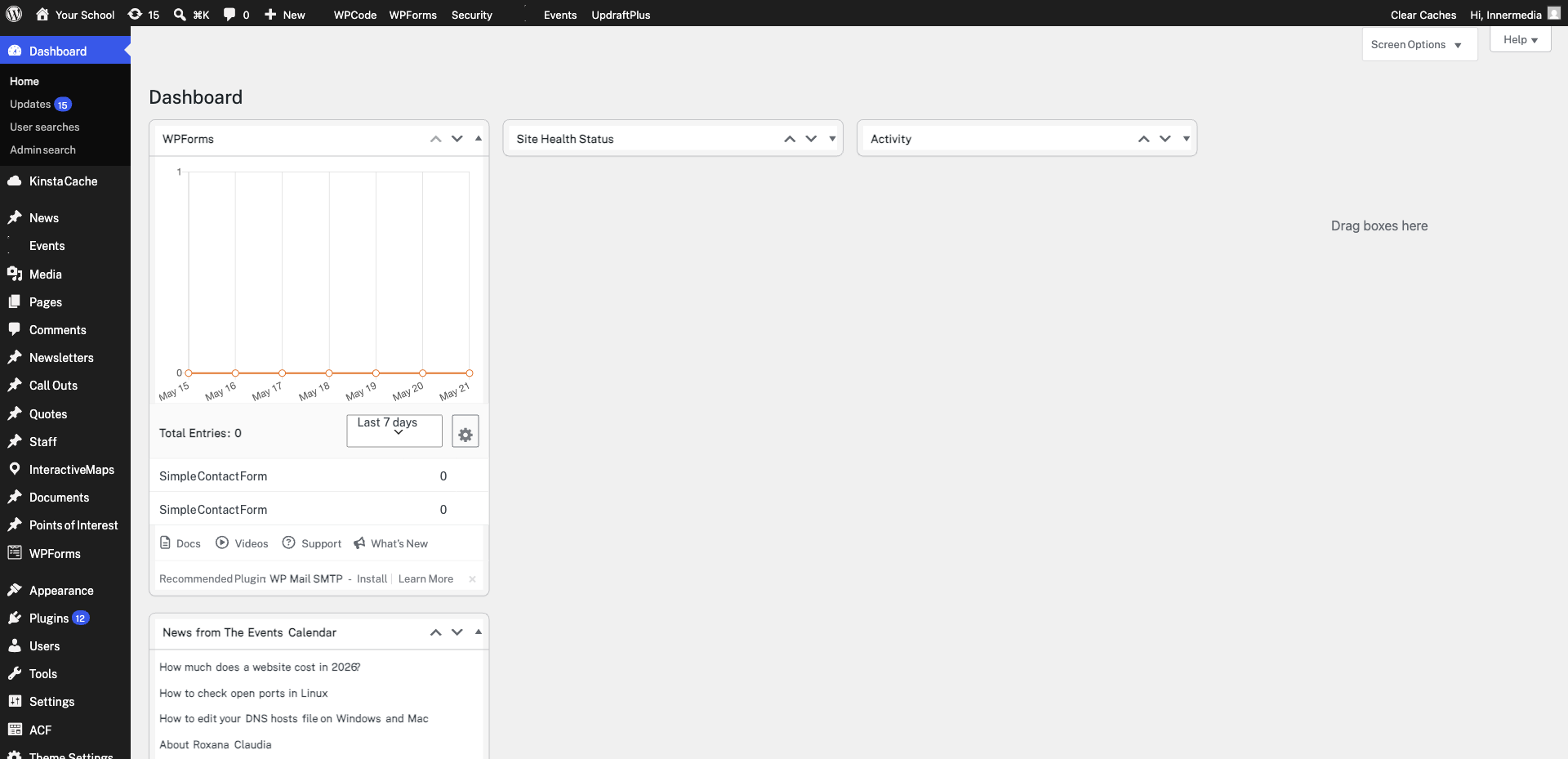
At the top of the entries list, click Export All. This opens the export options where you can choose which fields to include and set a date range.
3
Select Fields and Date Range
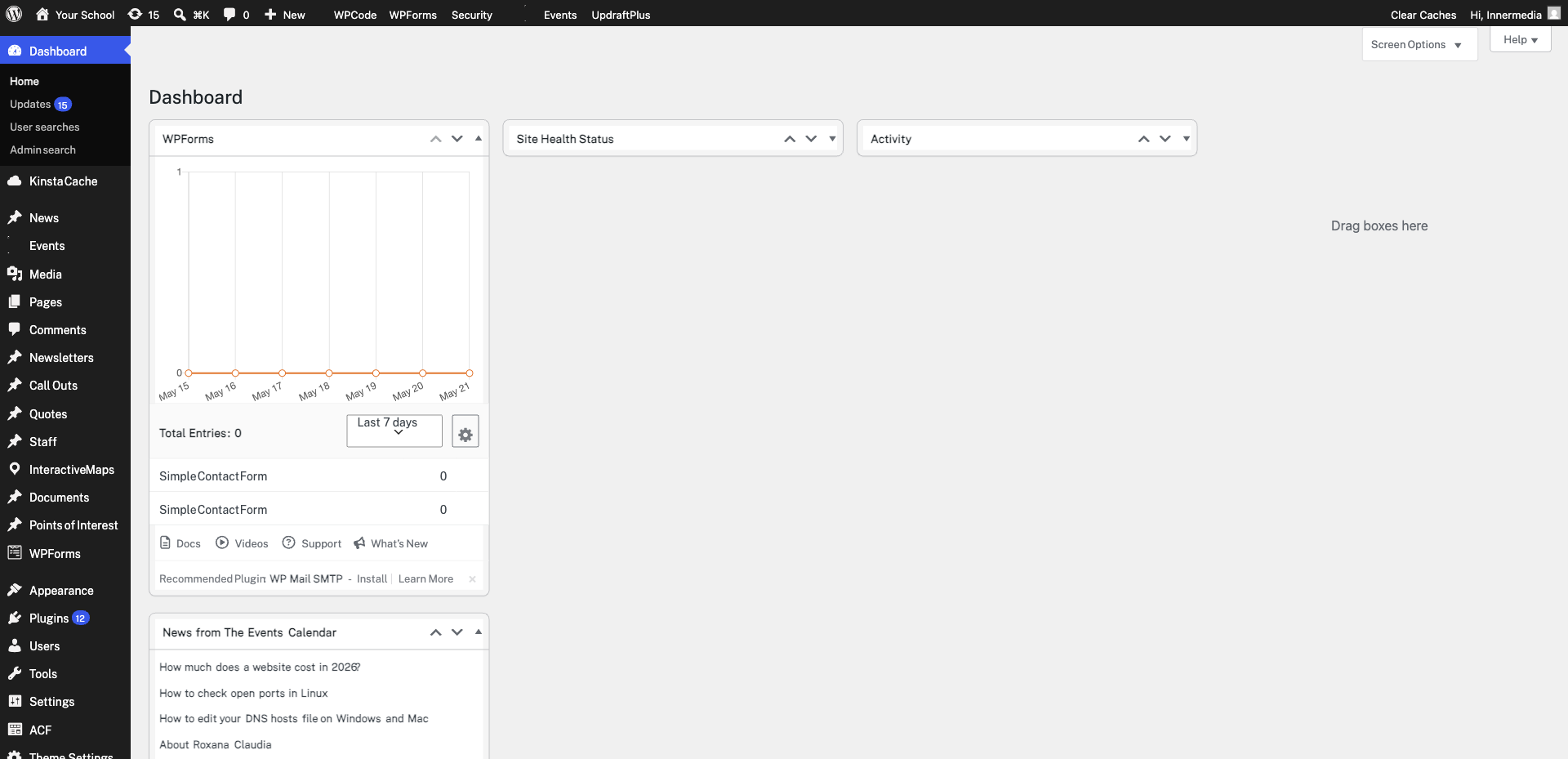
Tick the fields you want in your export. Untick any you don’t need. If you only want submissions from a specific period, set the From and To dates. This is useful for monthly or termly reporting.
4
Download the CSV
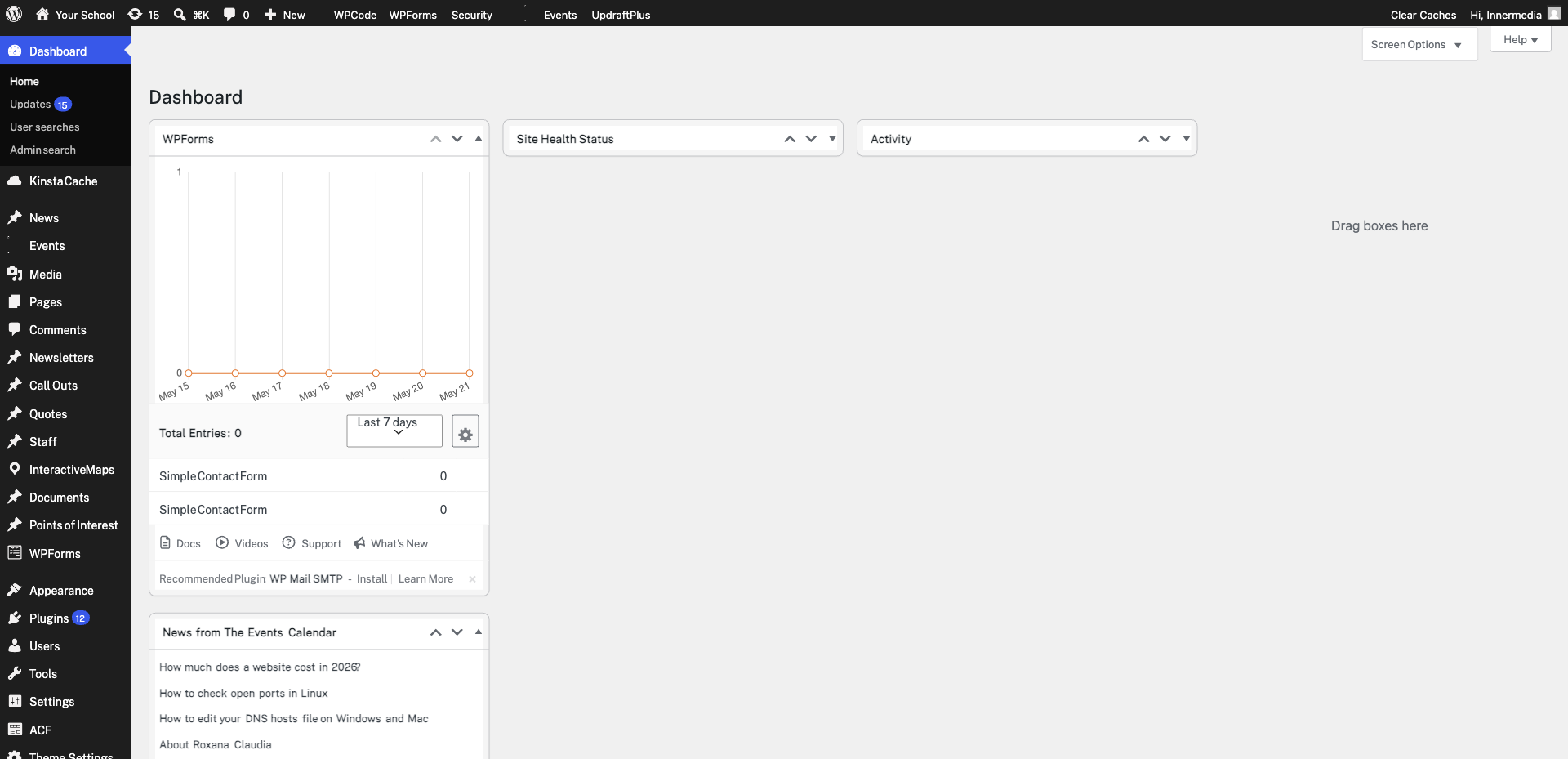
Click Download Export File. A CSV file will download which you can open in Excel, Google Sheets, or import into another system. Each row represents one submission with your selected fields as columns.
Completed
If you are still experiencing issues, our support team is here to help.
Was this article helpful?