Editing Text & Headings in Elementor
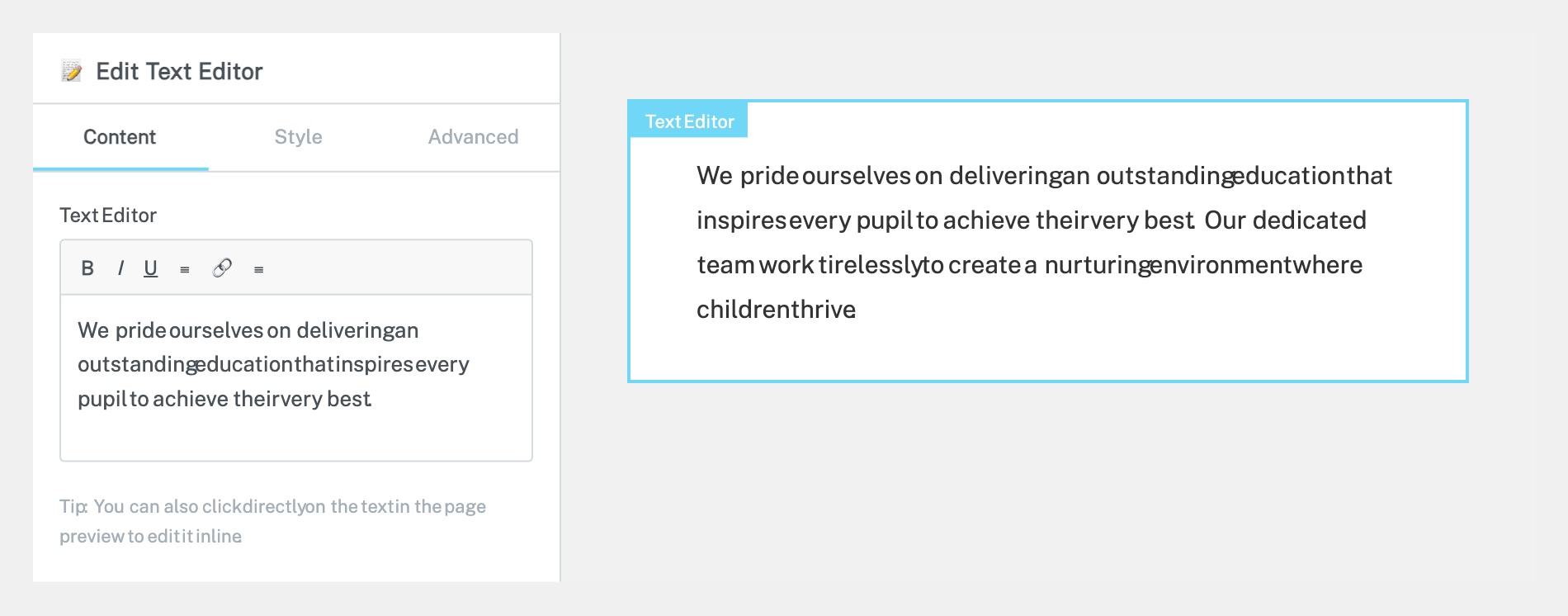
Click on the heading or text block you want to edit in the page preview. A blue border will appear around the element, and the left panel will switch to show the editing options for that widget. For a Heading widget you’ll see the Title field; for a Text Editor widget you’ll see a rich text area.
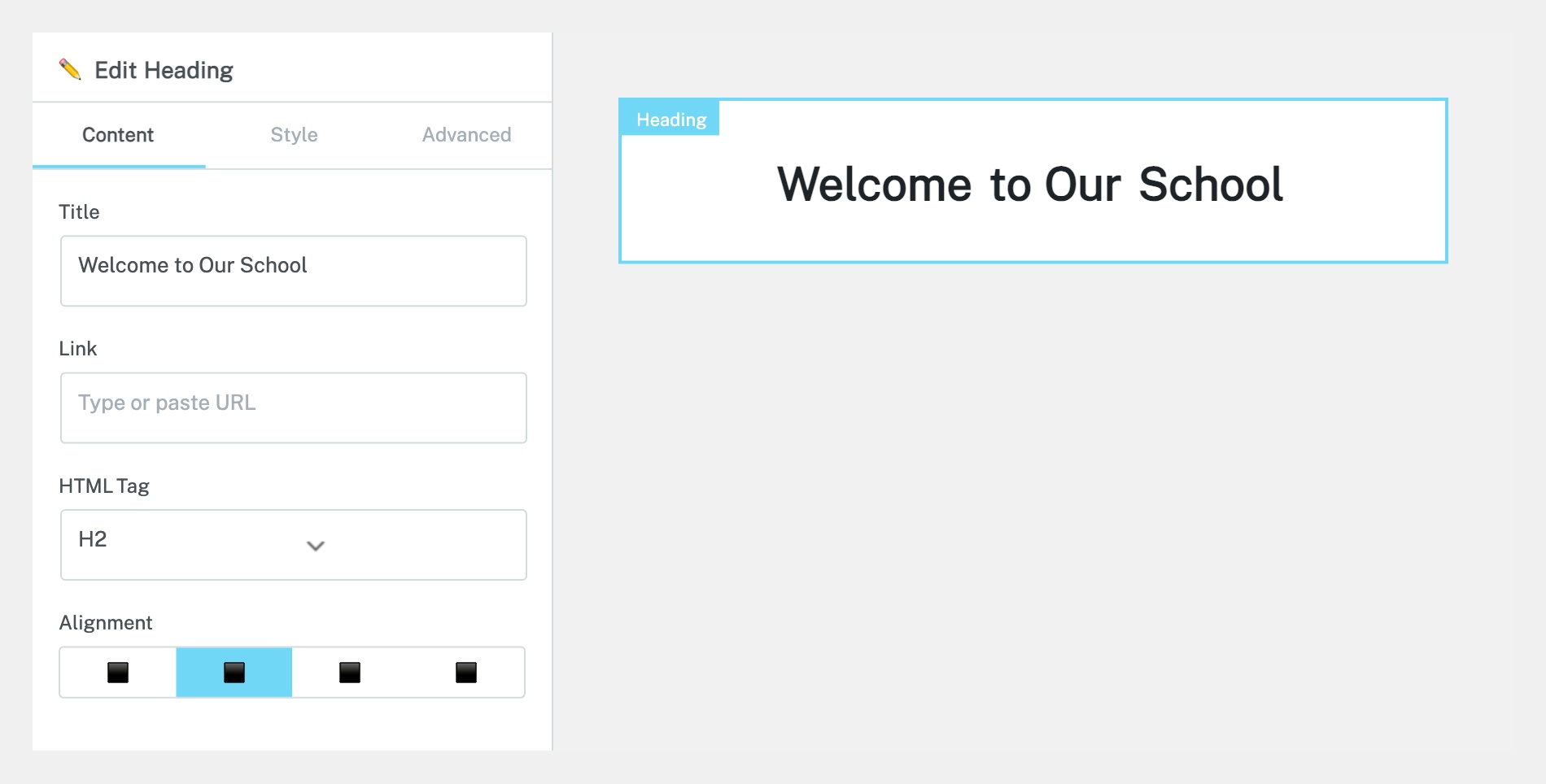
In the left panel under the Content tab, type your new text into the Title field (for headings) or the rich text editor area (for text blocks). You can also click directly on the text in the canvas to edit it inline — just click and start typing. The changes will appear immediately in the preview.
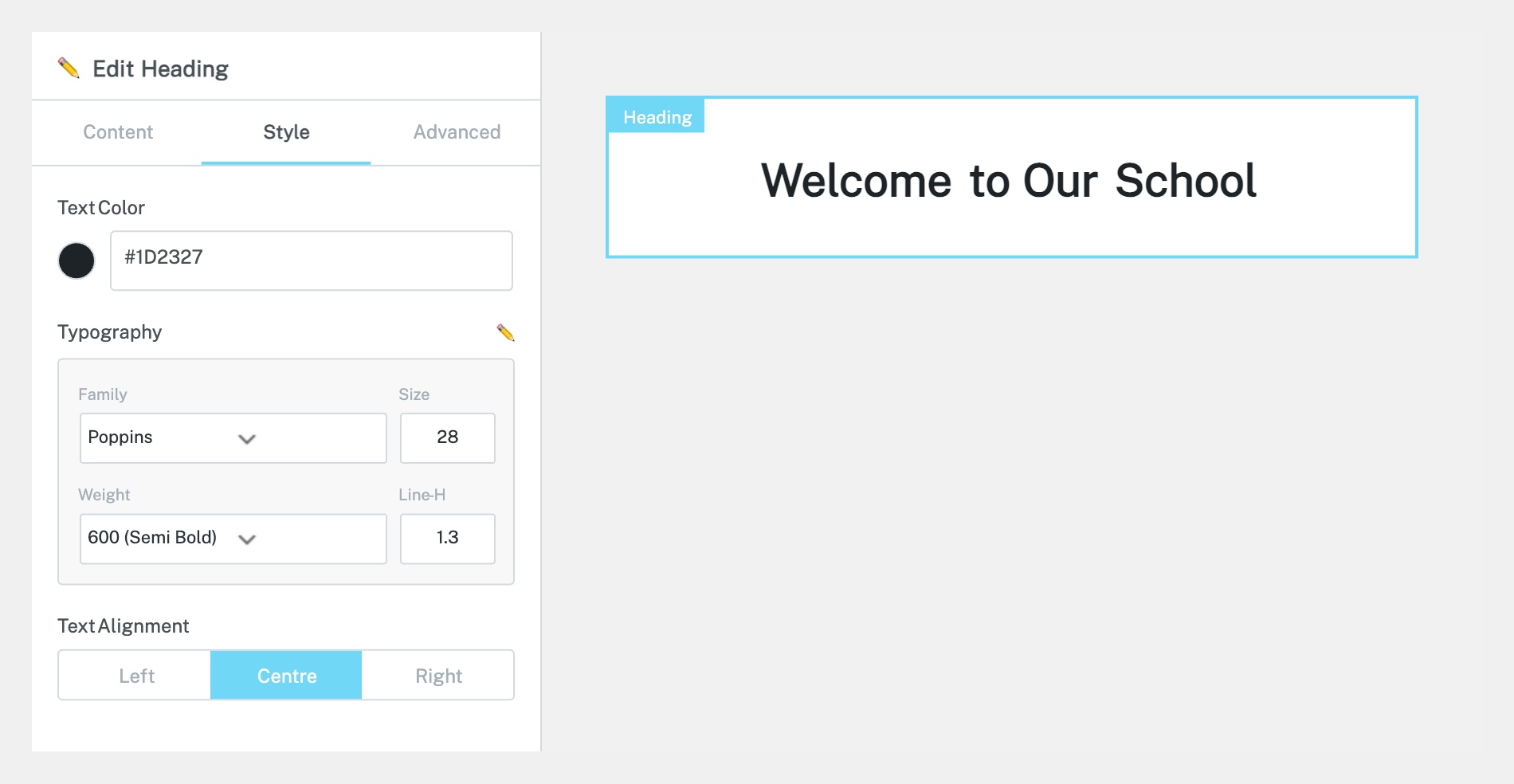
Click the Style tab at the top of the left panel. Here you can customise the appearance of your text:
Typography — Click the pencil icon to expand and change font family, size, weight (bold), style (italic), line height, and letter spacing.
Text Color — Click the colour swatch to choose a new text colour.
Text Alignment — Choose left, centre, right, or justified alignment.
Be cautious with typography changes — your site has a consistent design style set by Innermedia. Only adjust if you need to match existing styling elsewhere on the page.
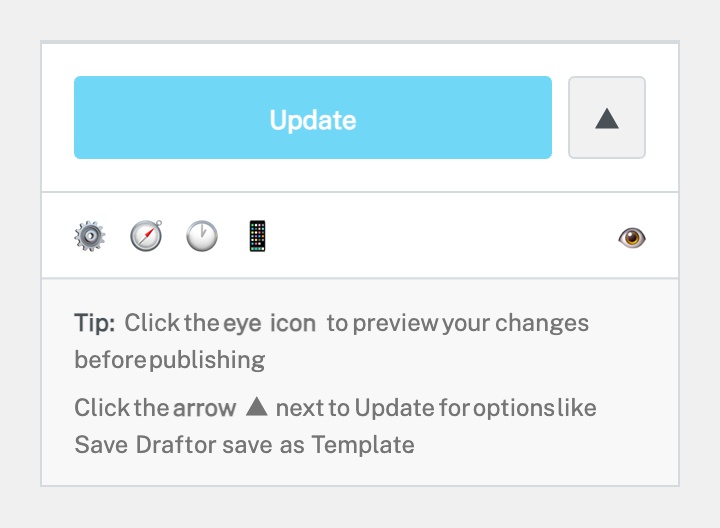
Once you’re happy with your edits, click the green Update button at the bottom of the left panel. Your changes will go live immediately. If you want to preview first, click the eye icon next to the Update button to open a preview in a new tab.
Completed
If you are still experiencing issues, our support team is here to help.
Was this article helpful?