Navigating the WooCommerce Dashboard
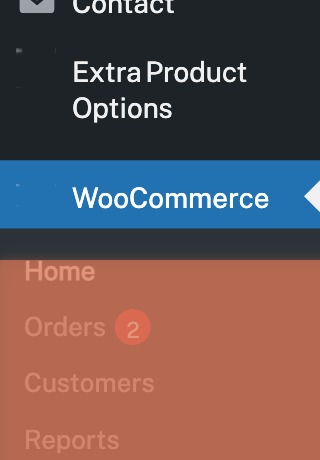
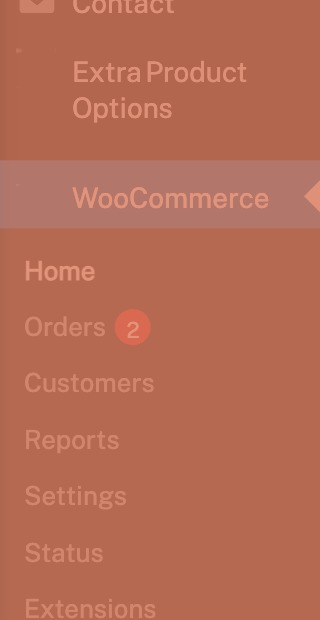
In the WordPress admin sidebar, you’ll see the WooCommerce menu item with its distinctive purple icon. Clicking it opens a submenu with links to Home, Orders, Customers, and Settings. Below WooCommerce, you’ll also see Products, Analytics, and Marketing as separate top-level menu items — these are all part of WooCommerce.
At the top of the WooCommerce Home page, you’ll see a coloured summary bar showing key at-a-glance figures. This includes orders awaiting payment, orders processing, and products low in stock or out of stock. Each figure is clickable — it takes you straight to the relevant filtered view.
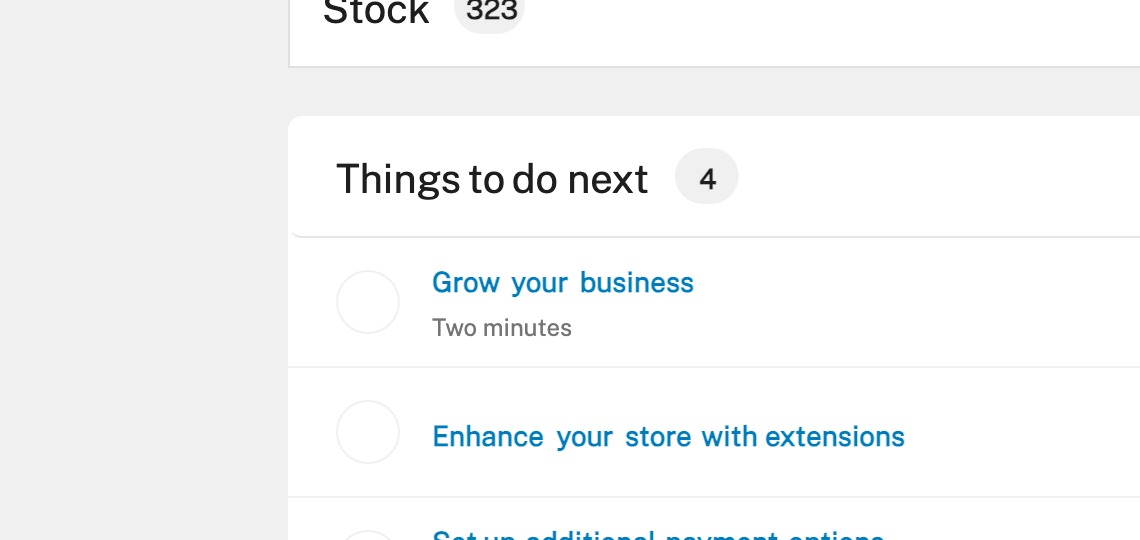
Below the summary bar, WooCommerce shows a Things to do next section with setup tasks and suggestions. For new stores, this might include adding products, setting up payments, or configuring shipping. Each task has a direct link to the relevant settings page.
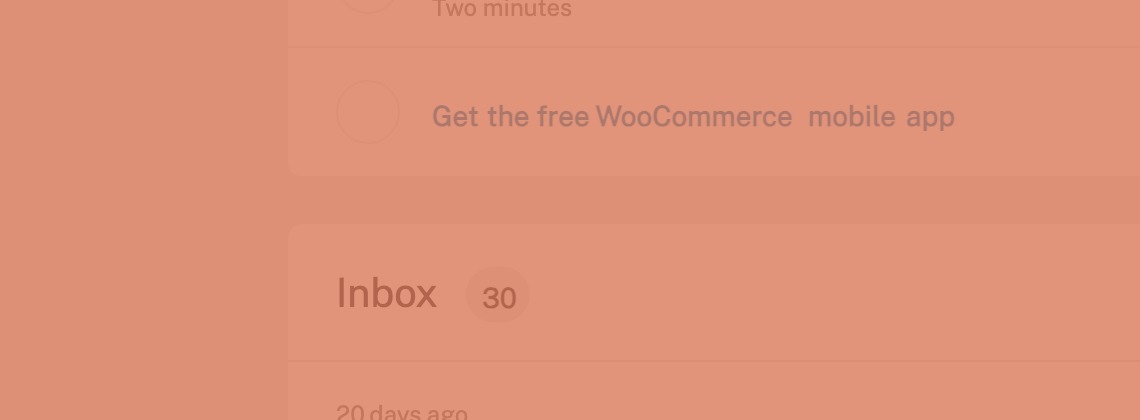
The Inbox section shows notifications from WooCommerce — extension updates, tips for improving your store, and important alerts. Each notification includes an action button or link. You can dismiss notifications you’ve read.
WooCommerce adds several top-level menus to your WordPress admin. WooCommerce covers orders, customers, and settings. Products is where you manage your catalogue, categories, and tags. Analytics gives you detailed reports on revenue and orders. Marketing provides tools for coupons and campaigns.
Completed
If you are still experiencing issues, our support team is here to help.
Was this article helpful?