Connecting Your Instagram Feed
Most Innermedia sites use Smash Balloon Instagram Feed. If it is already installed, go to Instagram Feed in the sidebar. If not, go to Plugins → Add New and search for ‘Smash Balloon Instagram Feed’.
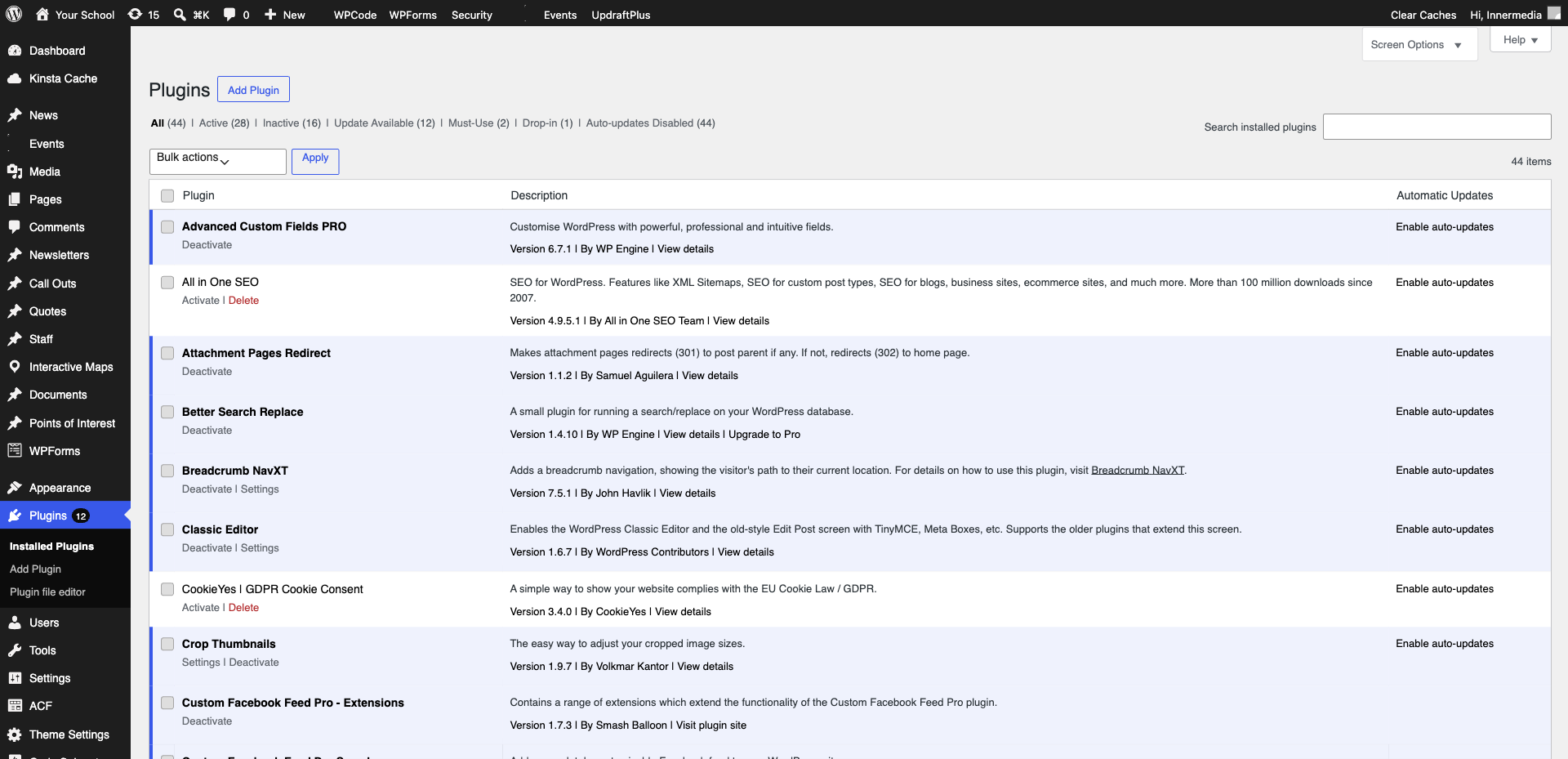
Click ‘Add New’ to create a feed, then click ‘Add Source’. You will be redirected to Instagram to authorise the connection. Log in with your school’s Instagram account and grant the requested permissions.
Choose your layout — Grid, Carousel, or Masonry. Set the number of posts to display (6–9 works well), the number of columns, and whether to show captions. Preview the feed in the plugin’s customiser.
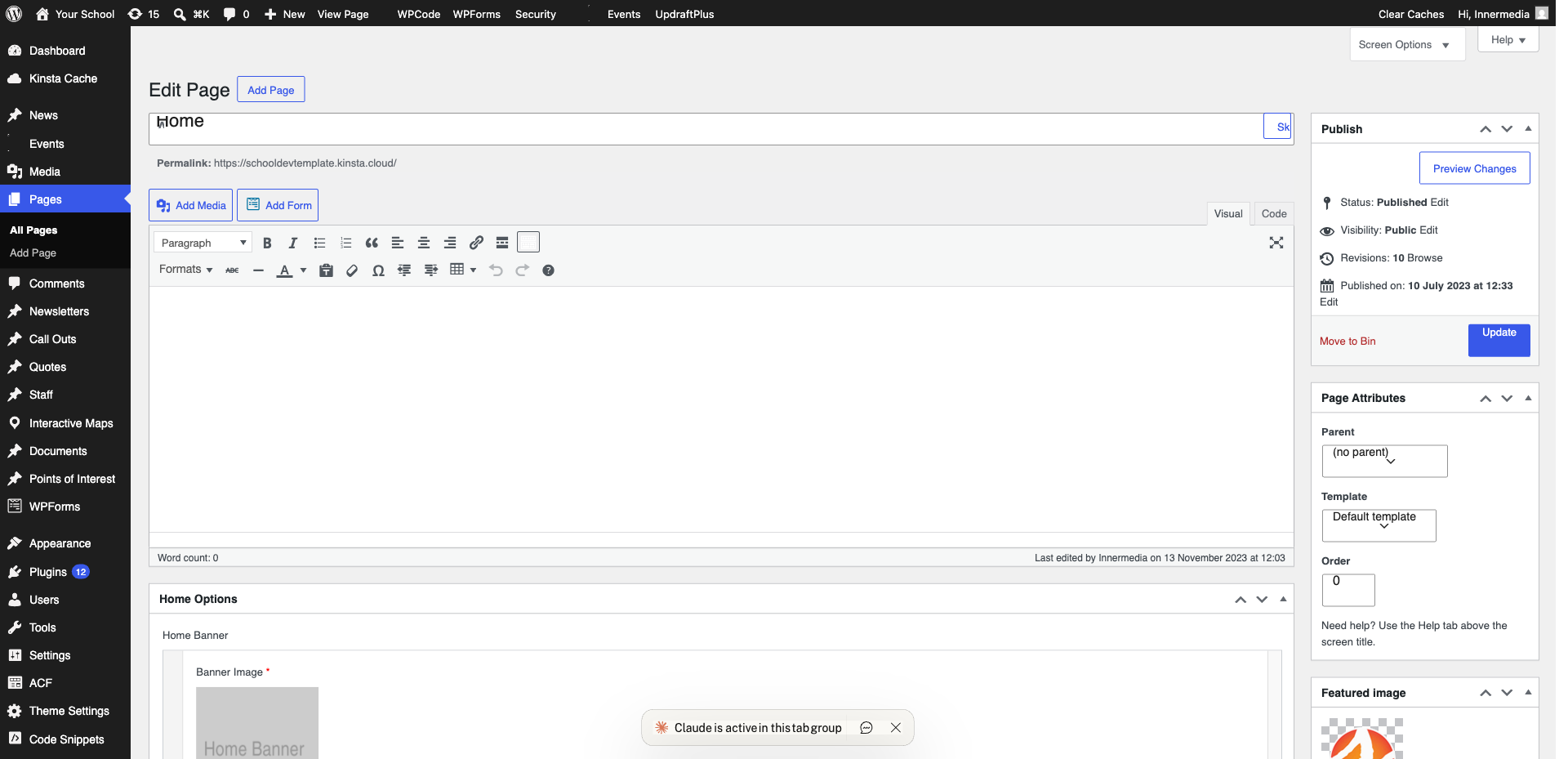
Edit the page where you want the feed and add a shortcode block. Paste the shortcode provided by the plugin (e.g. [instagram-feed]). Click ‘Update’ to publish. The feed will automatically show your latest Instagram posts.
Completed
If you are still experiencing issues, our support team is here to help.
Was this article helpful?