Connecting to Mailchimp or Email Marketing
If you do not have one, sign up at mailchimp.com. Create an audience (mailing list) for your subscribers. Note your API key from Account → Extras → API keys.
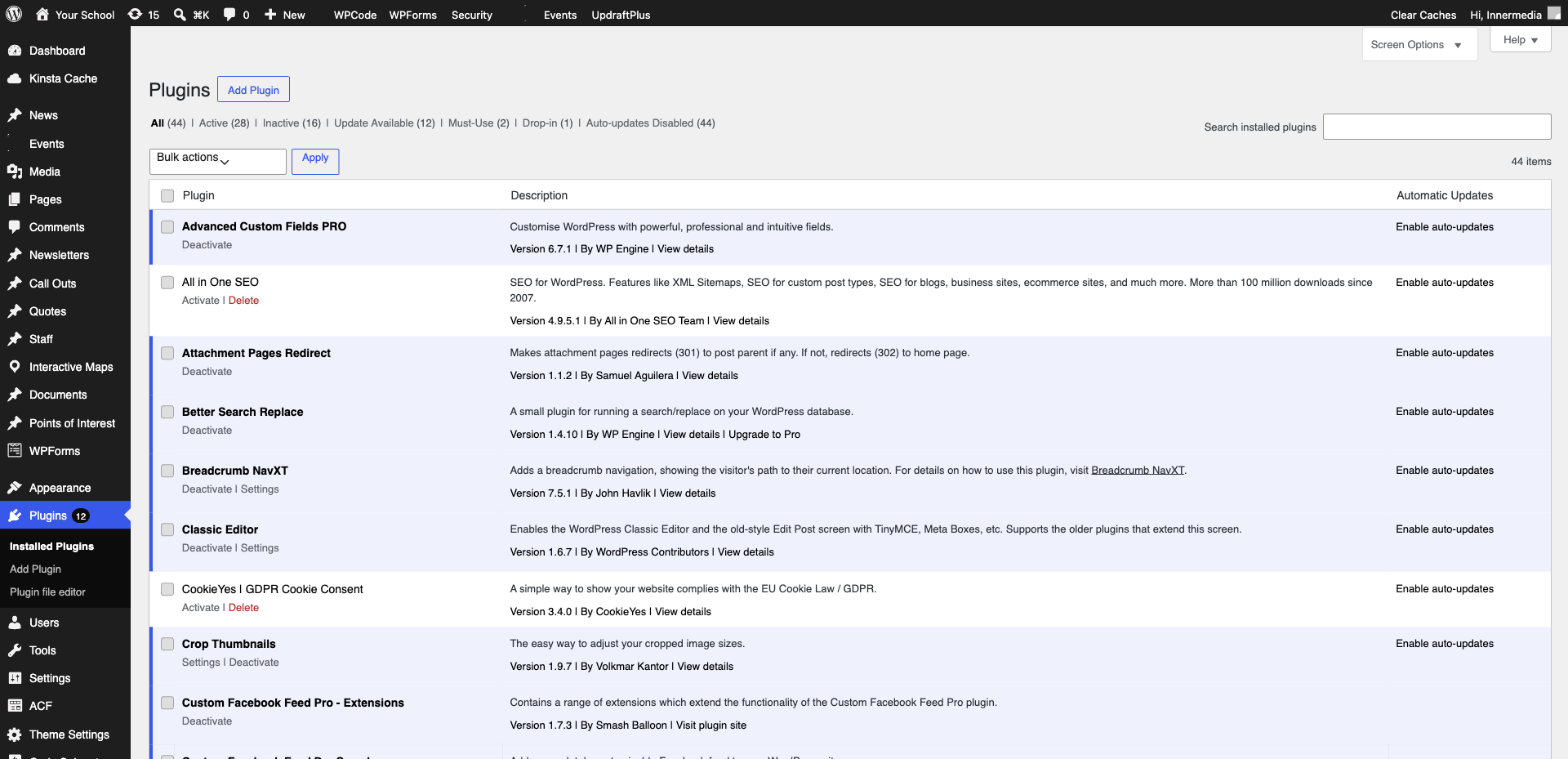
In WordPress, install and activate a Mailchimp integration plugin (e.g. MC4WP: Mailchimp for WordPress or your form plugin’s Mailchimp add-on). Enter your API key in the plugin settings to connect.
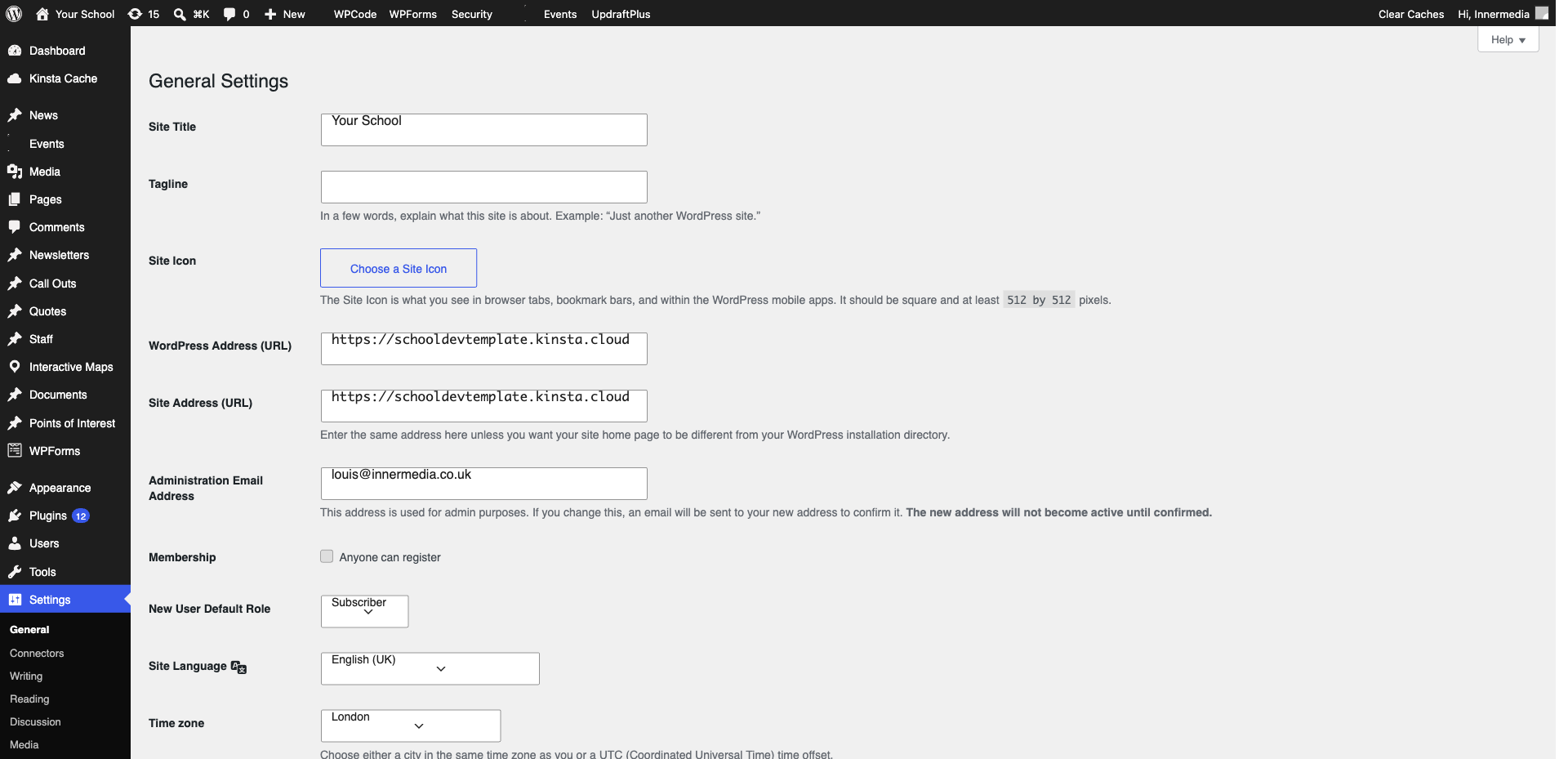
If using a form plugin add-on, go to your form’s settings and add a Mailchimp feed. Map the form’s email field to Mailchimp’s email field, and optionally map name and other fields. Set conditions if needed (e.g. only add to list if ‘Newsletter’ checkbox is ticked).
Submit a test entry through your form. Check your Mailchimp audience — the test subscriber should appear within a few minutes. If not, check the integration logs for error messages.
Completed
If you are still experiencing issues, our support team is here to help.
Was this article helpful?