Gravity Forms
Go to Forms → Forms and click Edit on the form you want to split into steps. You’ll need a form with several fields already added.

In the Standard Fields panel, find Page Break and drag it between the groups of fields where you want to create a new page. Each Page Break creates a new step. Repeat until your form has the right number of sections.

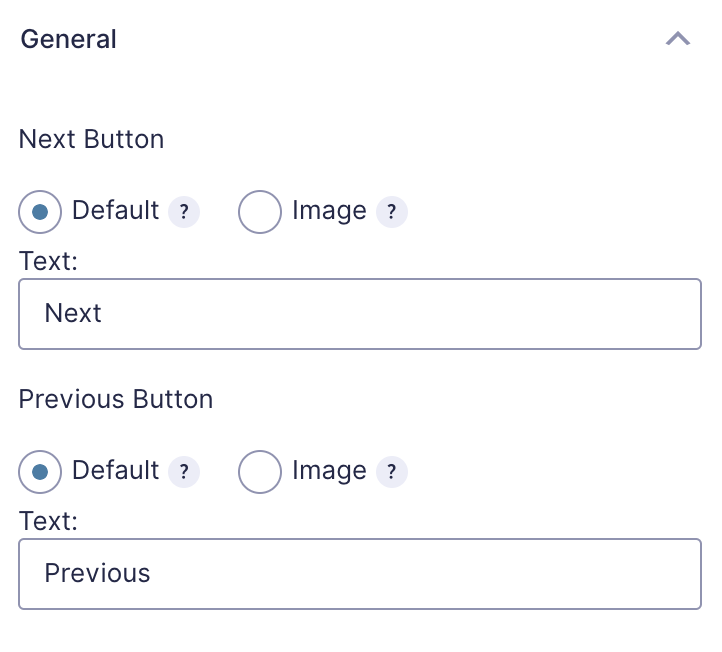
Click on a Page Break field to edit the Next and Previous button text. You can change these to something friendlier like “Continue” and “Go Back”. The first page automatically shows a Next button; the last page shows the Submit button.
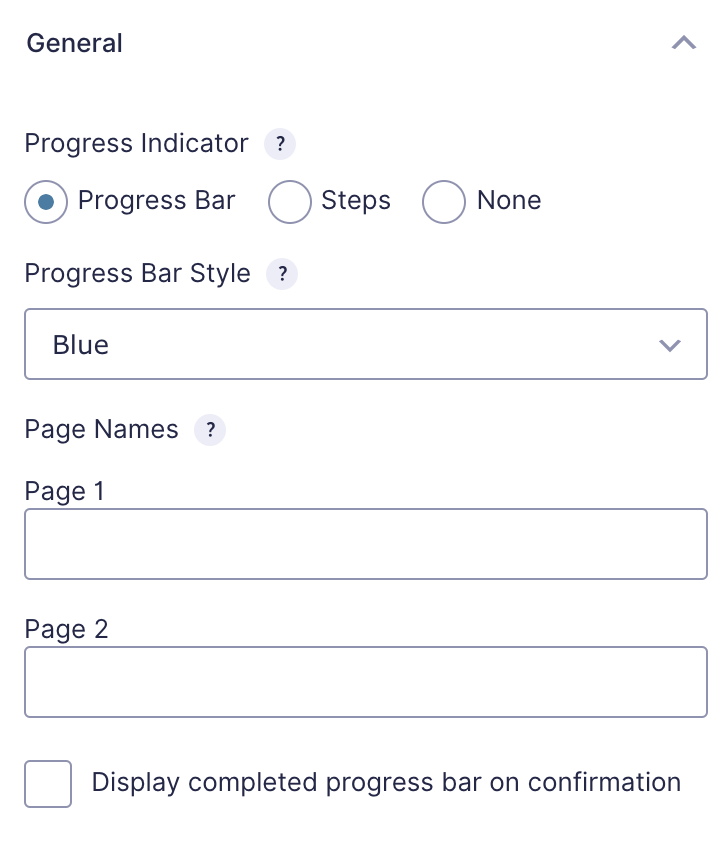
To show visitors how far through the form they are, click the first page break (at the top of the form) and choose a Progress Indicator style — either a progress bar, steps, or none. Save and preview your form to test the multi-step experience.
Completed
If you are still experiencing issues, our support team is here to help.
Was this article helpful?