INNERMEDIA
Contact Support
Support Base
Integrations & Feeds
Embedding Google Reviews
Step 0 of 4 completed
1
Choose a Reviews Plugin
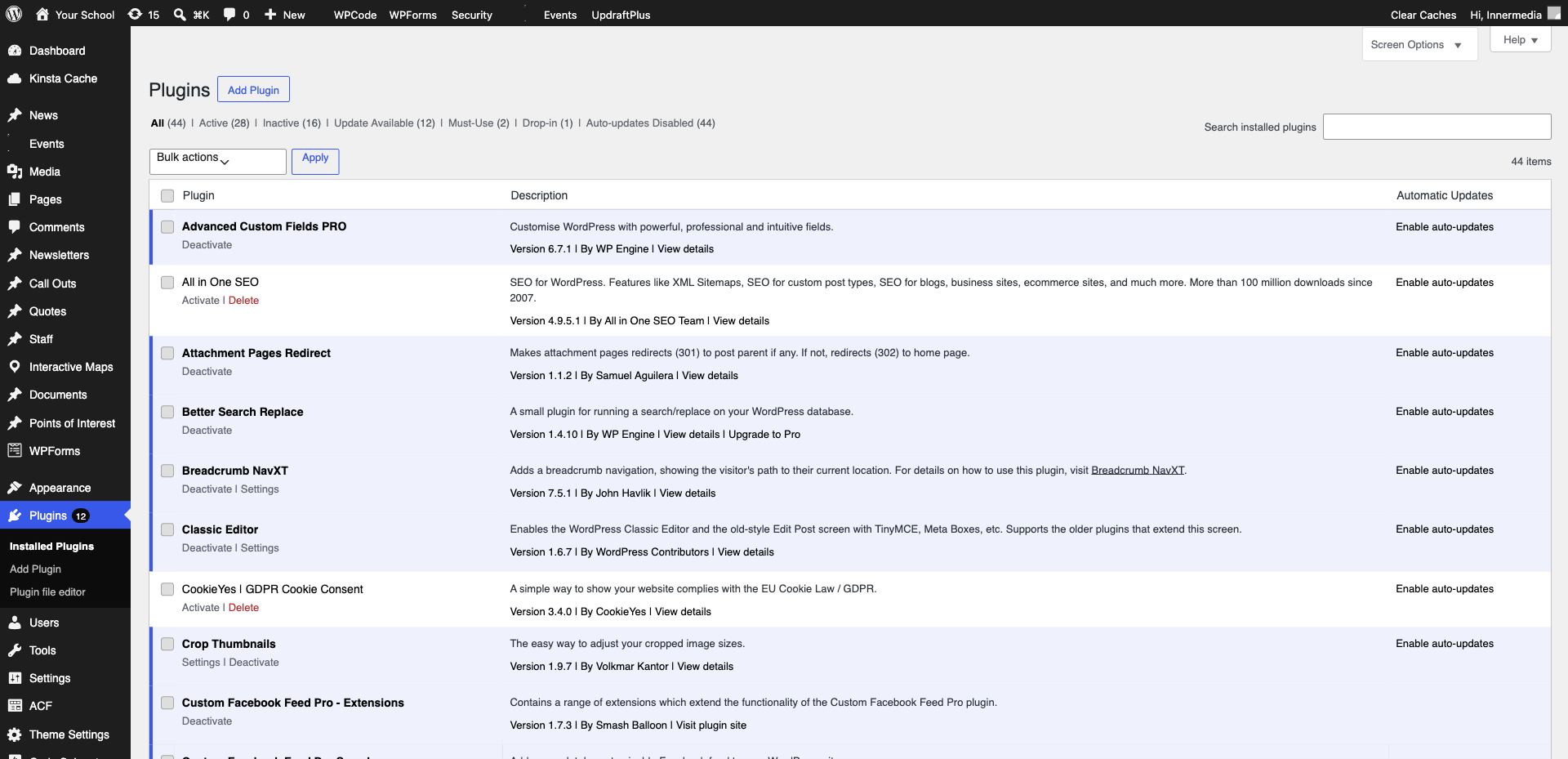
Popular options include Widget for Google Reviews, Jetrreviews, or Elfsight. Install the plugin from Plugins → Add New, or if your site already has one, go to its settings page.
2
Connect to Google
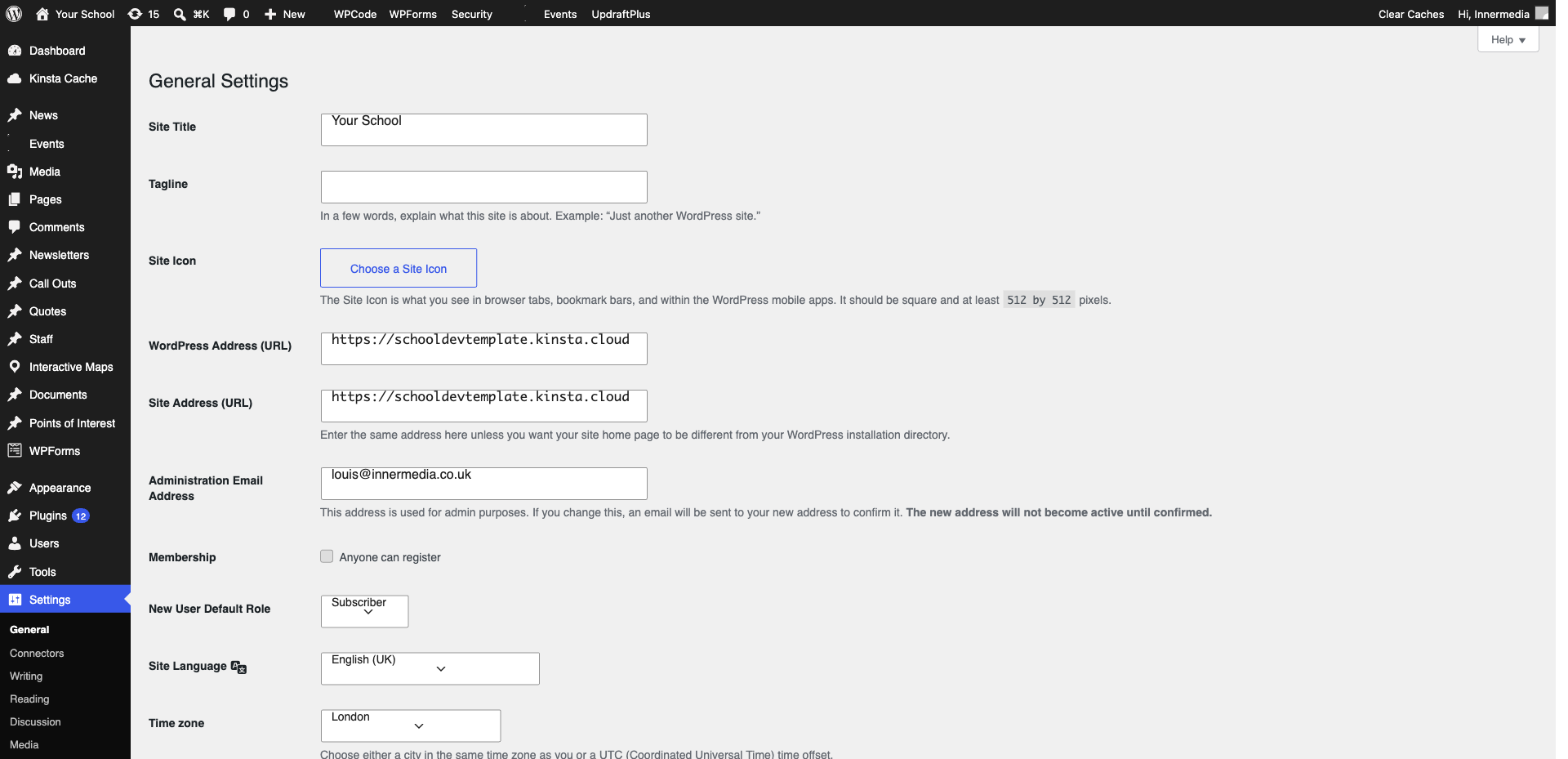
Enter your Google Place ID (you can find this via the Google Place ID Finder tool). The plugin will pull your reviews from Google. Authenticate if required.
Pro Tip
You need a Google Business Profile to display reviews. If your school does not have one, we can help set it up. 3
Configure Display Settings
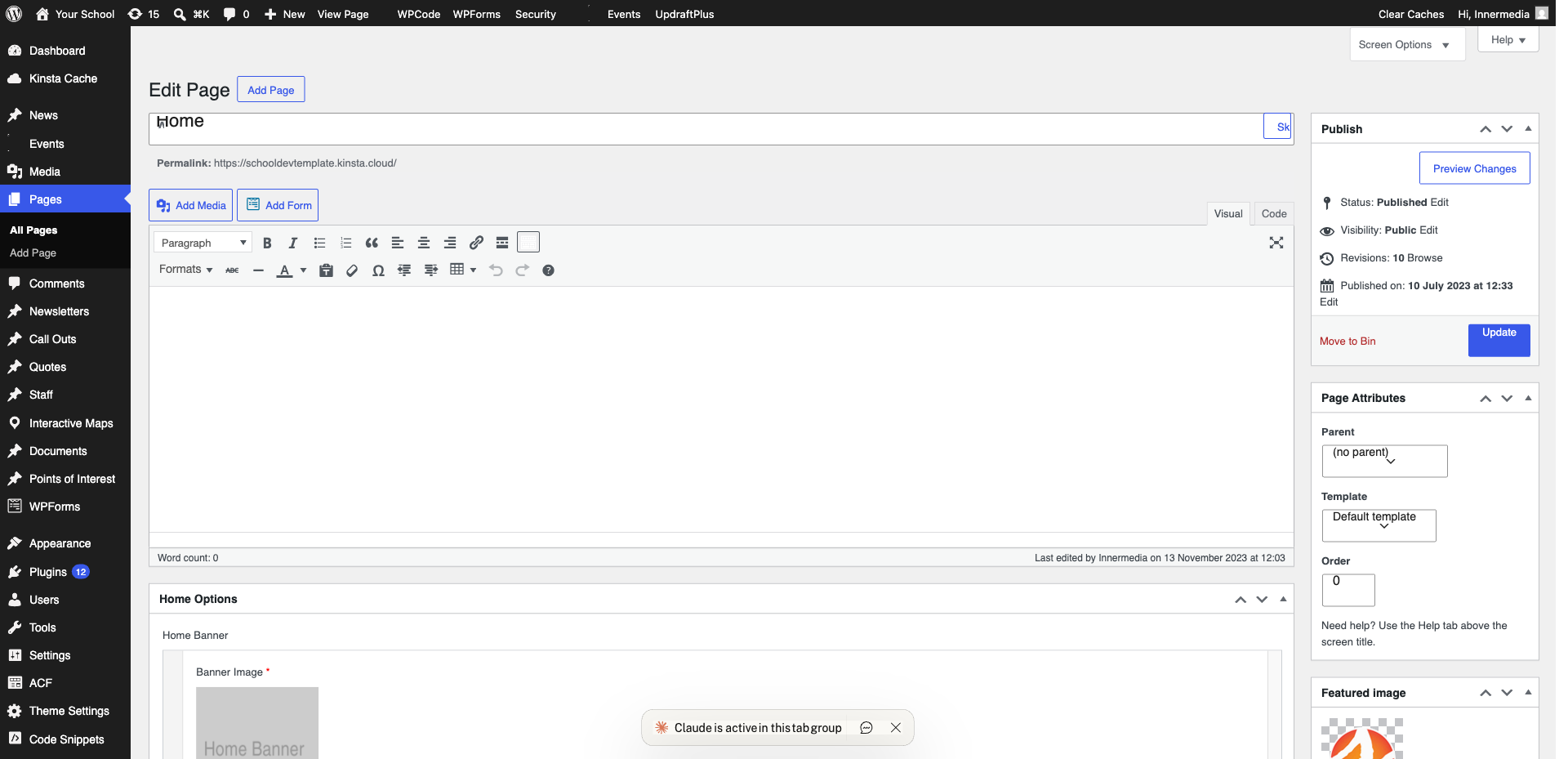
Choose how many reviews to show, the minimum star rating to display, and the layout style. Most schools show 4–5 star reviews only in a carousel format.
4
Add to Your Page
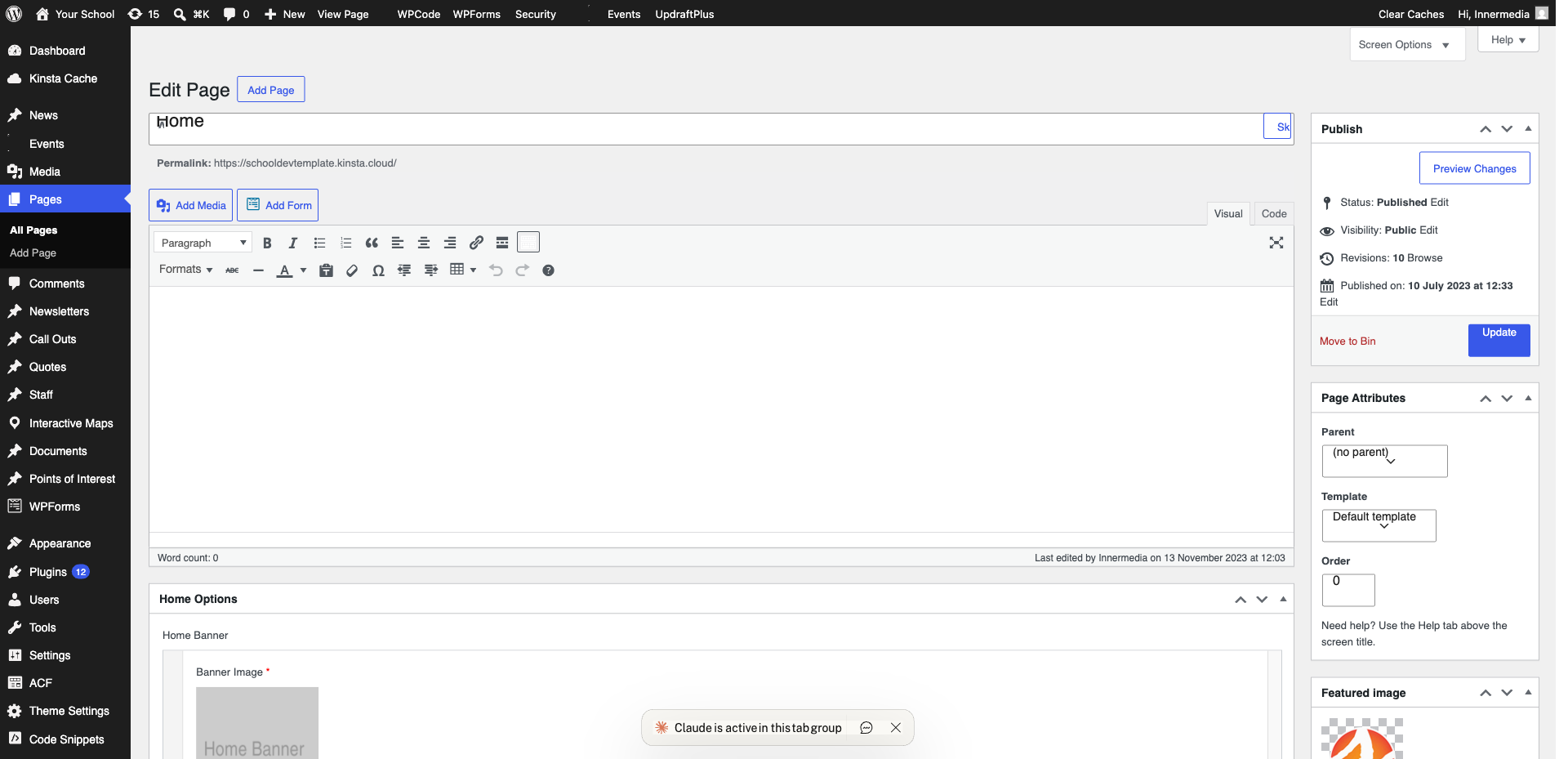
Use the plugin’s shortcode or widget to add the reviews to a page. Common placements include the homepage, admissions page, or a dedicated testimonials page.
Completed
If you are still experiencing issues, our support team is here to help.
Was this article helpful?