WPForms
Open your form in the WPForms builder and go to Settings → Notifications. Confirm the Send To Email Address is correct and that the notification is enabled (the toggle should be on).
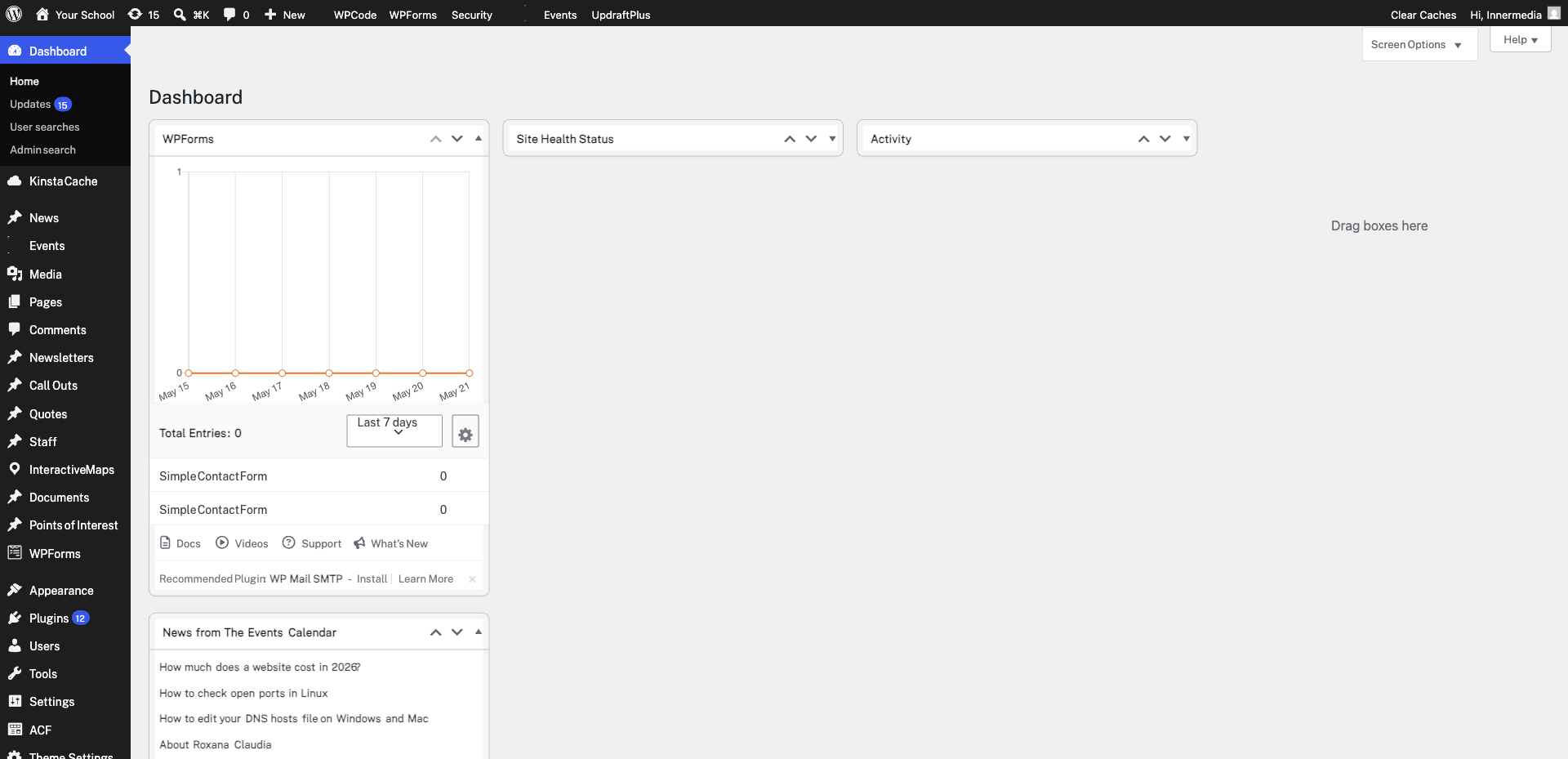
The From Email should use your website’s domain (e.g. noreply@yourdomain.co.uk). Using a third-party email like Gmail here often causes deliverability issues. Update it to match your domain.
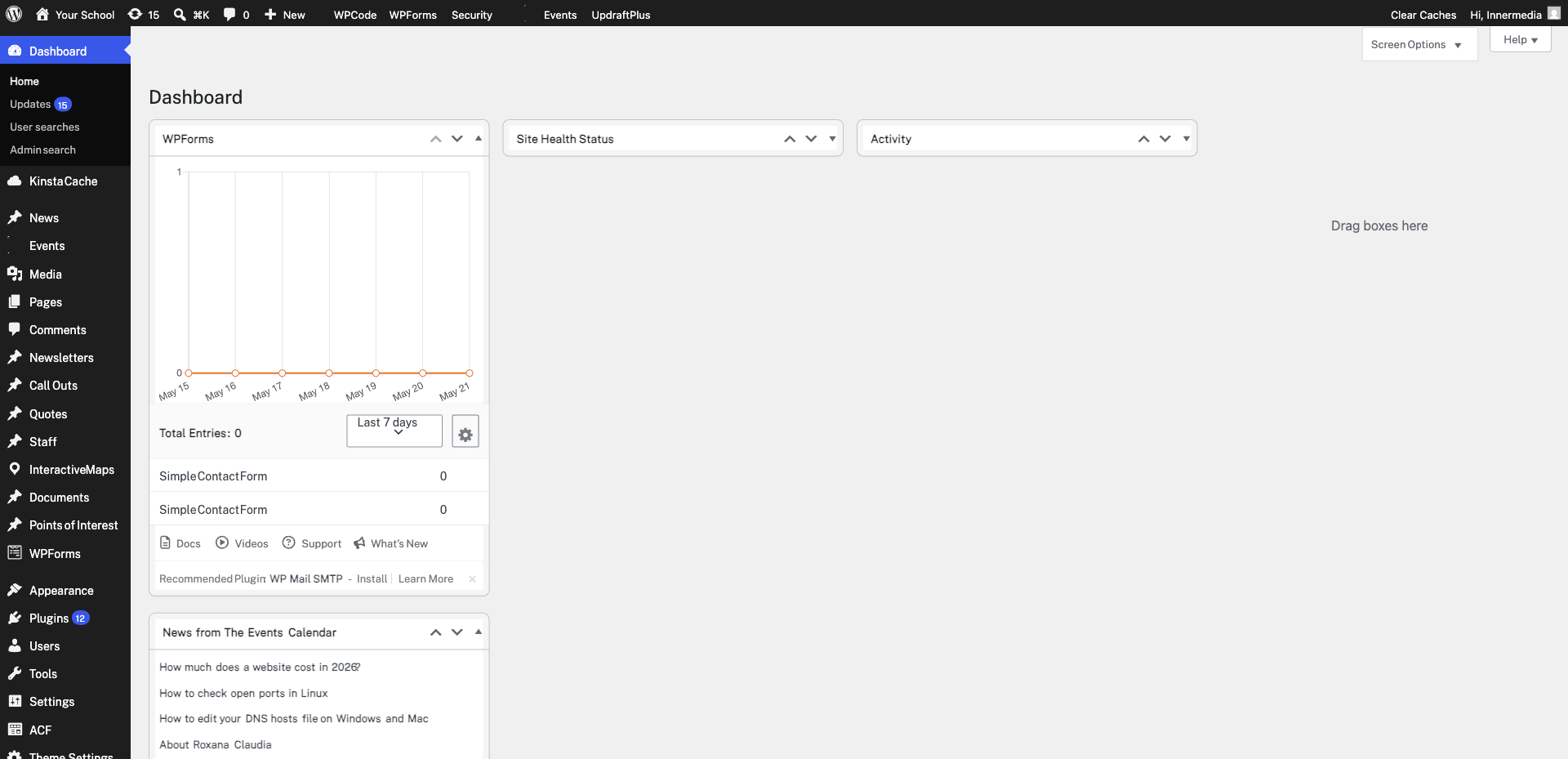
Form notification emails sometimes land in spam or junk folders. Search your email inbox for the notification subject line. If found in spam, mark it as “Not Spam” to improve future delivery.
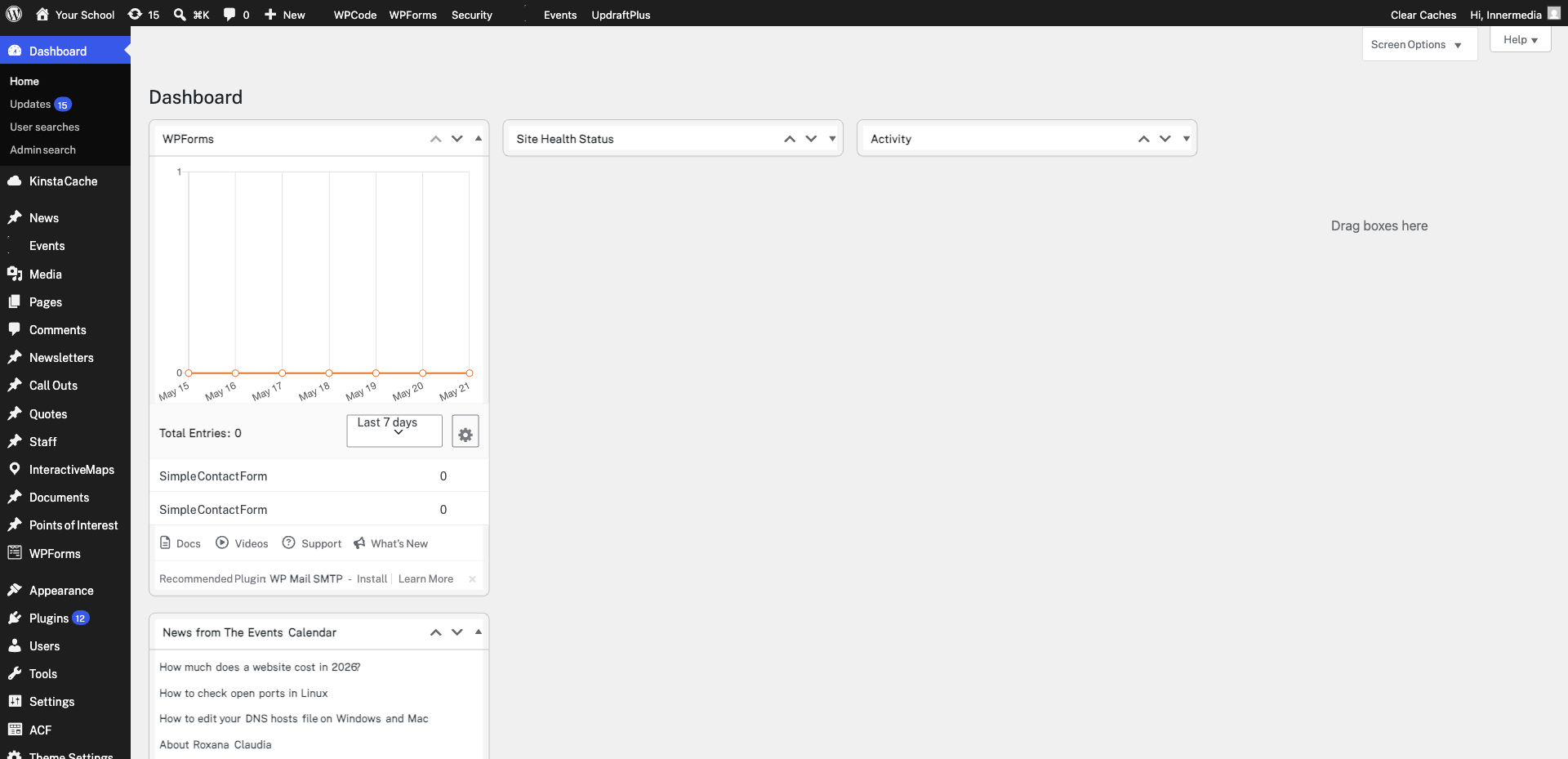
Go to WPForms → Entries and check the form in question. If entries appear here but emails aren’t arriving, the issue is with email delivery, not the form. Contact Innermedia to check your SMTP configuration or install WP Mail SMTP.
Completed
If you are still experiencing issues, our support team is here to help.
Was this article helpful?