How to Add a News Post
Go to News → Add News in your WordPress admin menu — SchoolCMS uses its own News section rather than the default WordPress Posts.
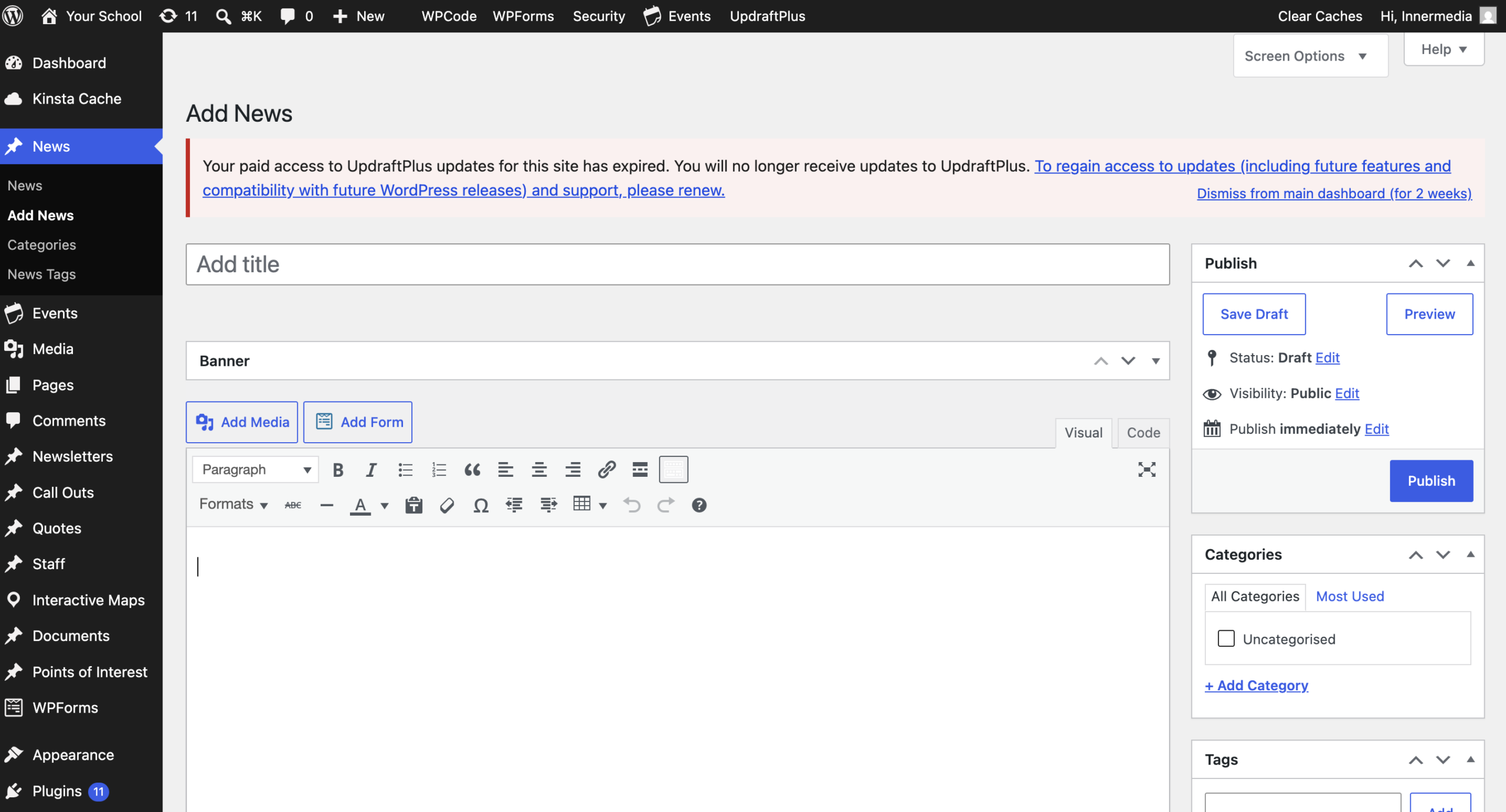
Give the post a title, then write the story in the main content area. Use Add Media to insert any images.
In the Categories panel on the right of the editor, tick the relevant category (e.g. News) so the post appears in your Latest News section.
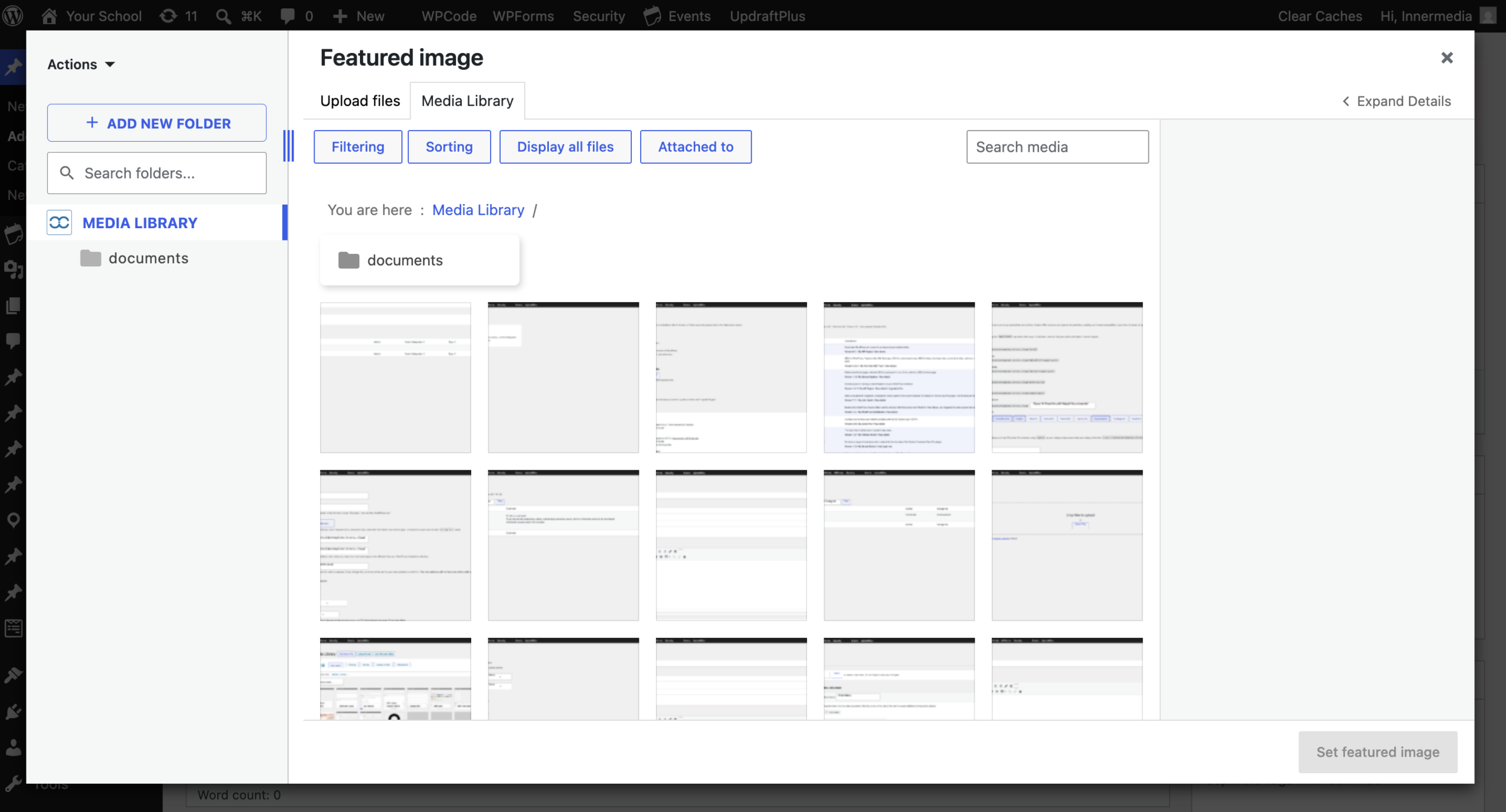
Add a Featured Image if your site displays one on the news listing page — this is usually what shows as the thumbnail.
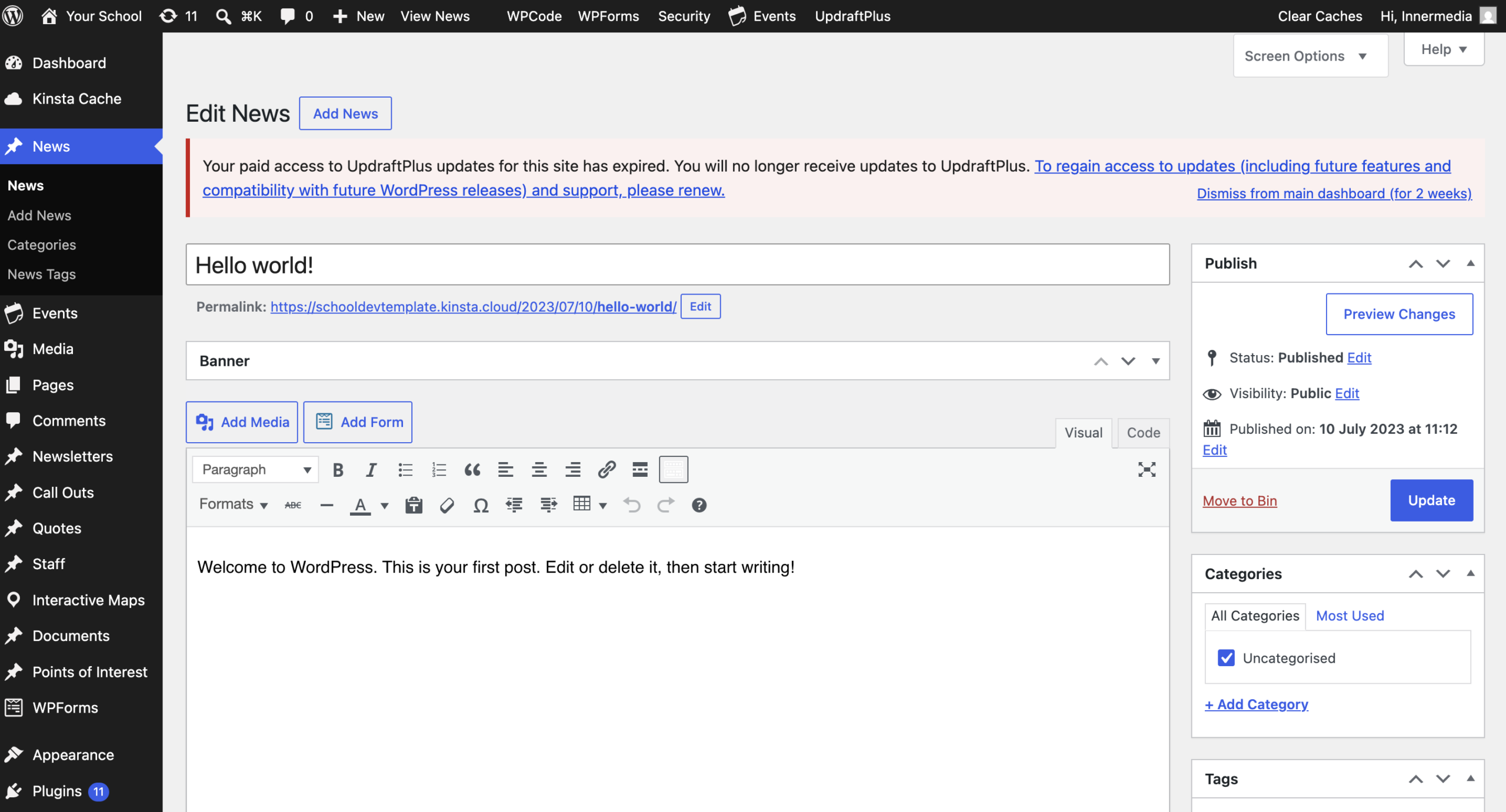
Click Publish in the Publish panel.
Once a post is live, that same button changes from “Publish” to Update whenever you edit it again — if you see “Update”, the post is already public, and clicking it will push your changes live immediately.
Go back to News to see it listed, or check your Latest News page on the live site to confirm it appears as expected.
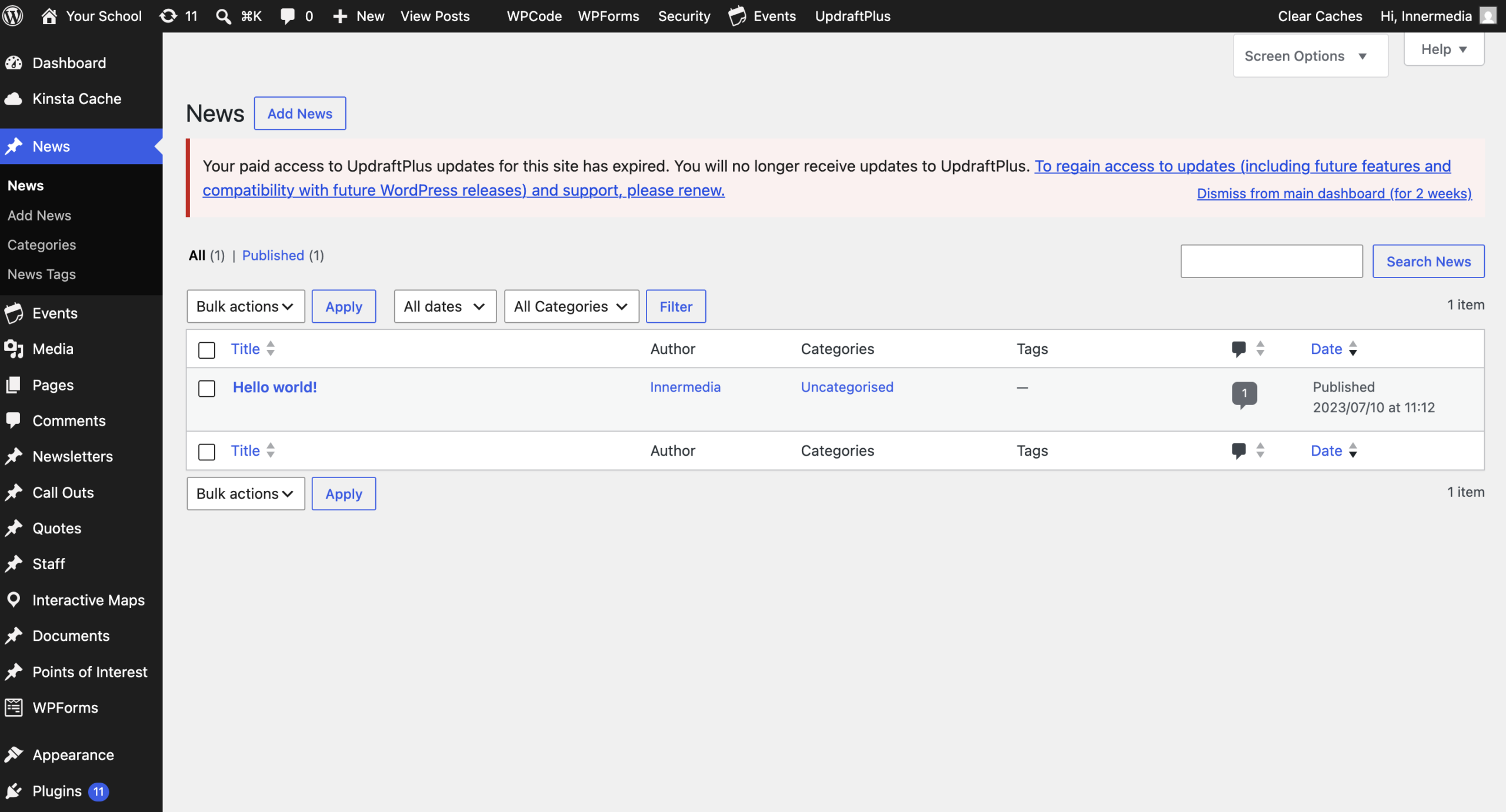
Completed
If you are still experiencing issues, our support team is here to help.
Was this article helpful?