Navigating the Elementor Interface
The Widget Panel (Left Sidebar)
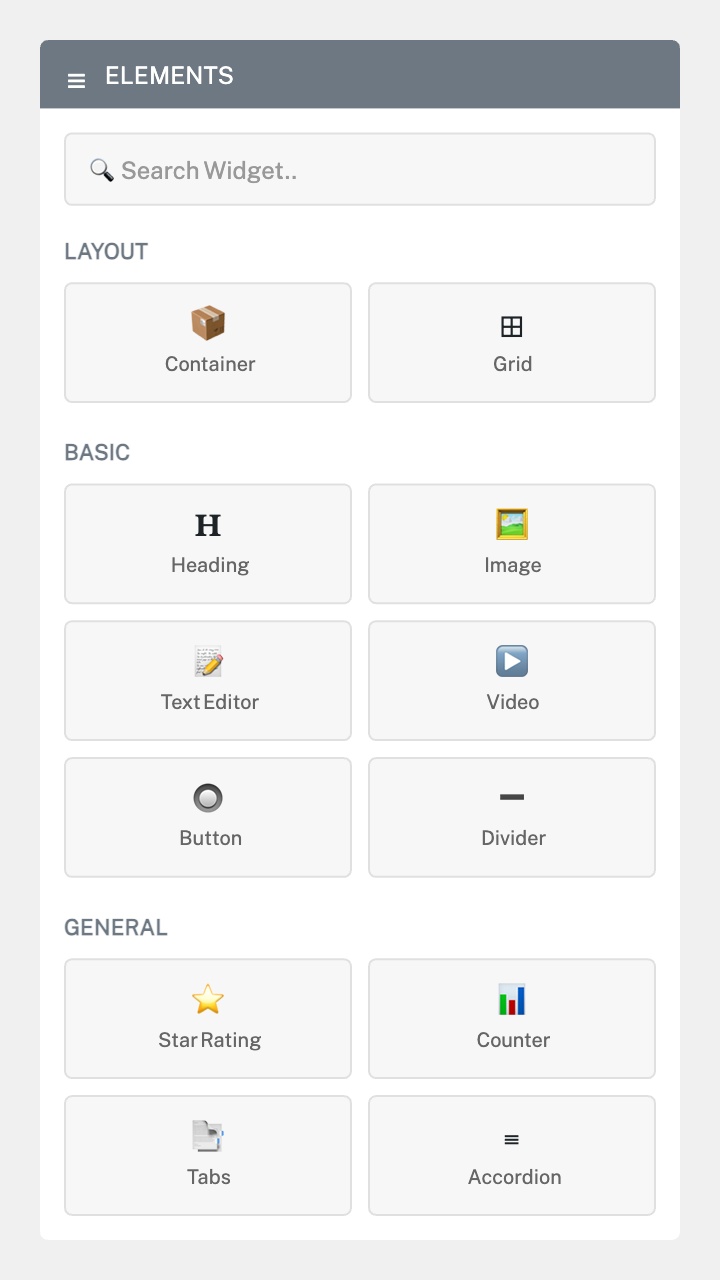
The left-hand panel is where you’ll find all the widgets (also called elements) you can add to your page. These are grouped into categories:
Layout — Container and Grid widgets for structuring your page sections.
Basic — Heading, Image, Text Editor, Video, Button, Divider, Spacer, and Google Maps.
General — Icon, Image Box, Star Rating, Icon List, Counter, Progress Bar, Testimonial, Tabs, Accordion, and more.
At the top of the panel is a Search Widget bar — type the name of any widget to find it quickly.
The Canvas (Centre Area)
The large centre area is your live page preview. This is where your actual page content is displayed and where you can click on any element to select and edit it. Blue outlines appear around elements when you hover over them, and a blue border with drag handles appears when you click to select one.
The Top Toolbar
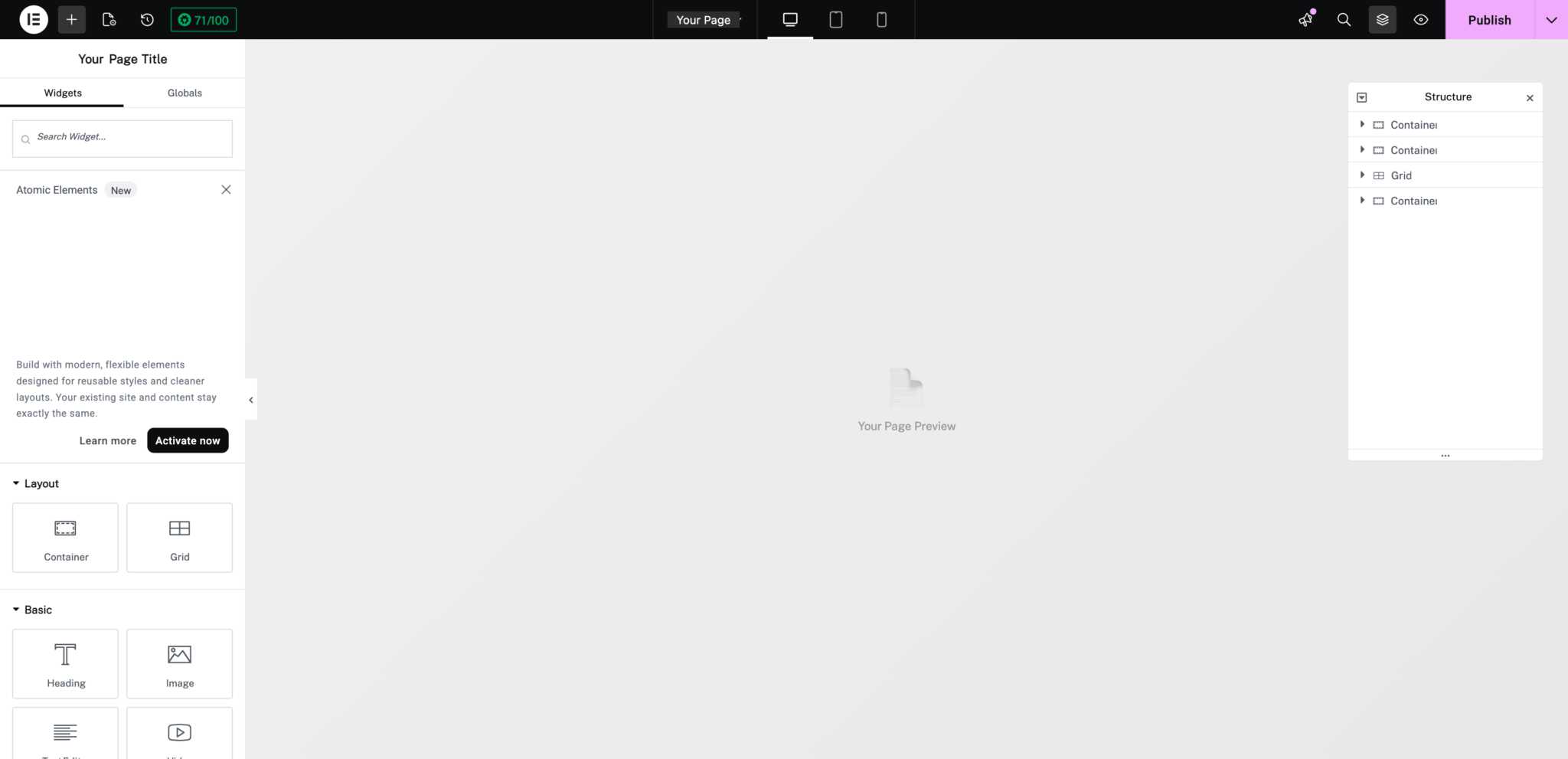
Along the top of the editor you’ll find several important controls:
Page name dropdown — Shows which page you’re editing. Click it to switch pages.
Responsive mode icons — Desktop, Tablet, and Mobile preview icons let you see how your page looks at different screen sizes.
Publish / Update button — Saves and publishes your changes. The dropdown arrow next to it gives options to save as draft or apply a template.
The Bottom Toolbar
At the bottom-left of the widget panel, you’ll find quick-access icons for:
Settings (gear icon) — Opens Page Settings where you can change the page title, status, featured image, and layout.
Navigator (layers icon) — Opens a tree view of all sections, columns, and widgets on the page. This is very useful for finding and selecting nested elements.
History (clock icon) — View and restore previous revisions of the page.
Responsive mode — Another way to toggle between desktop, tablet, and mobile views.
The Navigator Panel
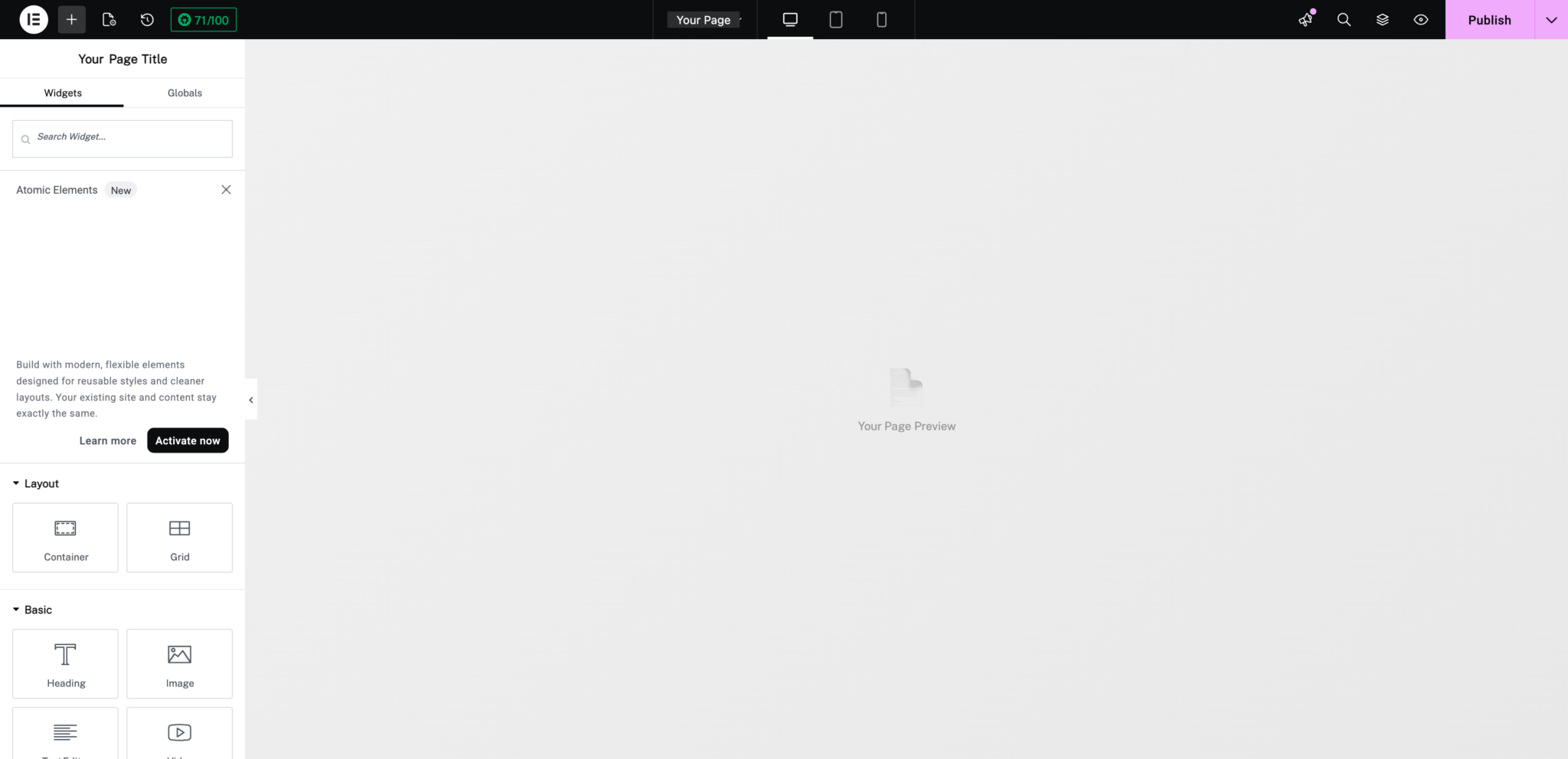
The Navigator (also called Structure) is one of the most useful features in Elementor. It shows a tree view of every section, container, and widget on your page. You can:
• Click any item to select it in the canvas
• Drag items to reorder them
• Right-click for options like duplicate, copy, or delete
• Collapse and expand sections to find specific elements
Open it by clicking the Navigator icon at the bottom of the widget panel, or use the keyboard shortcut Ctrl + I (Cmd + I on Mac).
Was this article helpful?