How to Reset Your Password
Navigate to yoursite.co.uk/wp-admin. You’ll see the Innermedia CMS login screen. Below the login form, click the ‘Forgot password?’ link to begin the password reset process.
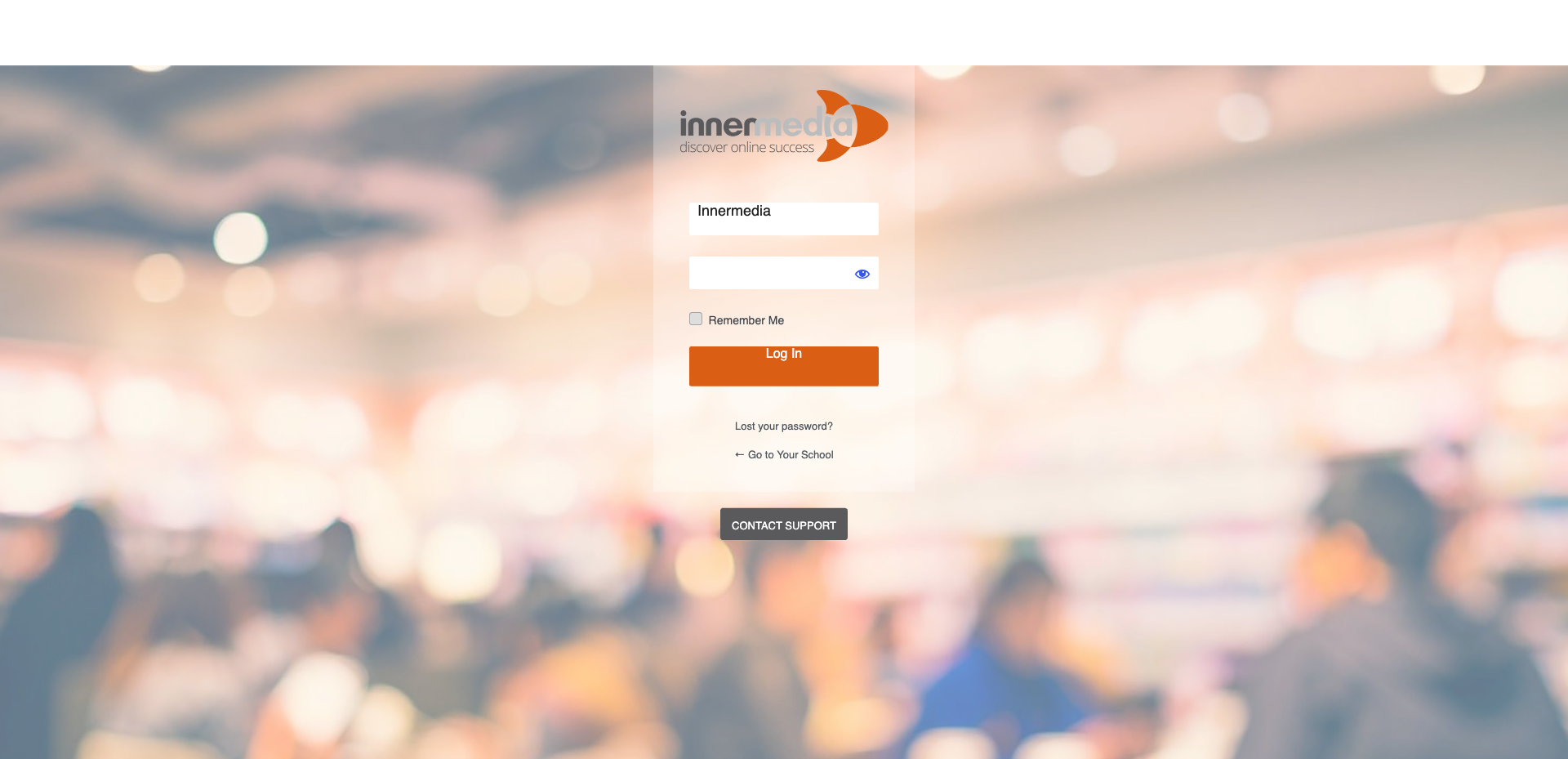
Enter your username or email address and click the orange ‘Sign In’ button. The system will send a password reset link to the email address associated with your account. Check your inbox (and spam/junk folder).
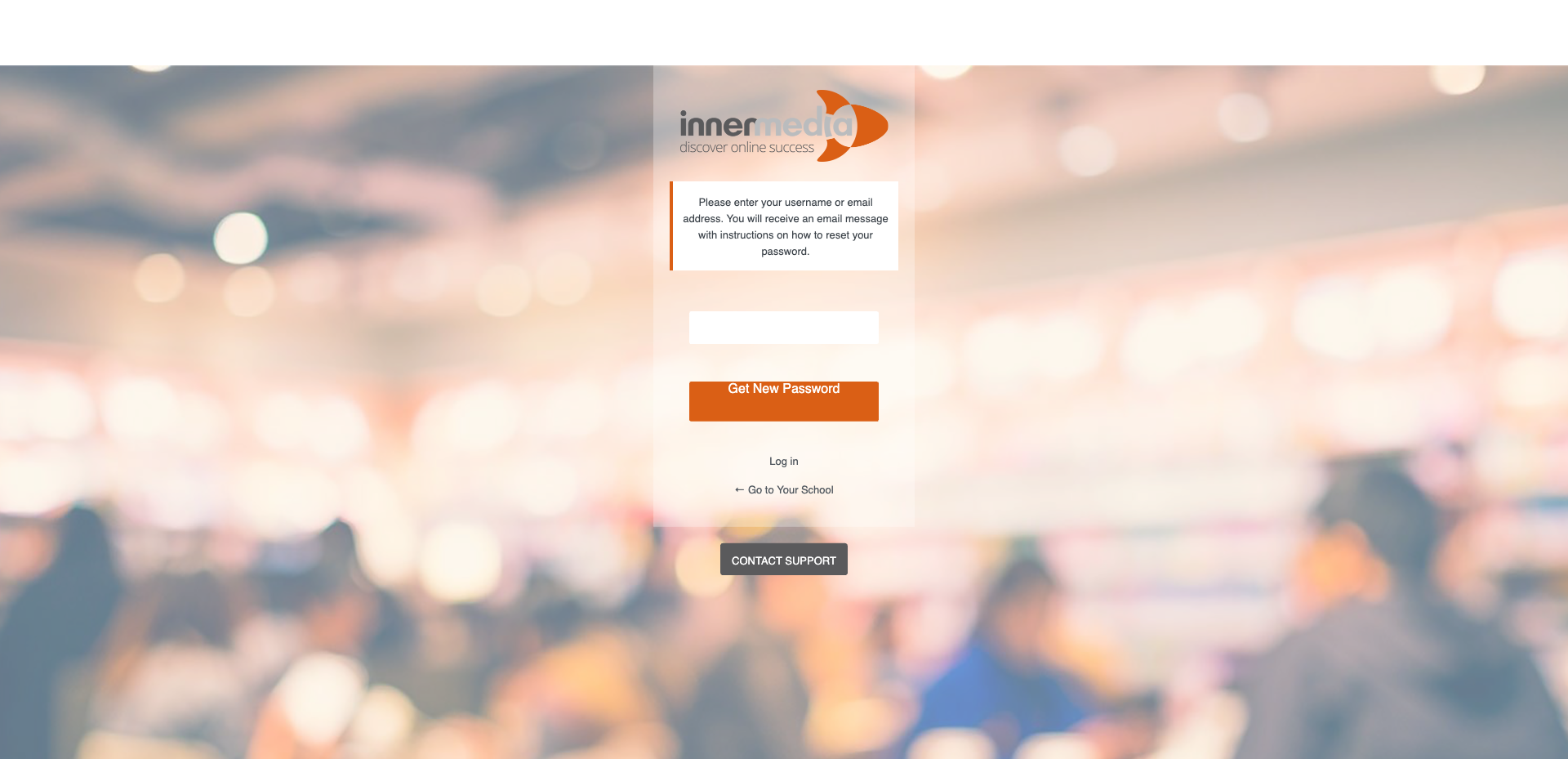
Click the link in the email. You’ll be taken to a page where you can enter a new password. WordPress will suggest a strong password — you can use it or type your own. Click Reset Password when done.
Return to yoursite.co.uk/wp-admin and log in with your username and new password. You’re all set!
Completed
If you are still experiencing issues, our support team is here to help.
Was this article helpful?