Updating Store Settings
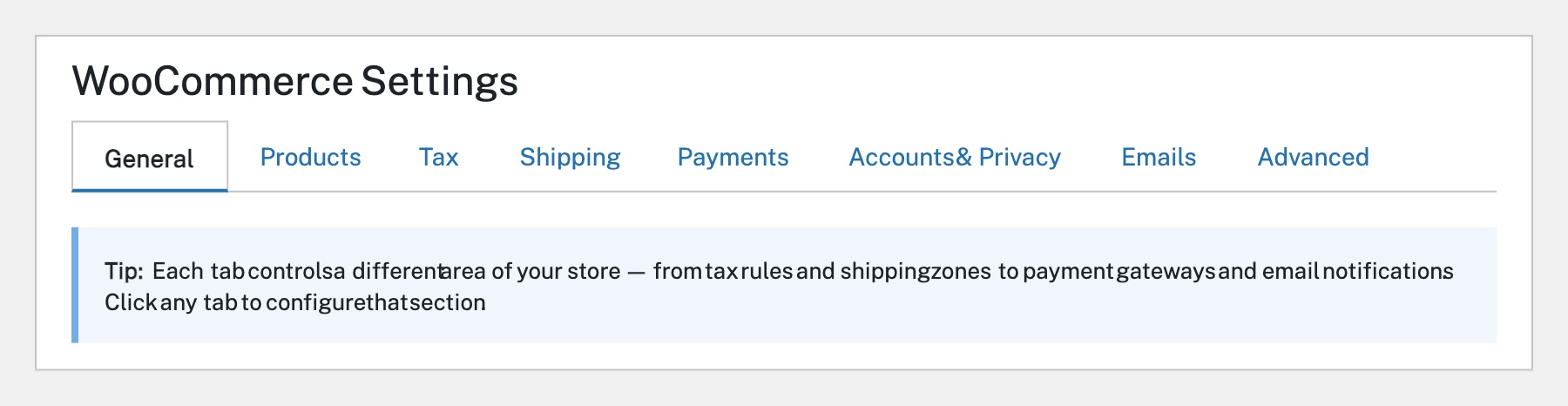
Go to WooCommerce → Settings in the admin sidebar. The settings page is organised into tabs across the top: General, Products, Tax, Shipping, Payments, Accounts & Privacy, Emails, and Advanced. Each tab controls a different area of your store. Click any tab to configure that section.
On the General tab, the first section is Store Address. Enter your business address including Address line 1, City, Country/State, and Postcode. This address is used for tax calculations, shipping estimates, and appears on invoices. Make sure it’s accurate — it affects how taxes and shipping are calculated for customers.
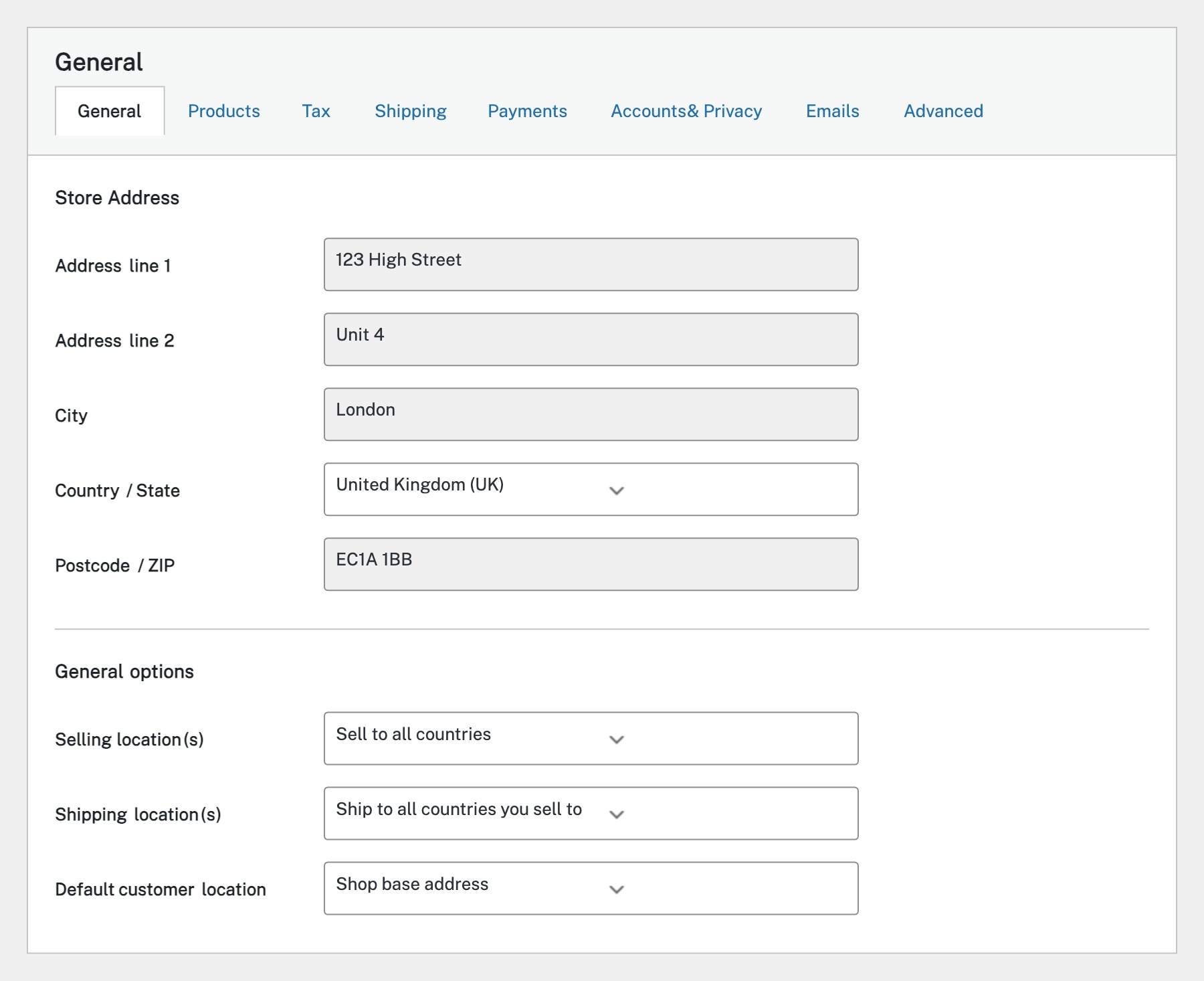
Below the store address, configure where you sell to and ship to. You can sell/ship to all countries, specific countries only, or exclude certain countries. Set the Default customer location — this determines how tax and shipping are estimated before a customer enters their address. Options include ‘Shop base address’, ‘Geolocate’, or ‘No default location’.
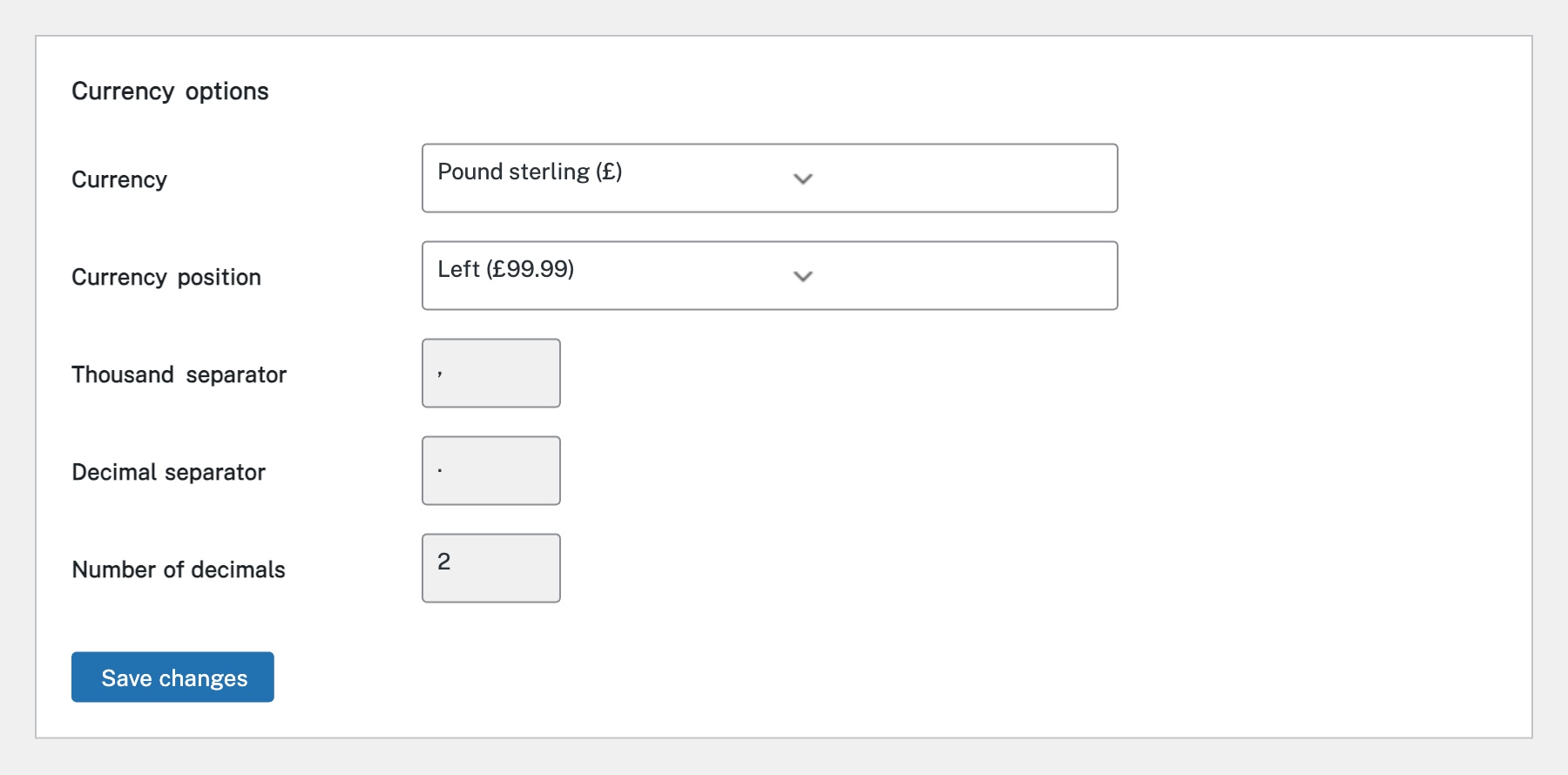
Further down the General tab, set your Currency (e.g. Pound sterling), Currency position (left or right of the amount), Thousand separator, Decimal separator, and Number of decimals. These settings determine how prices display throughout your store. Click Save changes at the bottom when you’re done.
The remaining tabs handle specific store areas: Products (shop page, measurements, inventory, downloadable products), Tax (tax rates and calculations), Shipping (shipping zones, methods, and classes), Payments (enable/disable payment gateways like Stripe, PayPal, BACS), Accounts & Privacy (guest checkout, account creation, data retention), Emails (notification templates), and Advanced (page assignments, REST API, webhooks).
Completed
If you are still experiencing issues, our support team is here to help.
Was this article helpful?