Gravity Forms
Go to Forms → Forms in your dashboard. Hover over the form you want to check and click Entries. This shows every submission received for that form.
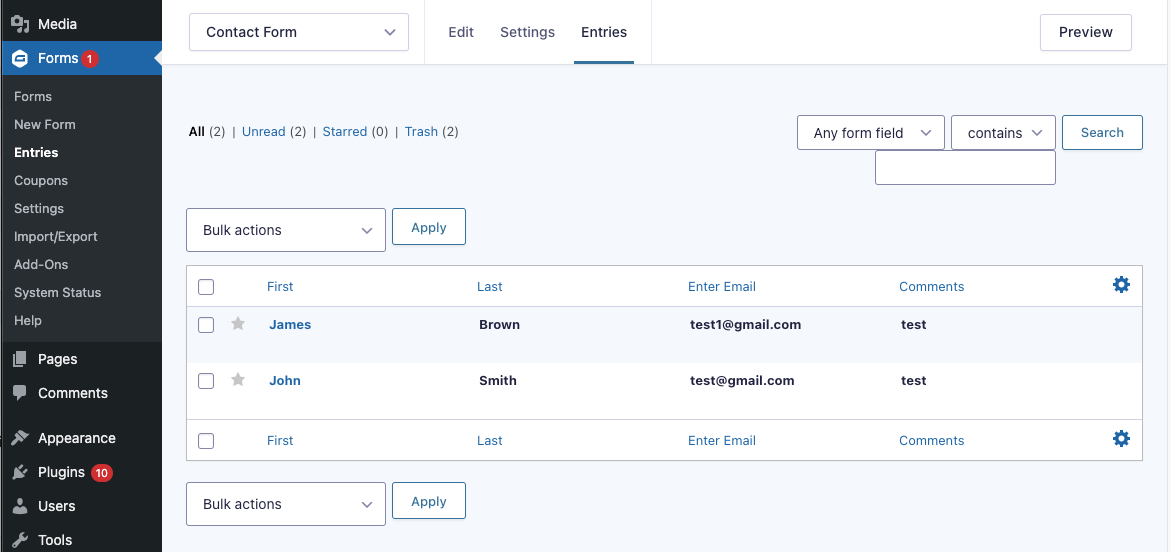
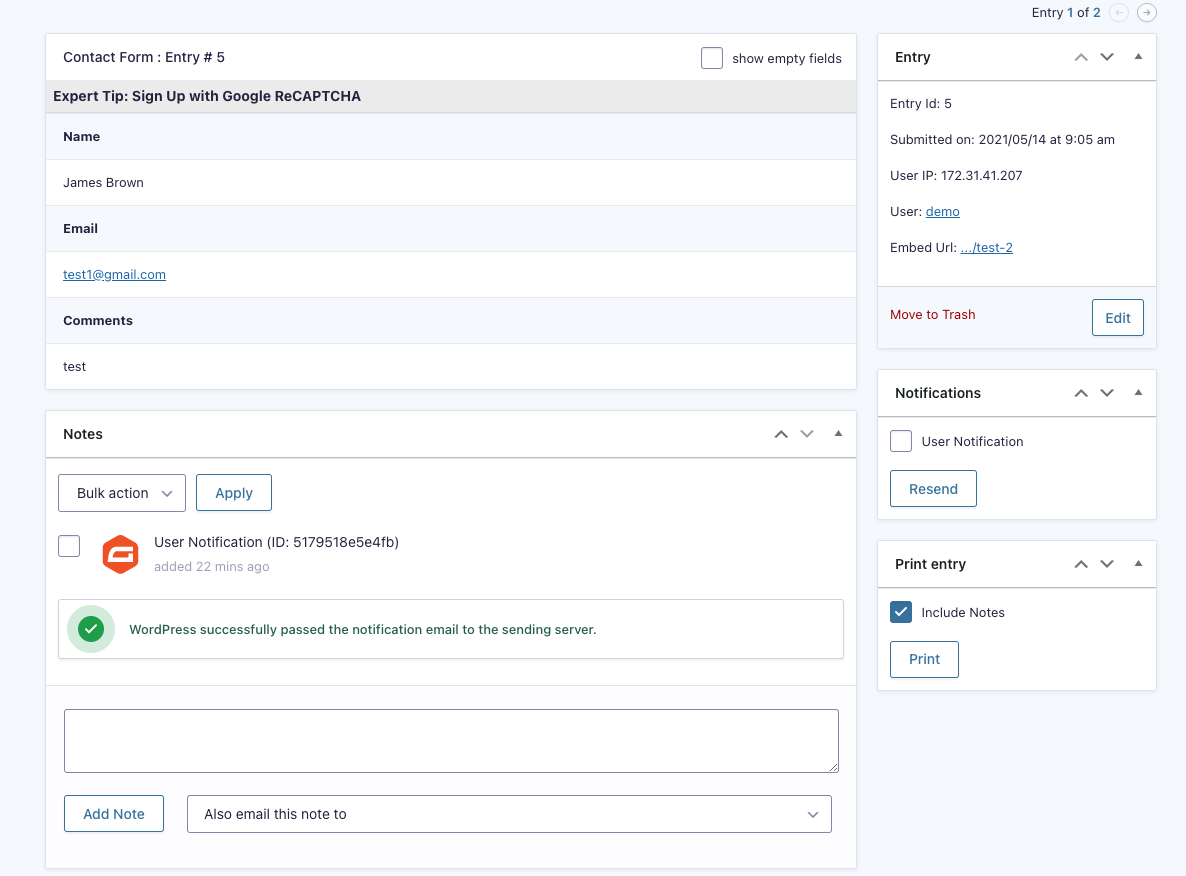
Click on any entry row to open the full submission. You’ll see all the fields the visitor filled in, along with the date, time, IP address, and source URL.
Use the search box at the top to find specific entries by keyword. You can also filter by date range or field value using the filter icon. This is useful for finding a specific enquiry quickly.

Click the star icon next to an entry to flag it for follow-up. Entries can also be marked as read/unread. Use these features to track which enquiries have been handled.
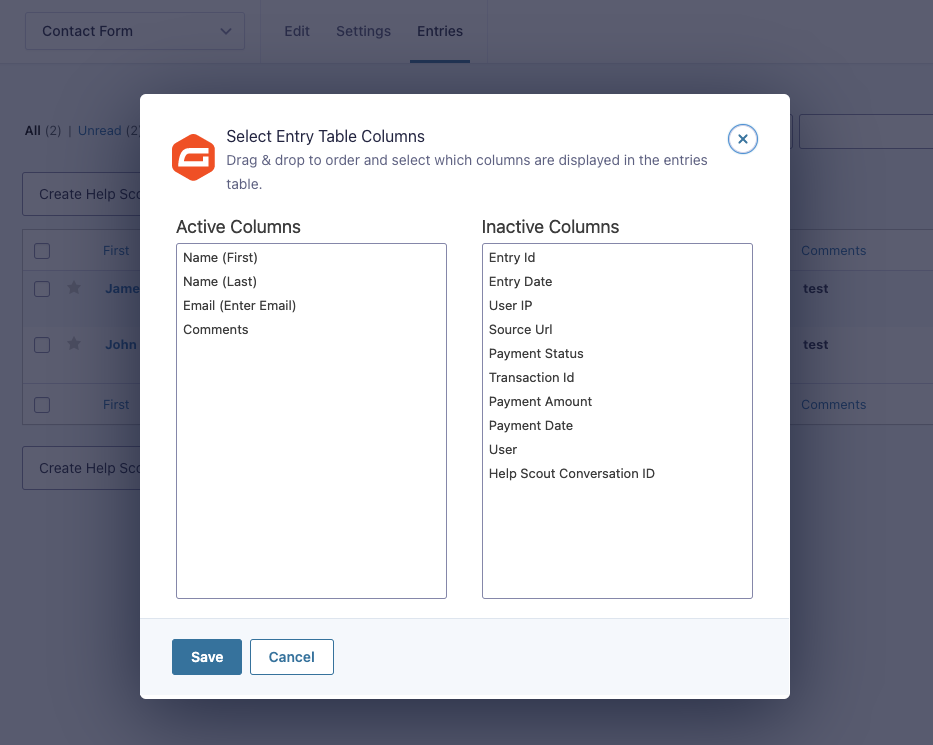
Completed
If you are still experiencing issues, our support team is here to help.
Was this article helpful?