Enabling Two-Factor Authentication
Two-Factor Authentication (2FA) adds a second layer of security beyond your password. Even if someone guesses or steals your password, they cannot log in without the second factor — usually a code from your phone.
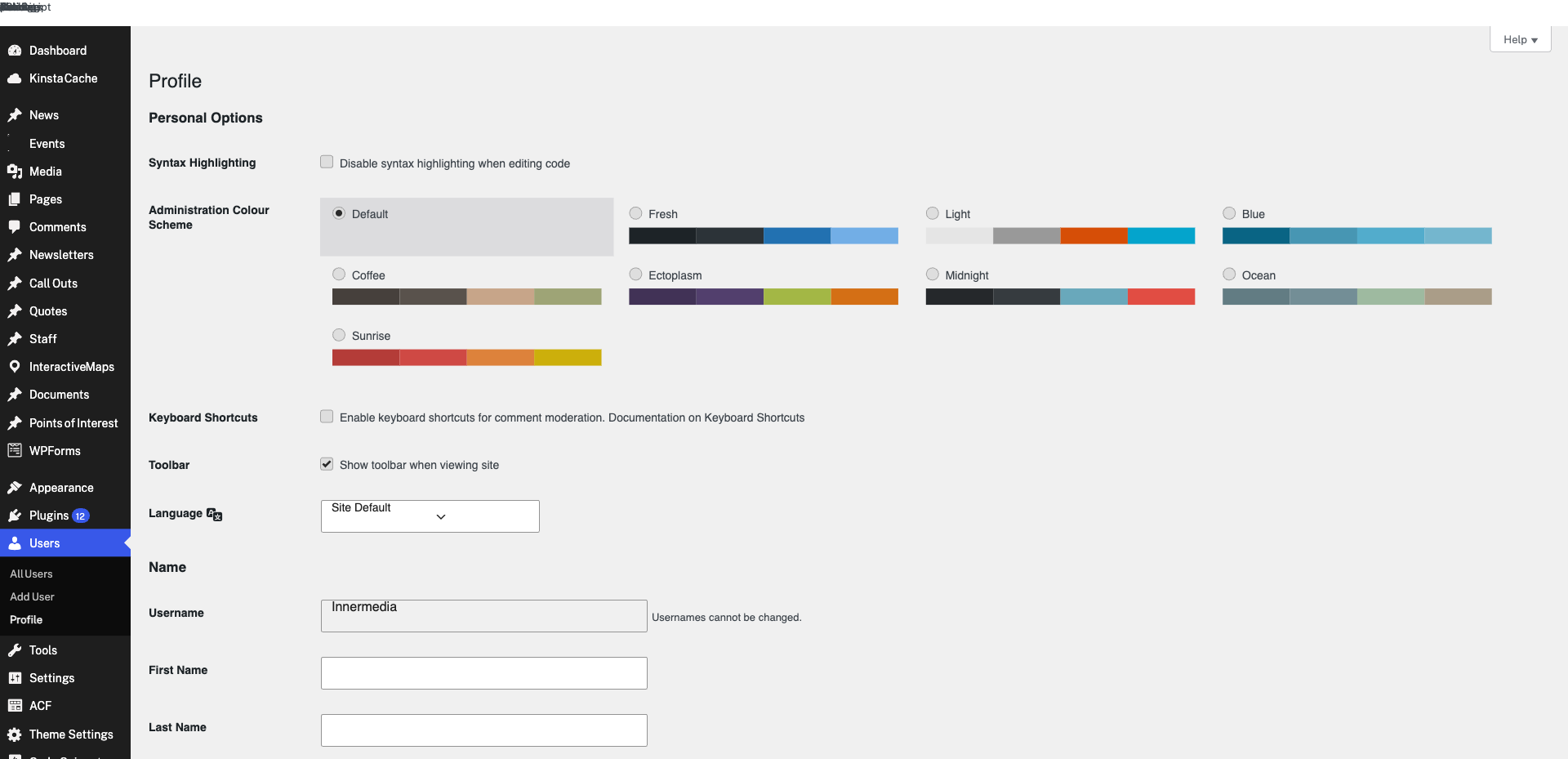
Download an authenticator app on your phone. We recommend Google Authenticator or Microsoft Authenticator (both free, available on iOS and Android). These apps generate time-based codes that change every 30 seconds.
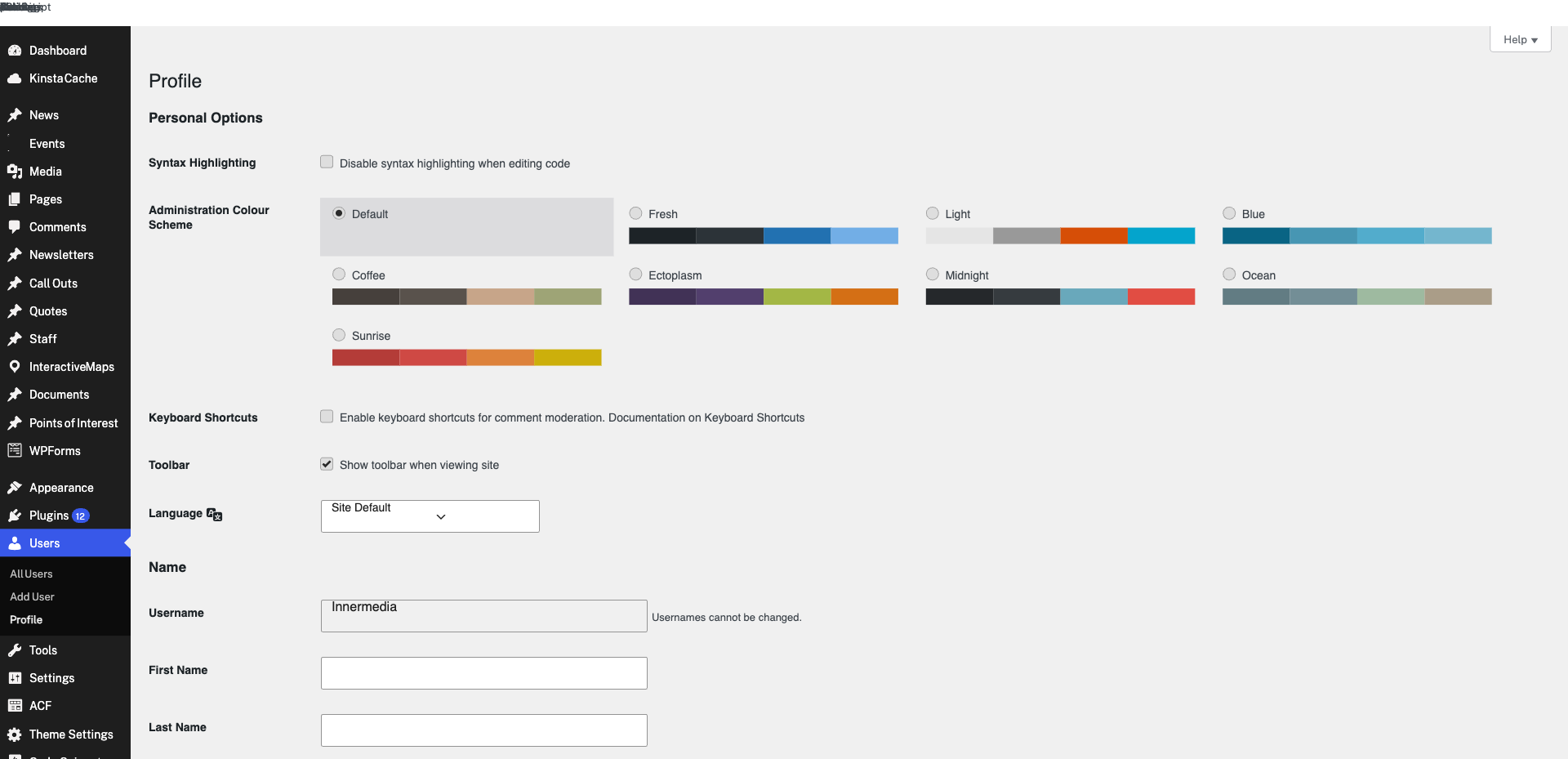
If your site has a security plugin like Wordfence, go to Wordfence → Login Security and scan the QR code with your authenticator app. Enter the 6-digit code to confirm. If you do not see this option, contact Innermedia and we will enable it for you.
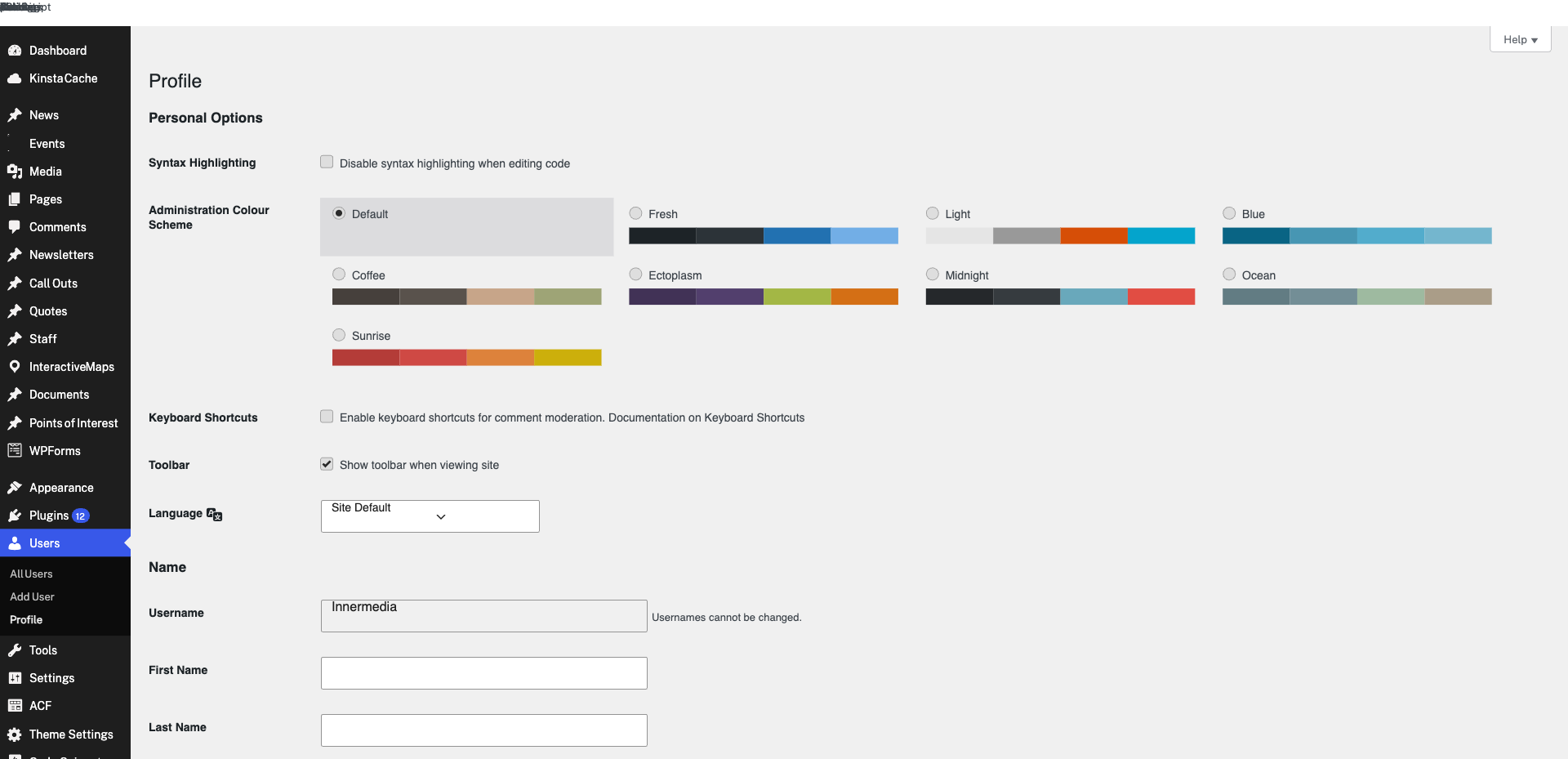
After enabling 2FA, you will be given recovery codes. Save these somewhere safe (not on your phone). If you lose access to your authenticator app, these codes are the only way to get back into your account.
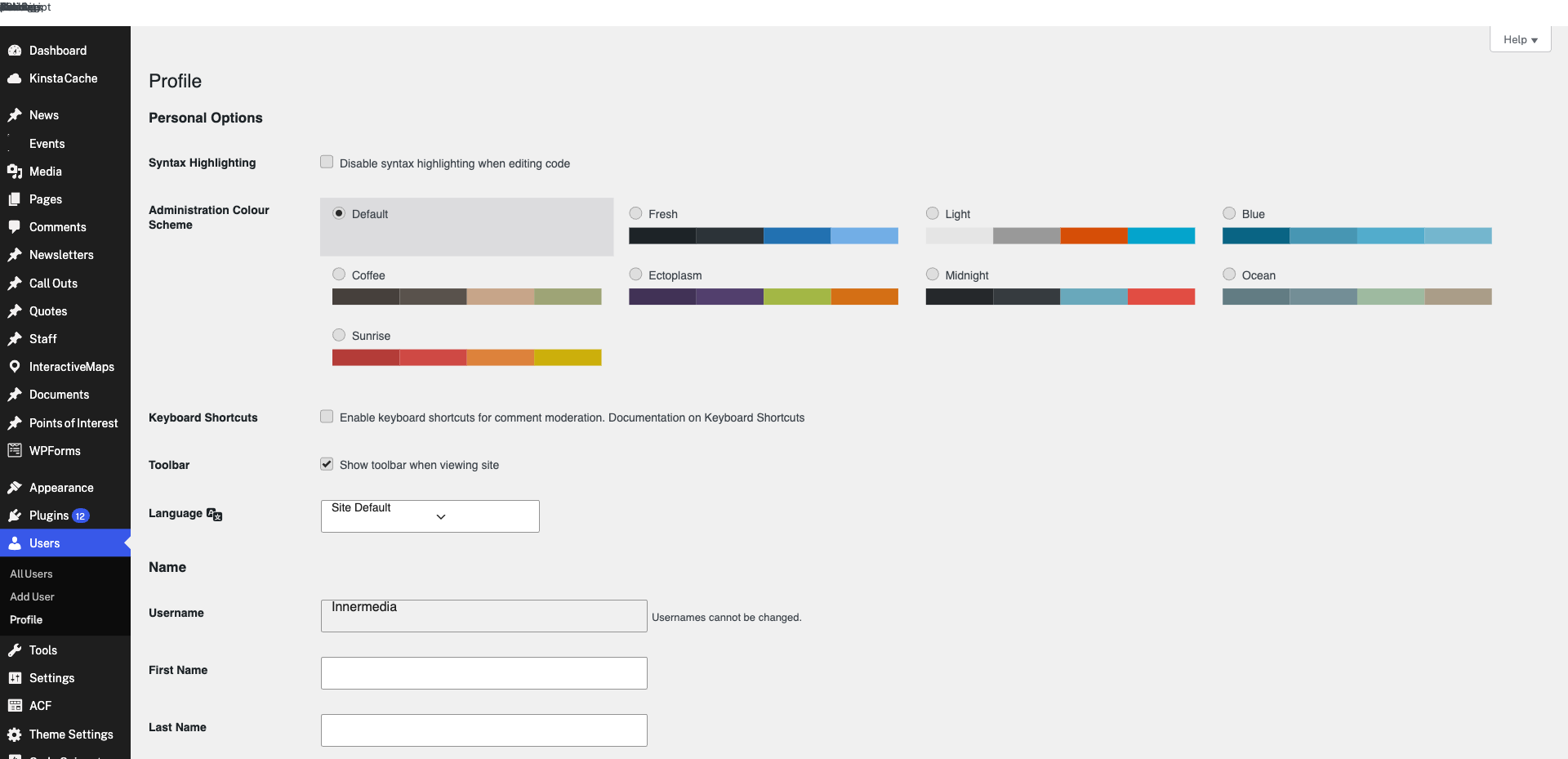
Completed
If you are still experiencing issues, our support team is here to help.
Was this article helpful?