How to Edit a Page in WordPress
Go to Pages → All Pages in the WordPress sidebar. Find the page you want to edit and hover over its name. You’ll see action links appear: Edit, Quick Edit, Bin, and View.
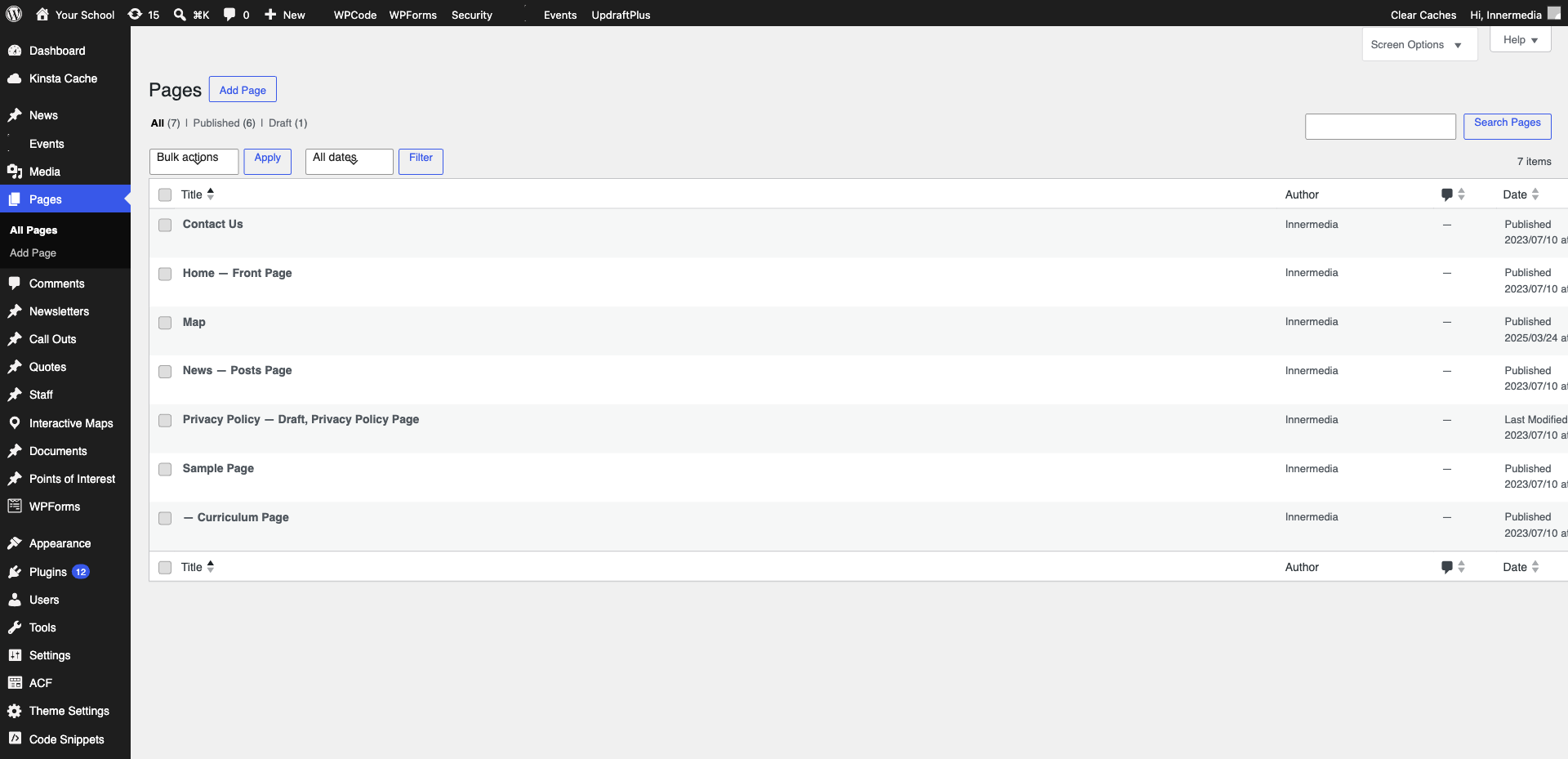
Click Edit (or click the page title directly). This opens the WordPress block editor (Gutenberg). You’ll see the page content laid out as individual blocks — each paragraph, heading, image, and section is its own block that you can click to select and edit.
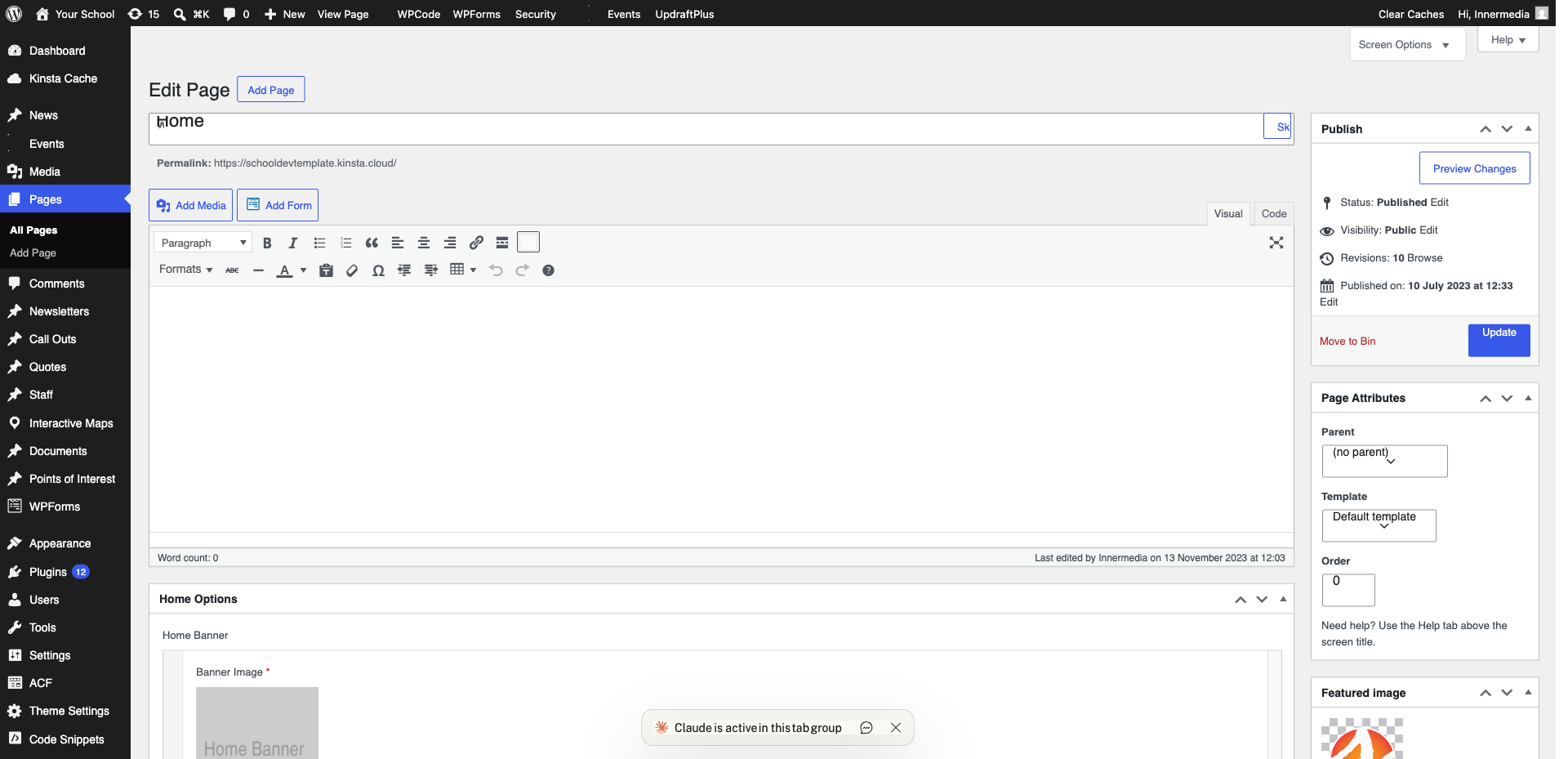
Click on any text block to edit it directly — a toolbar will appear above the block with formatting options like Bold, Italic, and Link. You can change wording, swap images (click an image block and use the Replace button), and rearrange sections by dragging blocks up or down using the move handles.
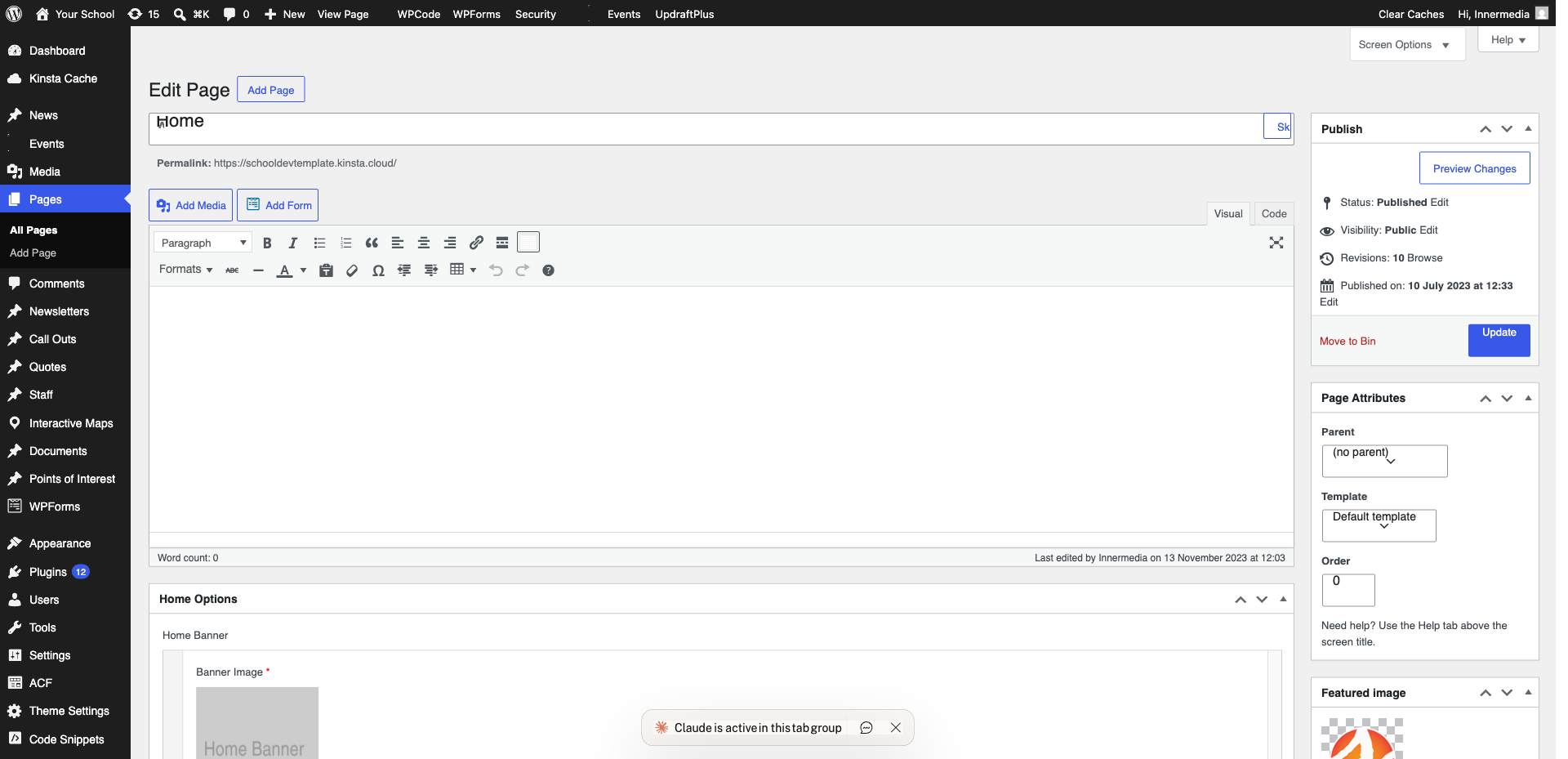
Click the blue Update button in the top right corner of the editor. Your changes are now live on the website. If you want to check before publishing, click Preview first to open a preview in a new tab.
Completed
If you are still experiencing issues, our support team is here to help.
Was this article helpful?