INNERMEDIA
Contact Support
Support Base
Images & Media
How to Upload & Replace Images
Step 0 of 4 completed
1
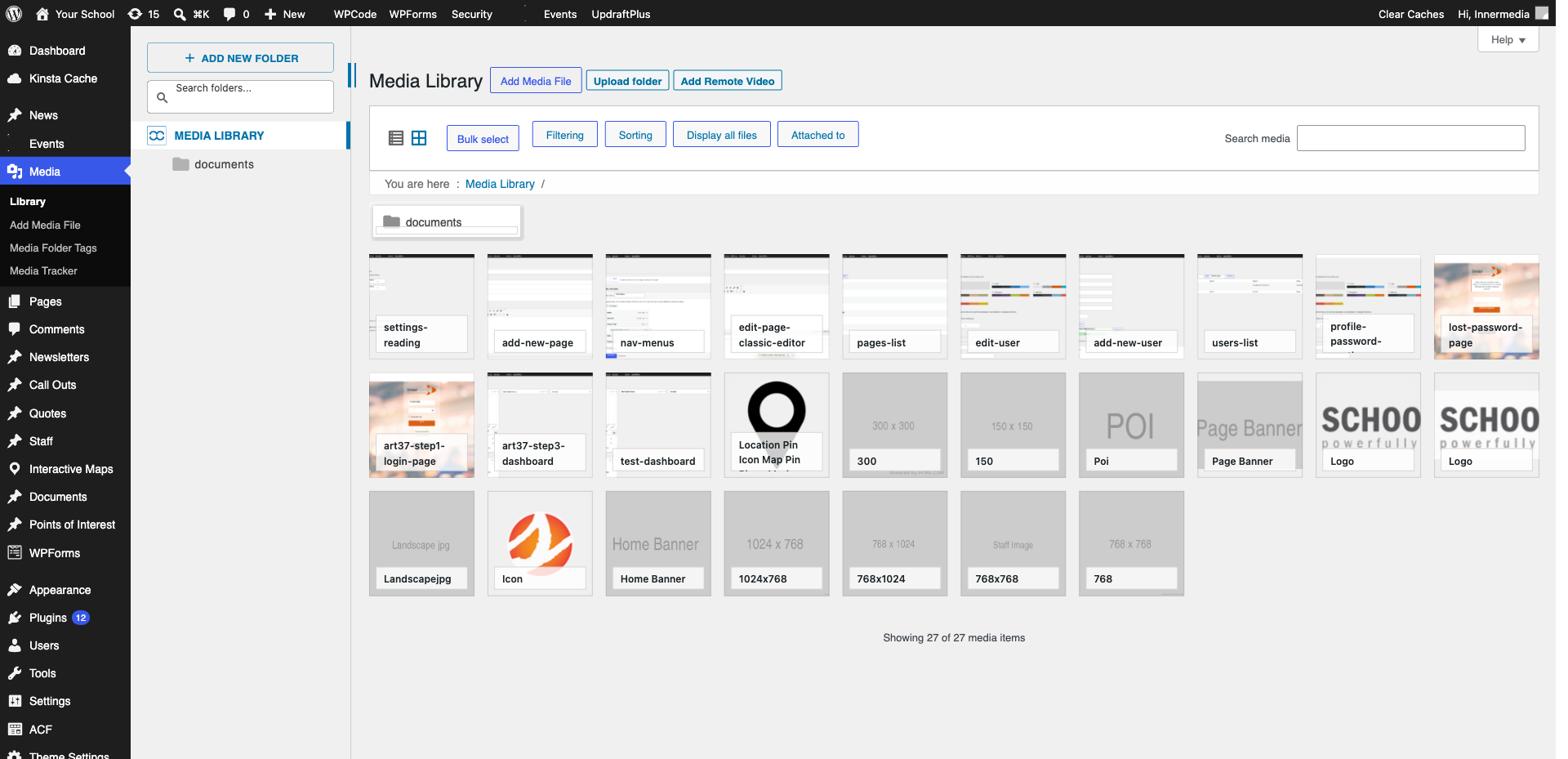
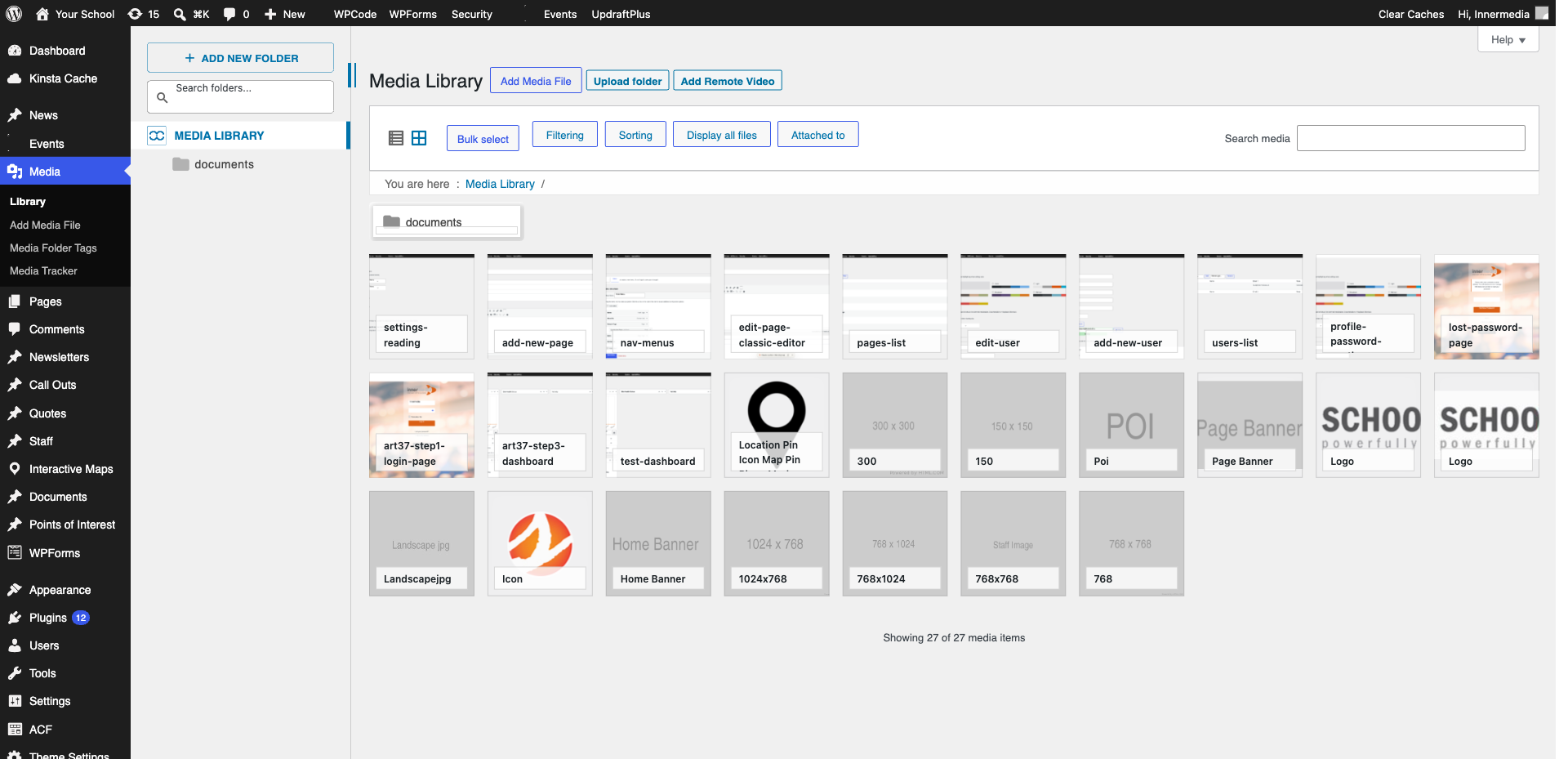
Open the Media Library
Go to Media → Library or click any image block while editing a page.
Pro Tip
🎬 Prefer to watch? See our video guide for uploading & replacing images. 2
Upload a New Image
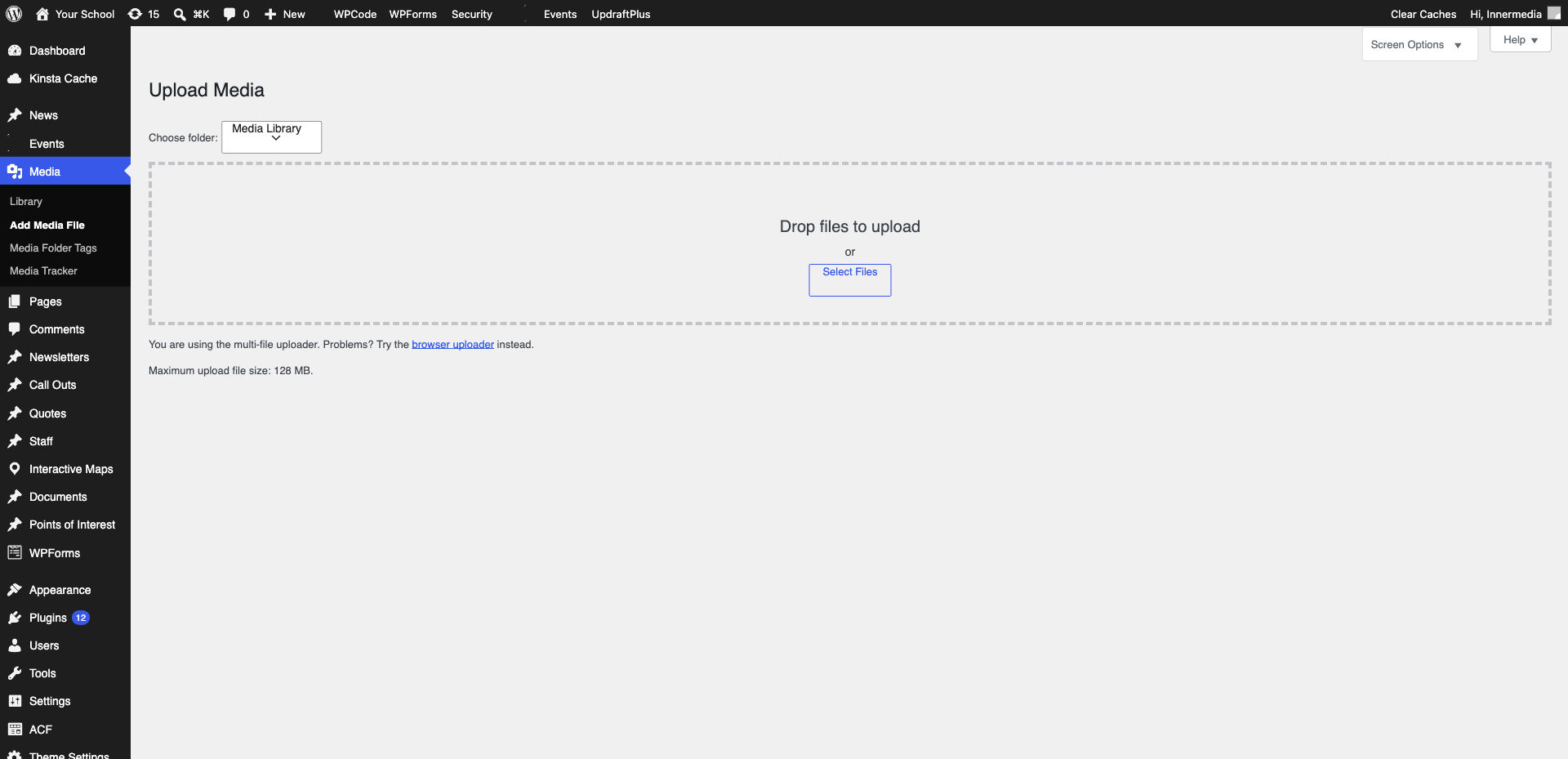
Click ‘Add New’, then drag and drop or click ‘Select Files’. WordPress accepts JPG, PNG, GIF, and WebP.
Pro Tip
Optimise images before uploading — aim for under 200KB. Use TinyPNG or Squoosh. 3
Replace an Existing Image
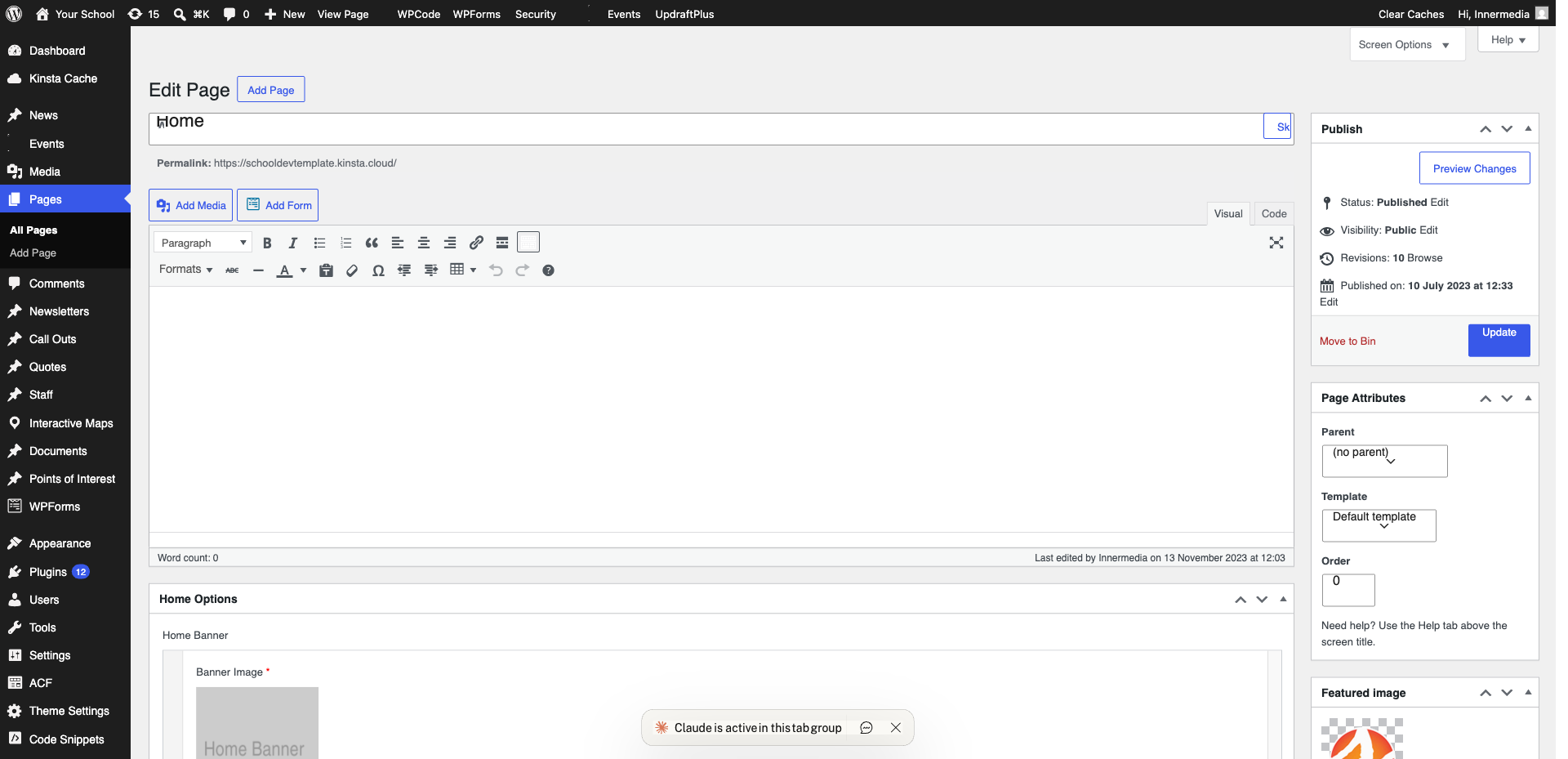
Click the image on the page, then click ‘Replace’ in the block toolbar. Select a new image.
4
Set Alt Text
Fill in the Alt Text field in the right sidebar. Describe what the image shows.
Pro Tip
Good: 'Students arriving at the school entrance'. Bad: 'image1' or blank. Completed
If you are still experiencing issues, our support team is here to help.
Was this article helpful?