INNERMEDIA
Contact Support
Support Base
Images & Media
Using Background Images
Step 0 of 4 completed
1
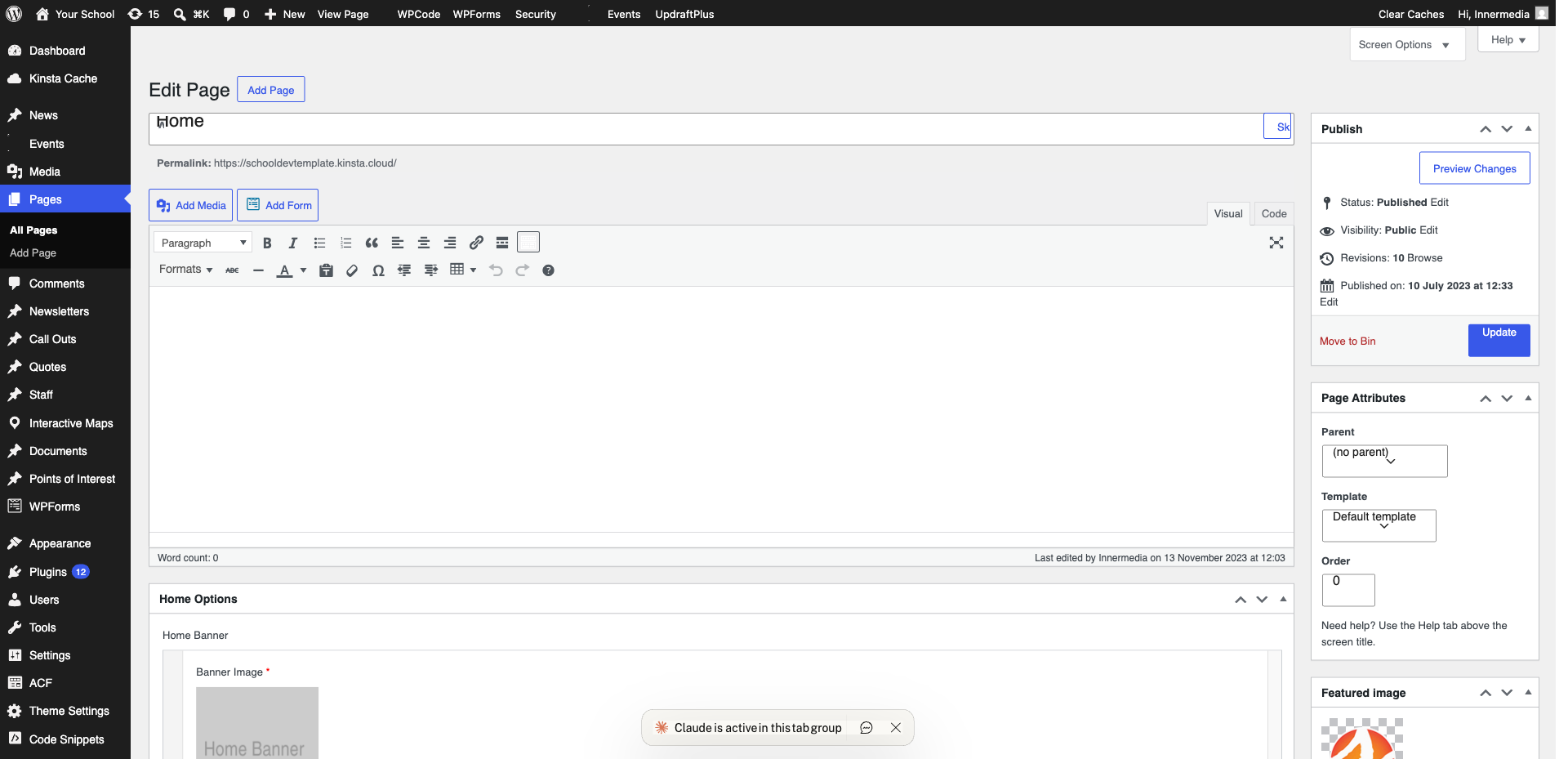
Select the Block
Click the Group or Cover block where you want a background image.
2
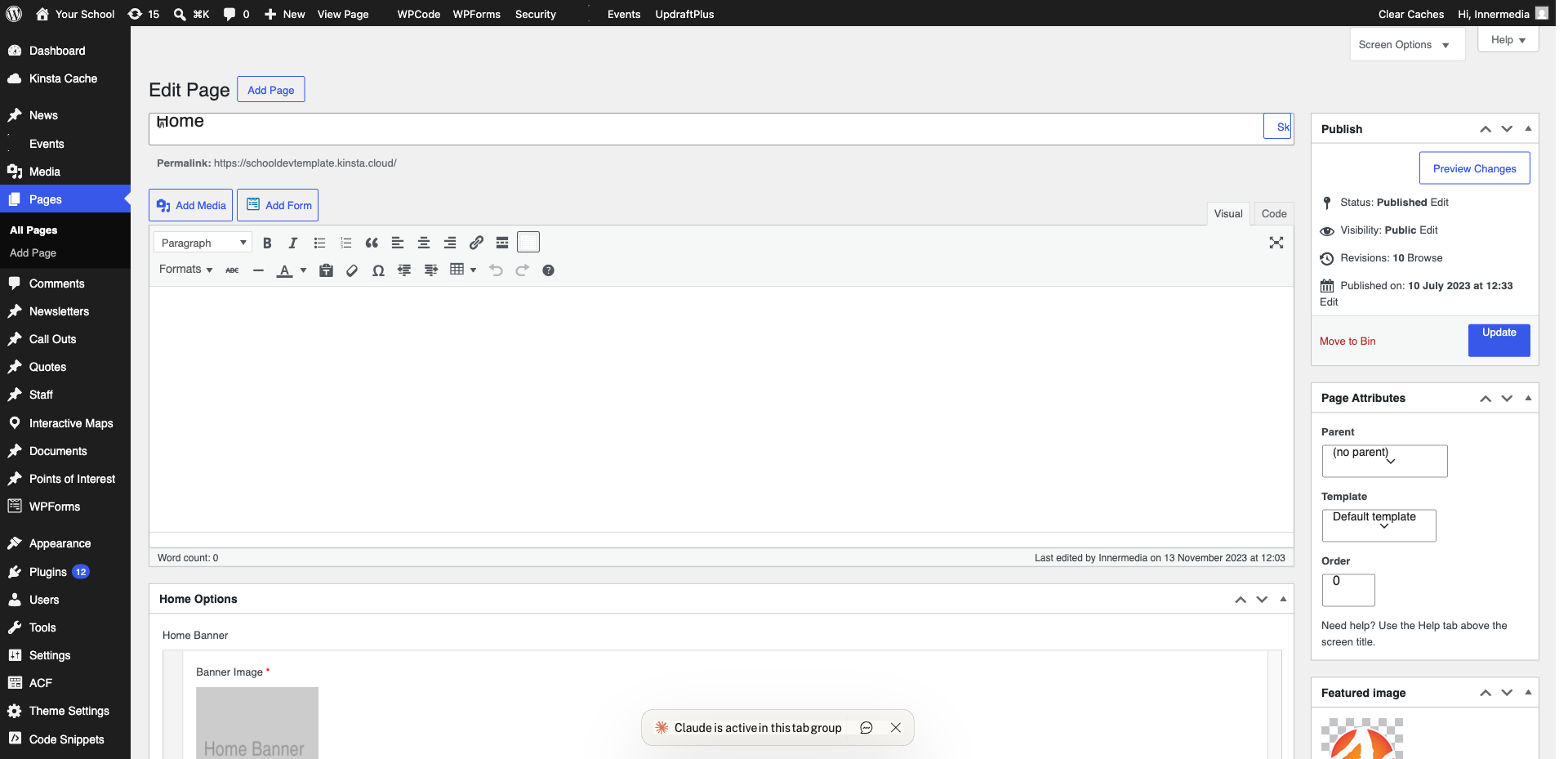
Add the Background
For Cover blocks: click and select an image. For Group blocks: use the Styles tab in settings.
3
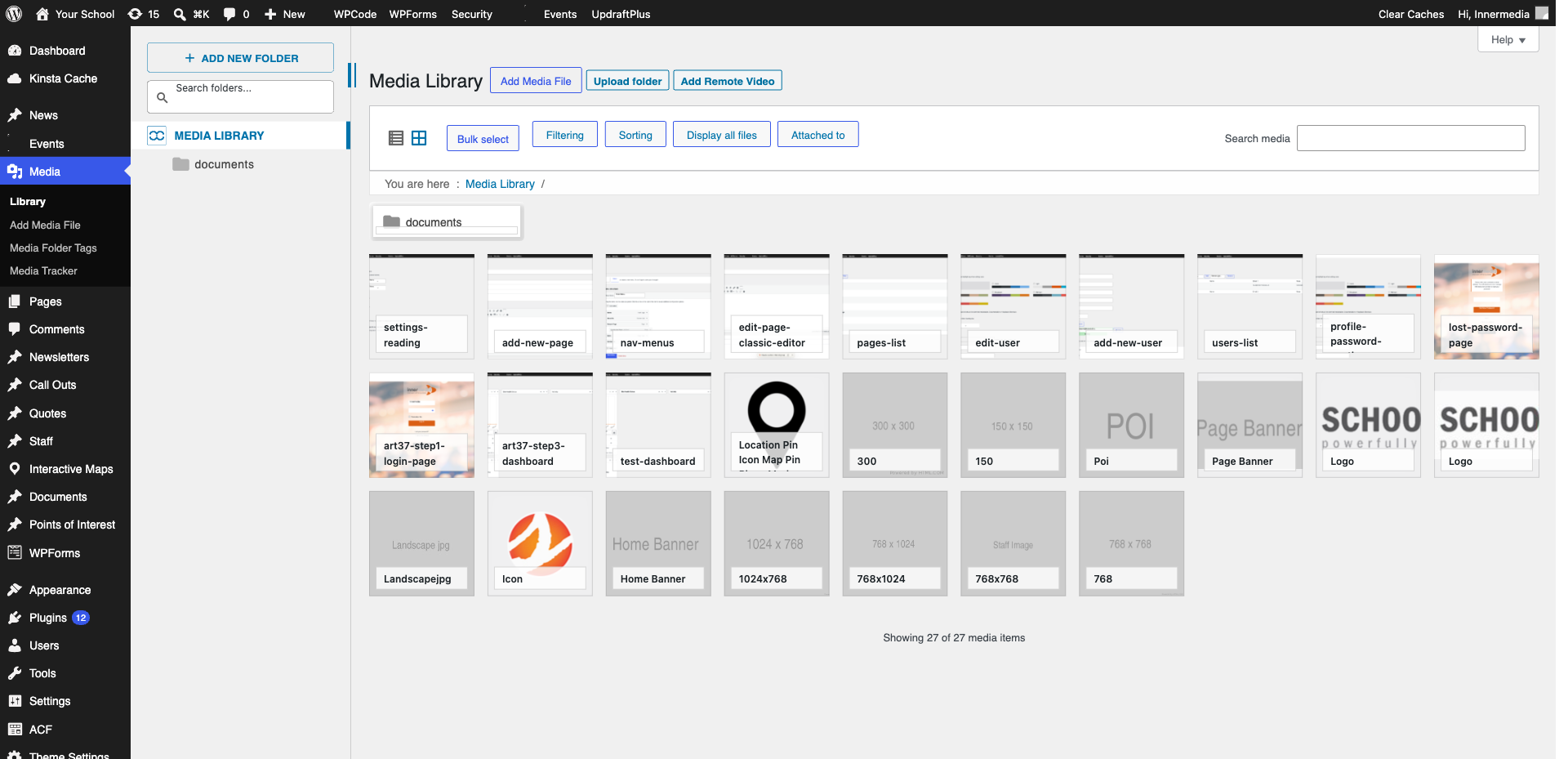
Adjust the Overlay
Set overlay colour and opacity (40–60%) to keep text readable.
Pro Tip
Use high contrast for accessibility. 4
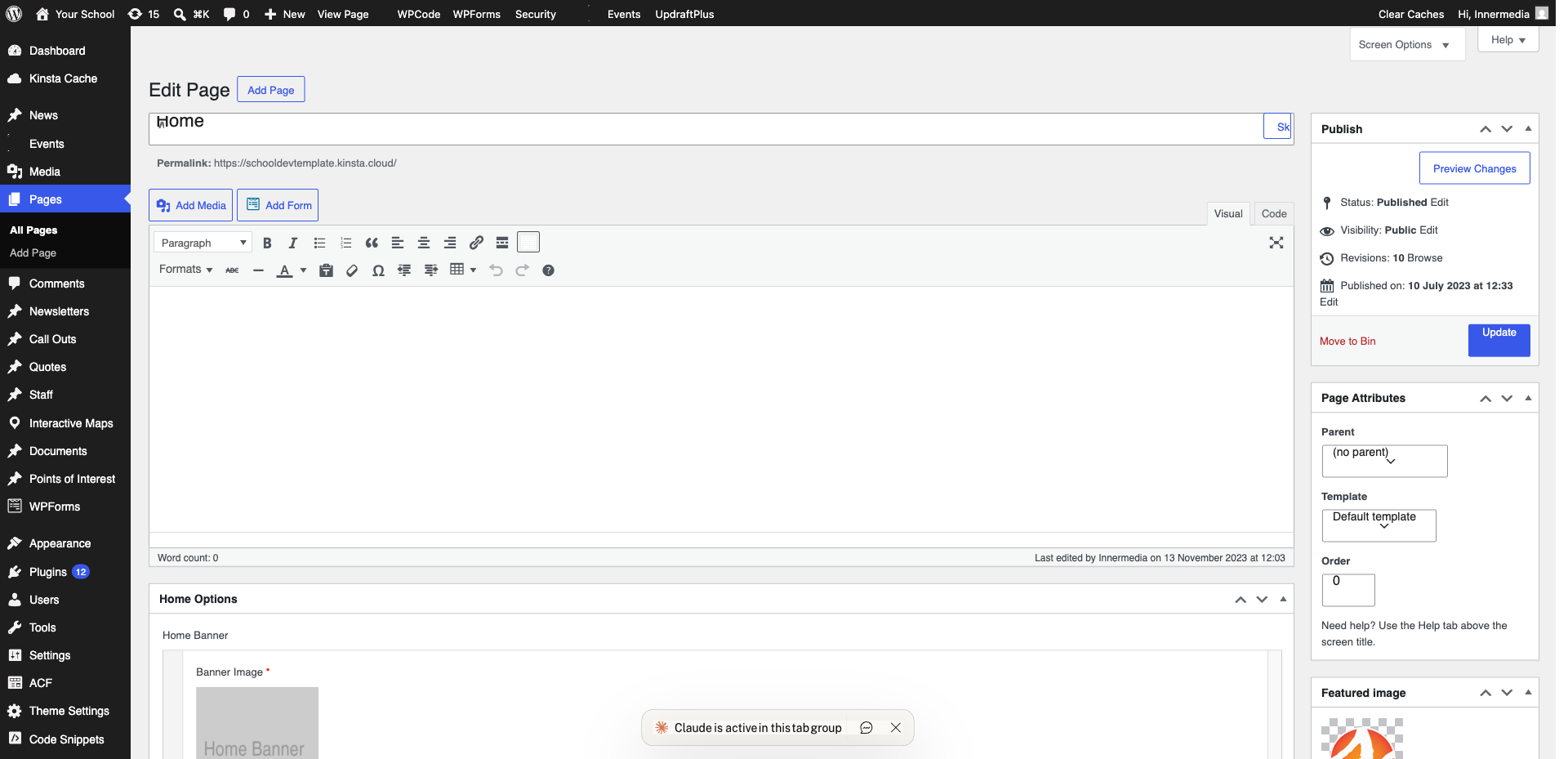
Set Fixed Background
Toggle ‘Fixed background’ for a parallax scrolling effect.
Completed
If you are still experiencing issues, our support team is here to help.
Was this article helpful?