INNERMEDIA
Contact Support
Support Base
Images & Media
Adding Logos & Favicons
Step 0 of 4 completed
1
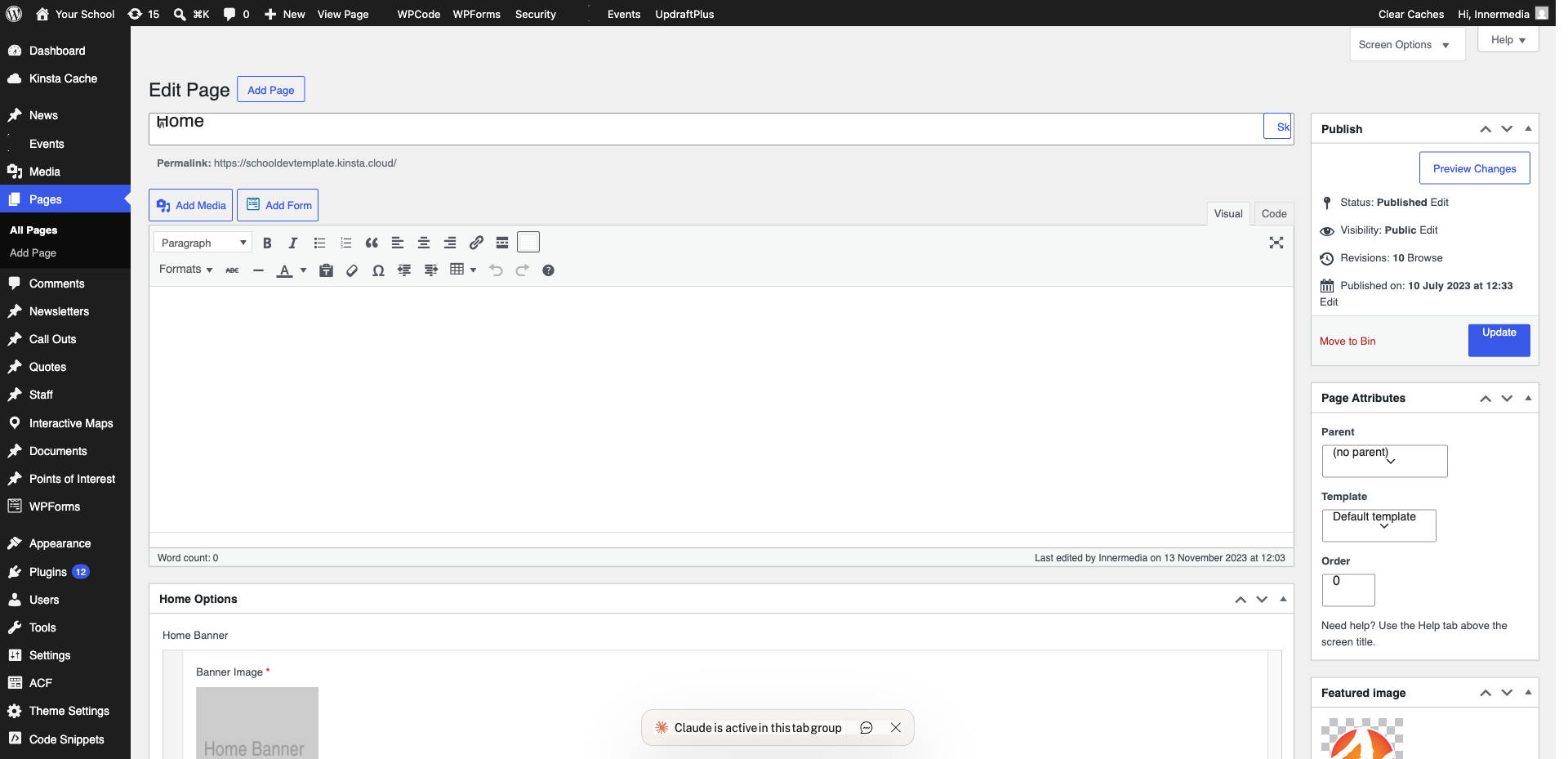
Access Site Identity
Go to Appearance → Customise → Site Identity.
2
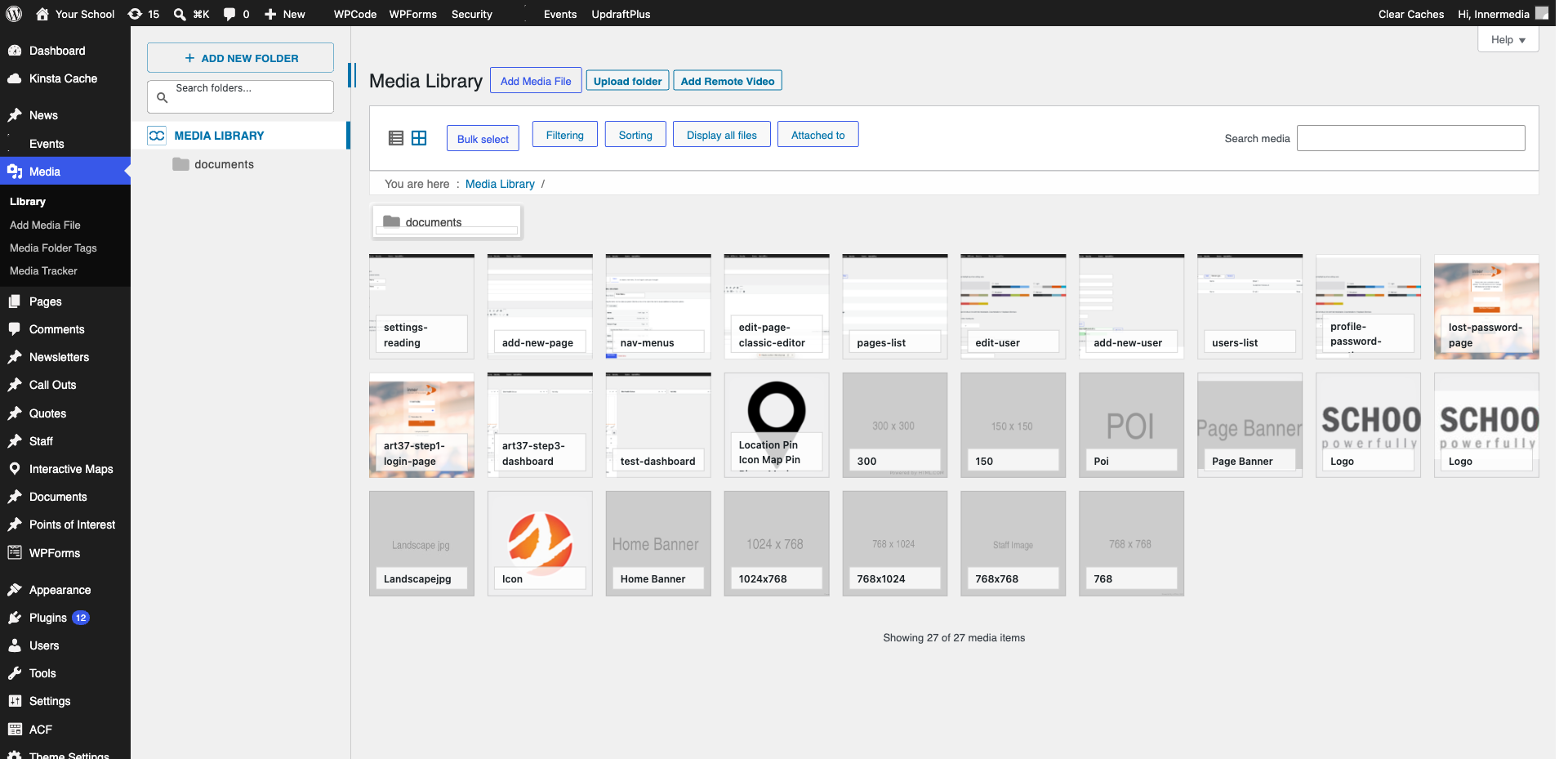
Change the Logo
Click ‘Select Logo’. Upload a transparent PNG at least 300px wide.
Pro Tip
Always use PNG with transparent background. 3
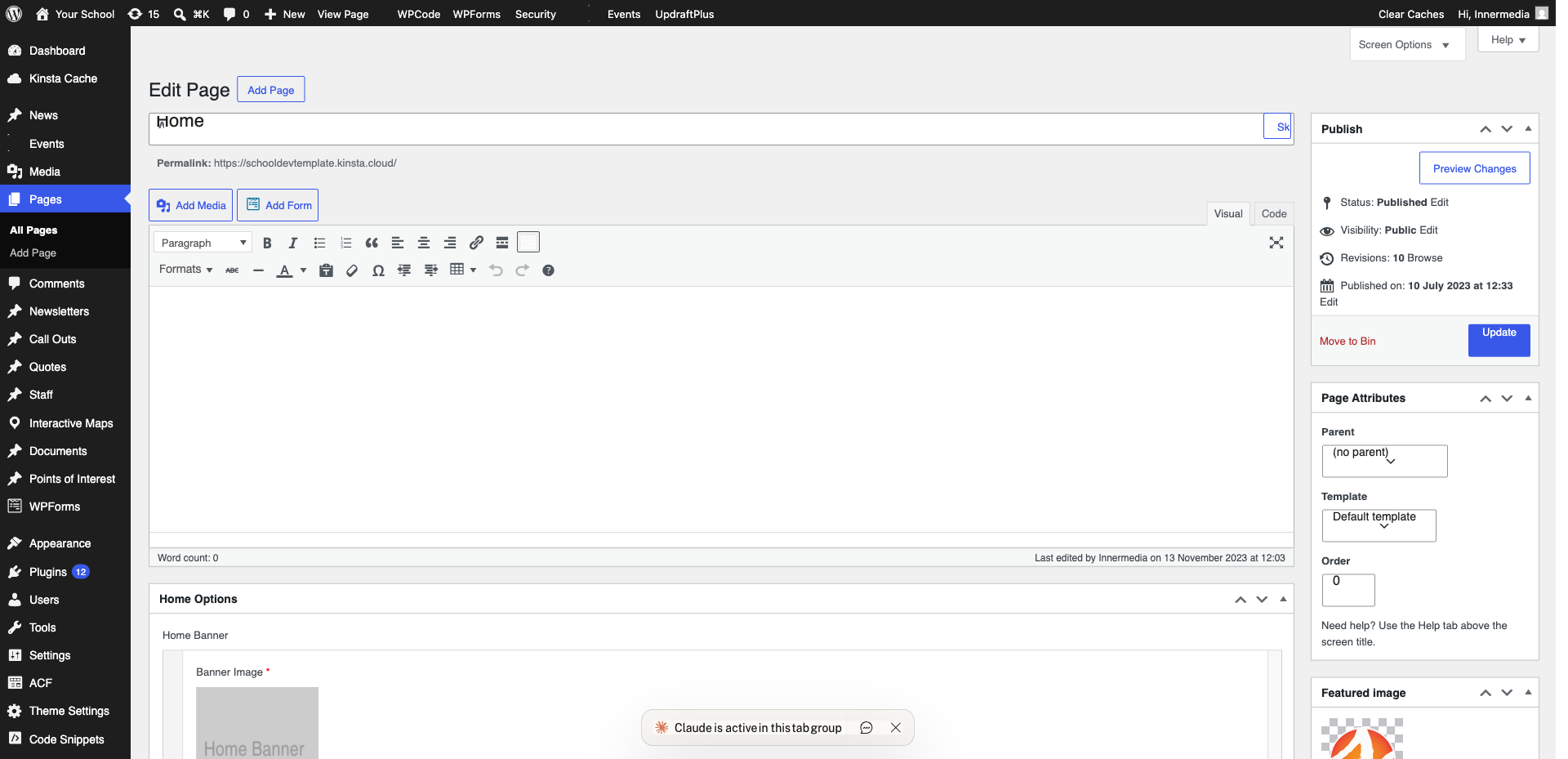
Set the Favicon
Click ‘Site Icon’. Upload a 512 x 512px square PNG.
4
Publish
Click ‘Publish’. Favicon may take a few hours to update due to caching.
Completed
If you are still experiencing issues, our support team is here to help.
Was this article helpful?