Fix image crops that won't apply after optimisation
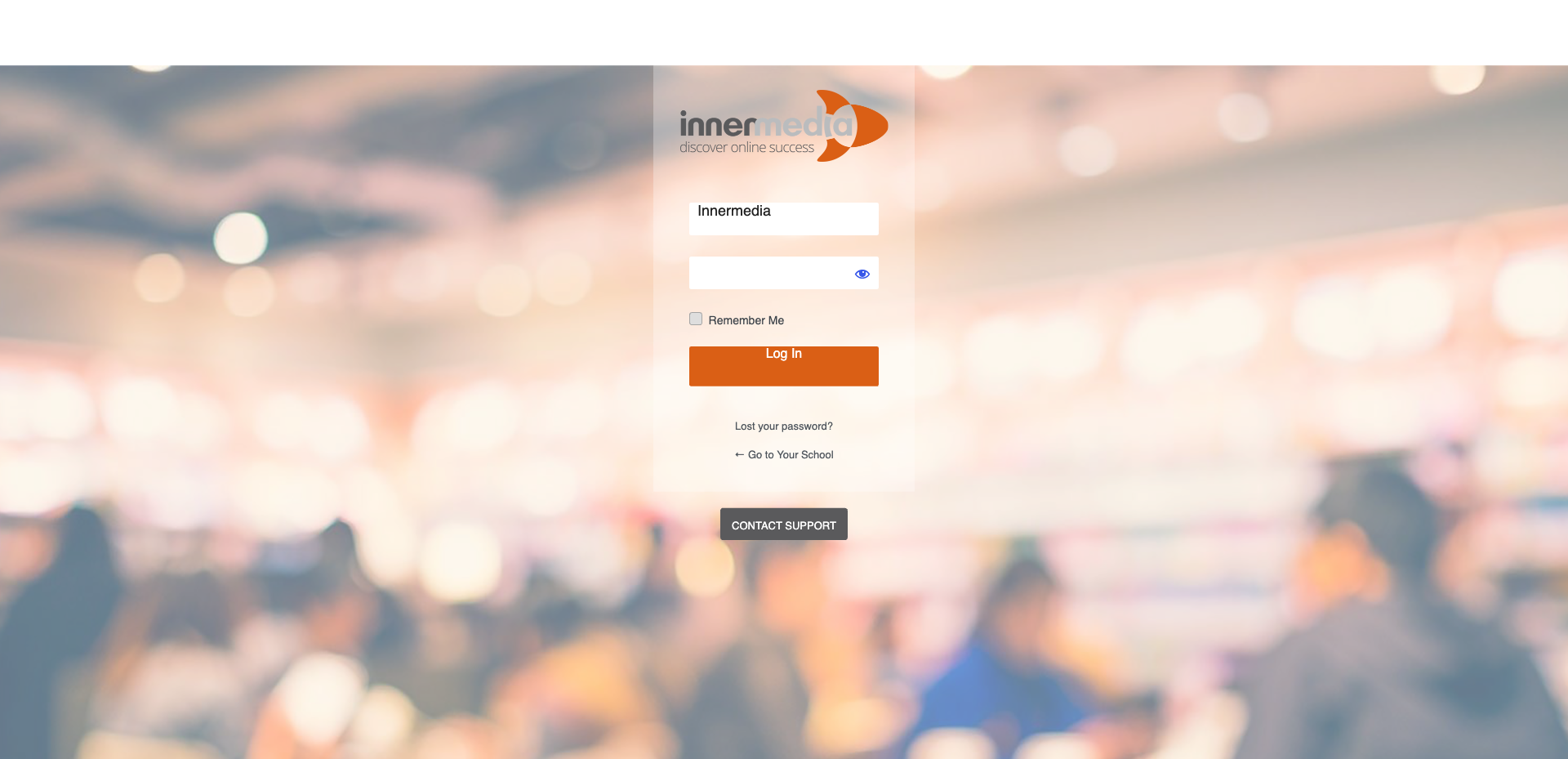
Navigate to yourwebsite.co.uk/wp-admin in your browser and log in with your username and password. If you’re already logged in, you can skip this step.
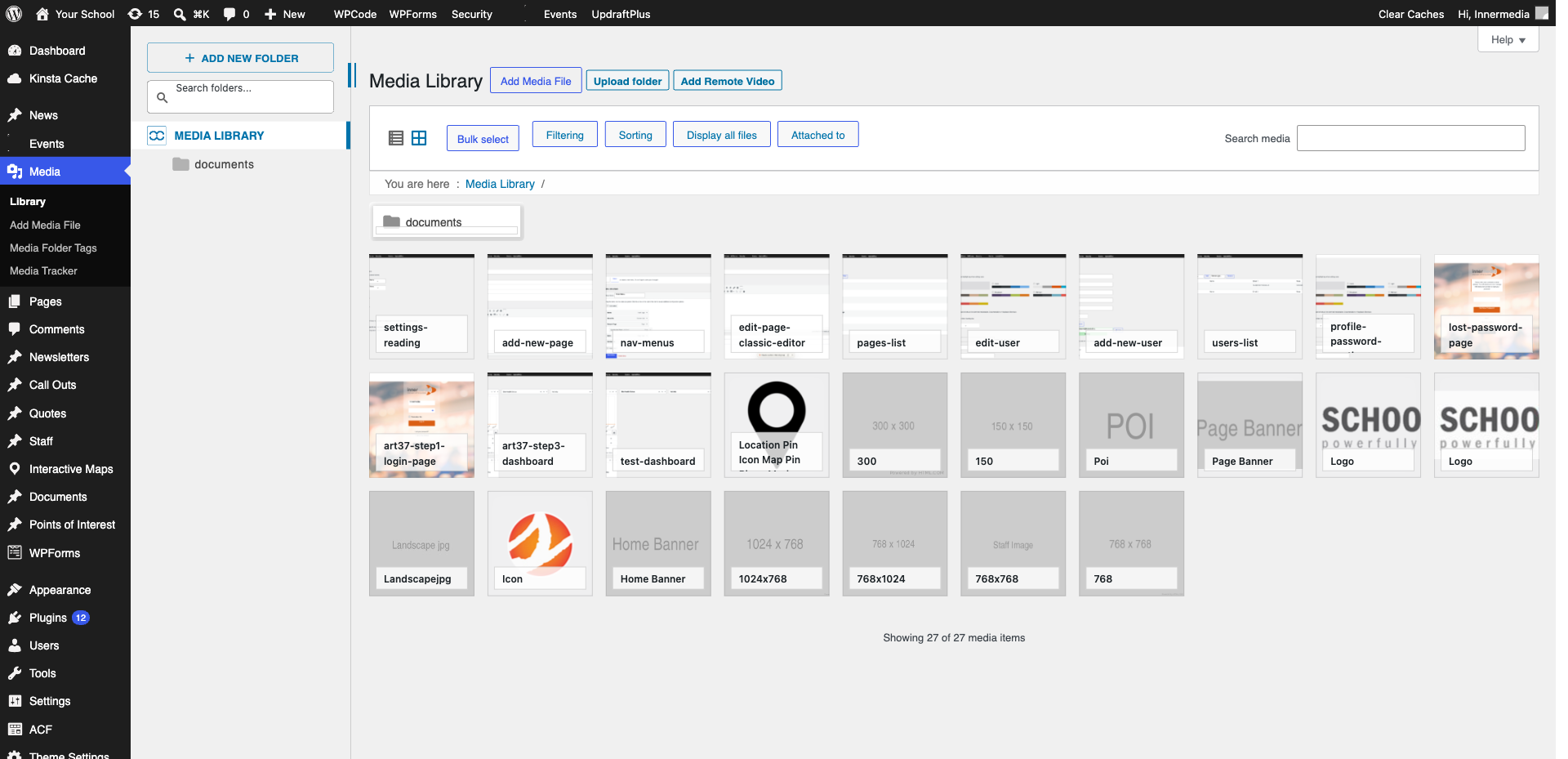
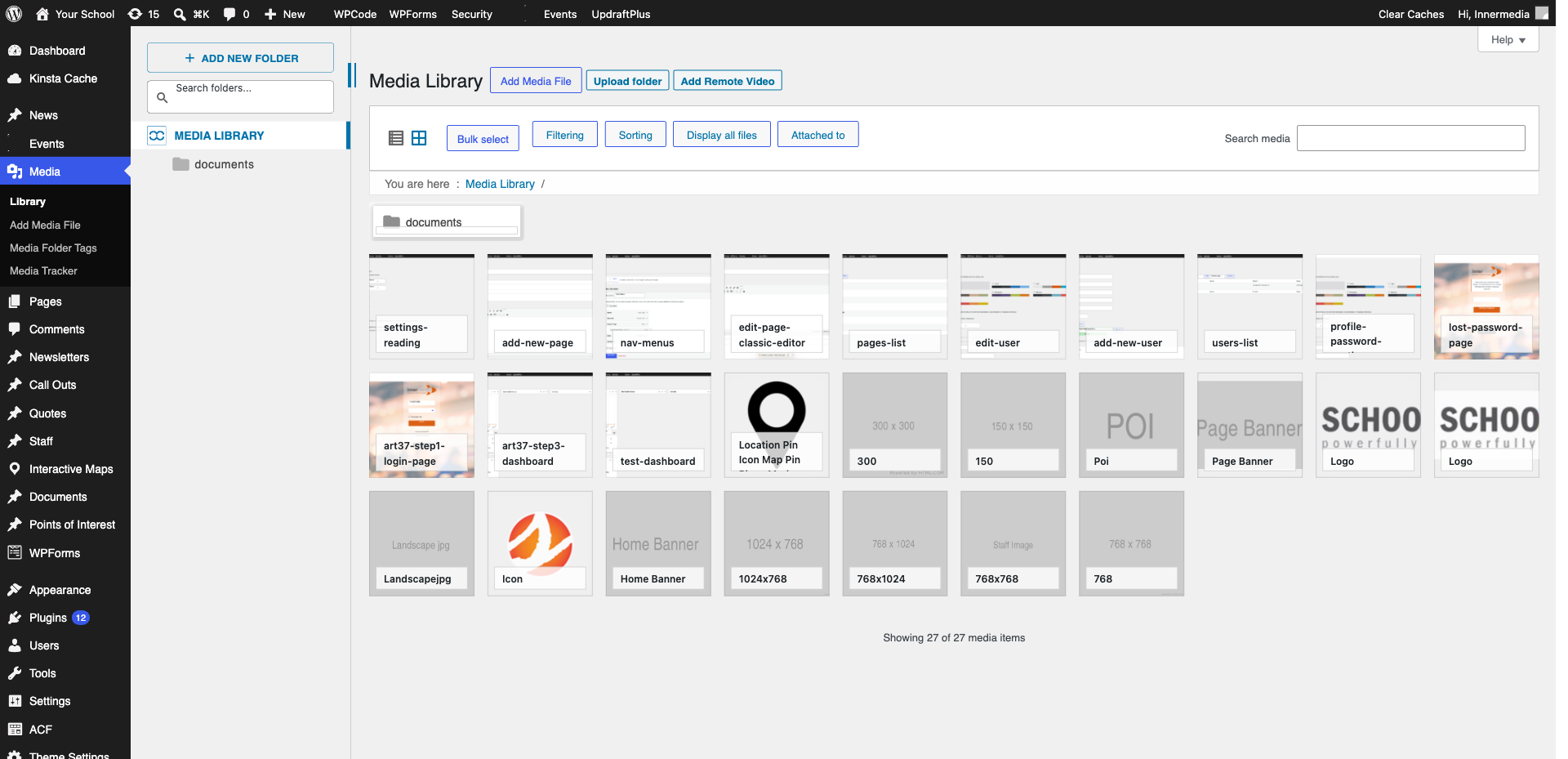
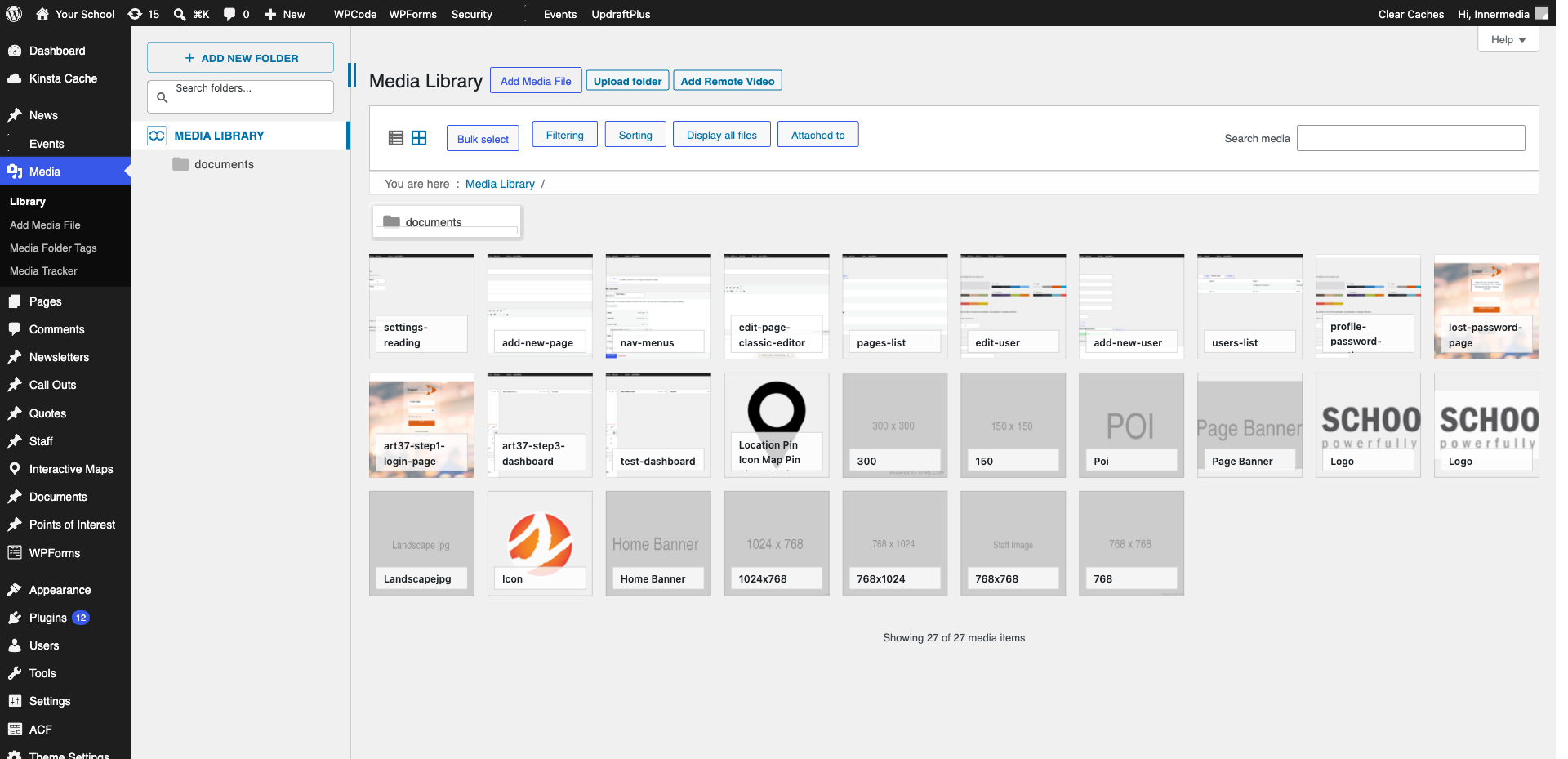
In the WordPress admin sidebar on the left, click Media. This opens the Media Library where all your uploaded images and files are stored.
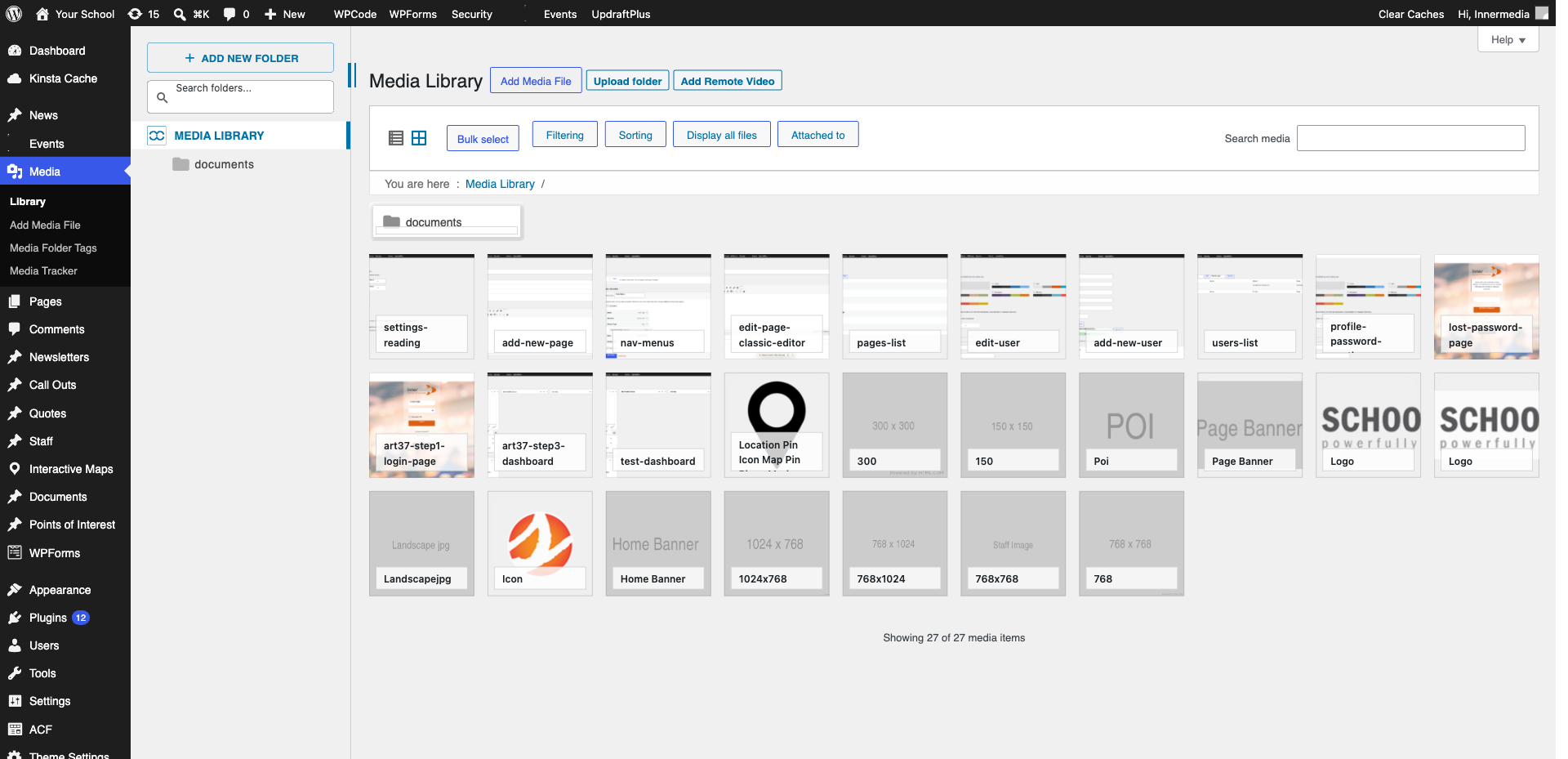
Browse or search for the image that isn’t cropping correctly. Click on it to open the Attachment Details view, then click Edit Image.
In the image editor, look for the Restore Original Image section on the right-hand side. Click Restore Original to reset the image to its unedited state.
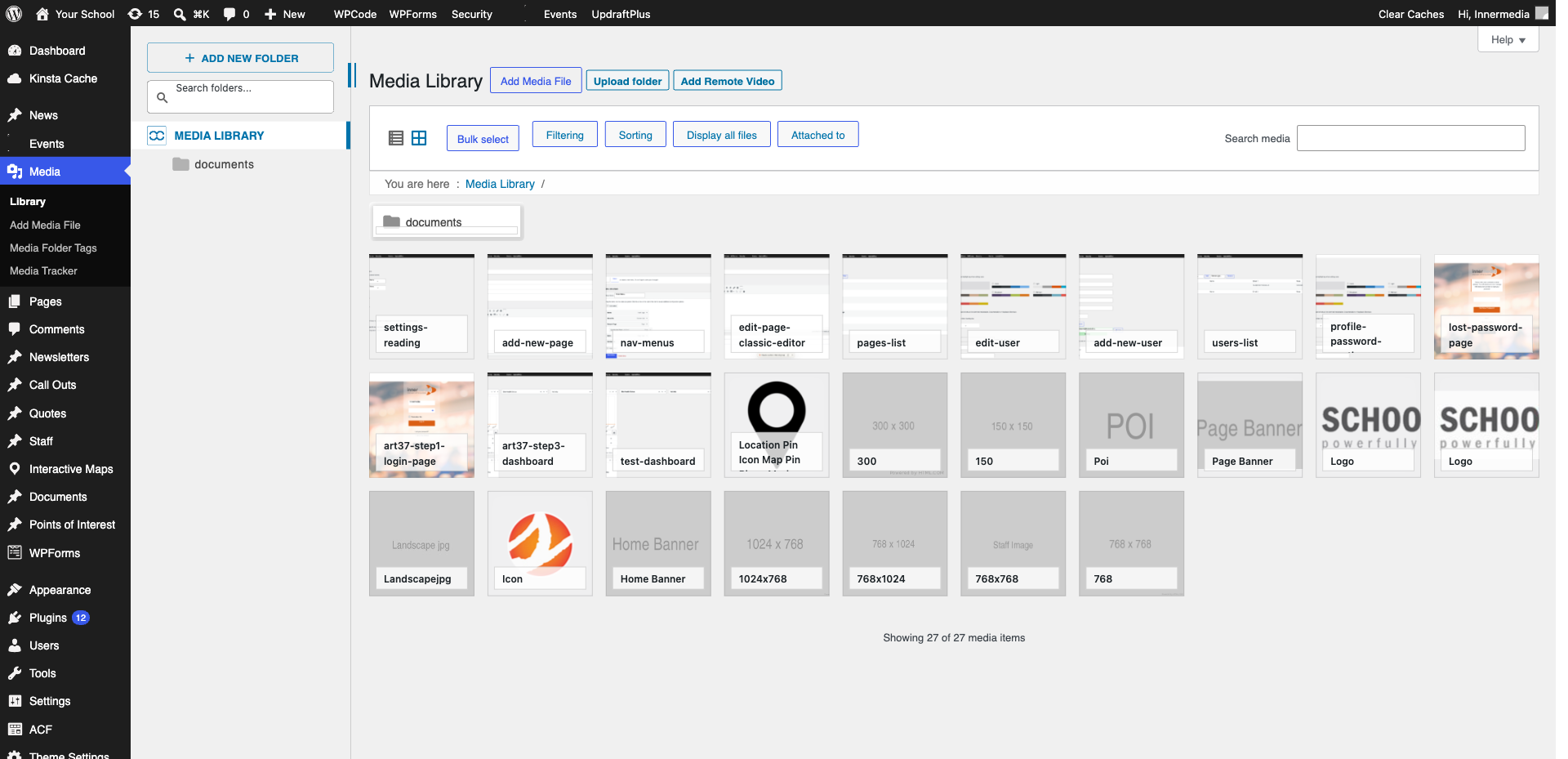
Once restored, select the Crop tool, drag the handles to define your crop area, then click Save Crop.
Click Update to save the image. The new crop should now display correctly on your website.
Completed
If you are still experiencing issues, our support team is here to help.
Was this article helpful?