INNERMEDIA
Contact Support
Support Base
Pages & Content
Adding Buttons & Links
Step 0 of 4 completed
1
Add a Button Block
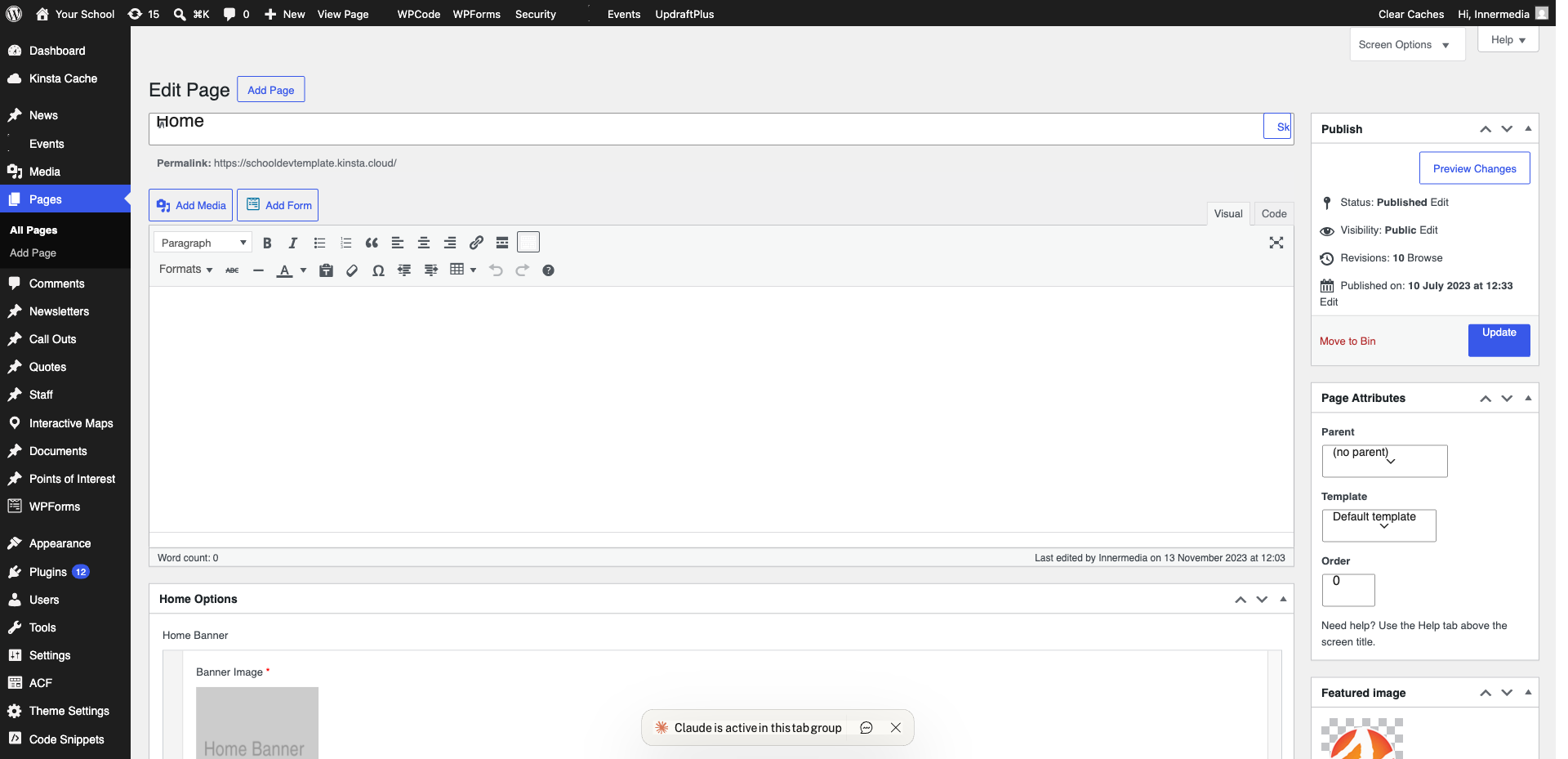
Click the + button or type /buttons to insert a Buttons block. Click on the button text to type your label.
2
Add the Link
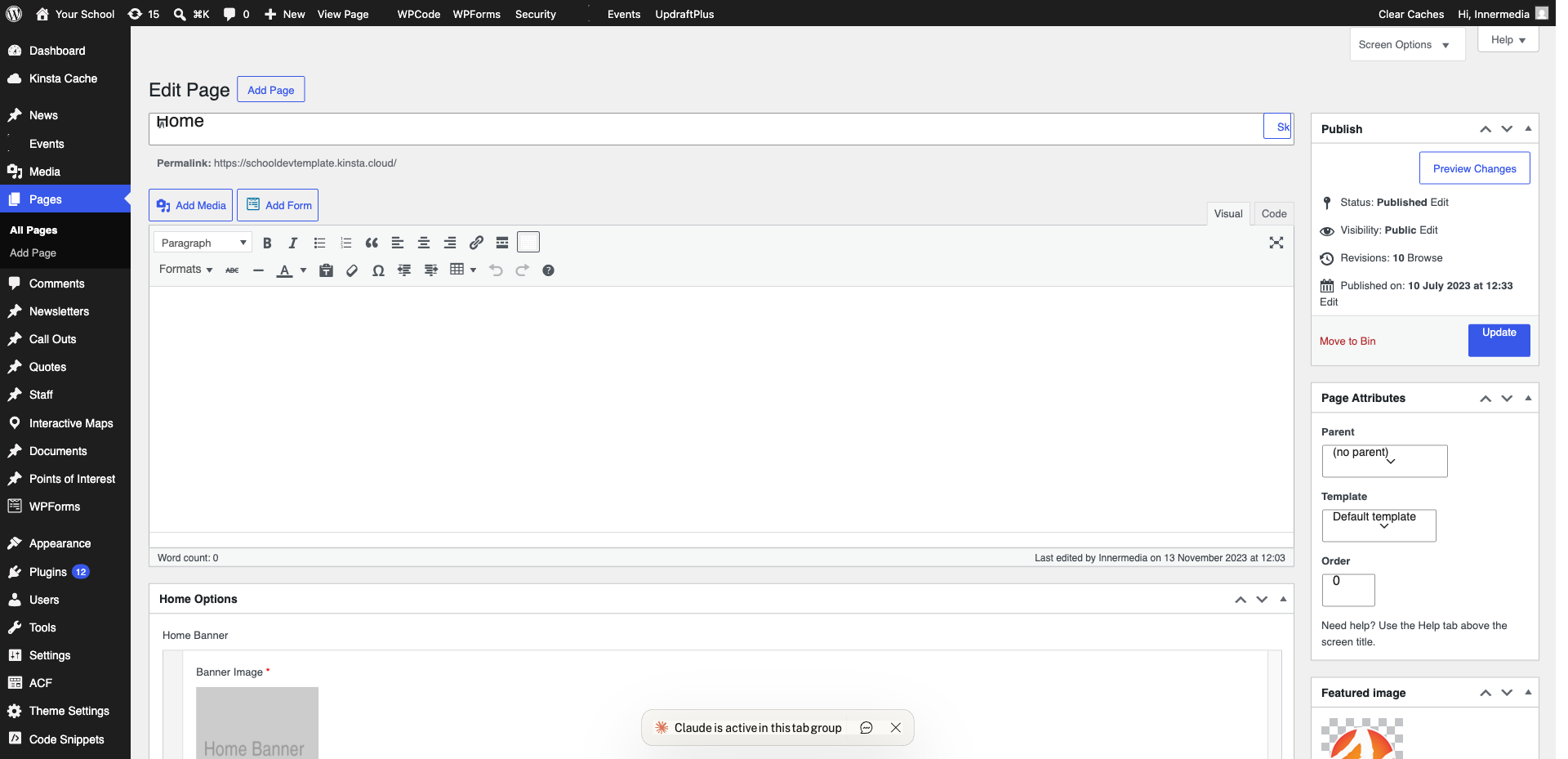
With the button selected, click the link icon (or press Ctrl+K). Paste or type the URL.
Pro Tip
For internal pages, start typing the page name and WordPress will suggest matches. 3
Add a Text Link
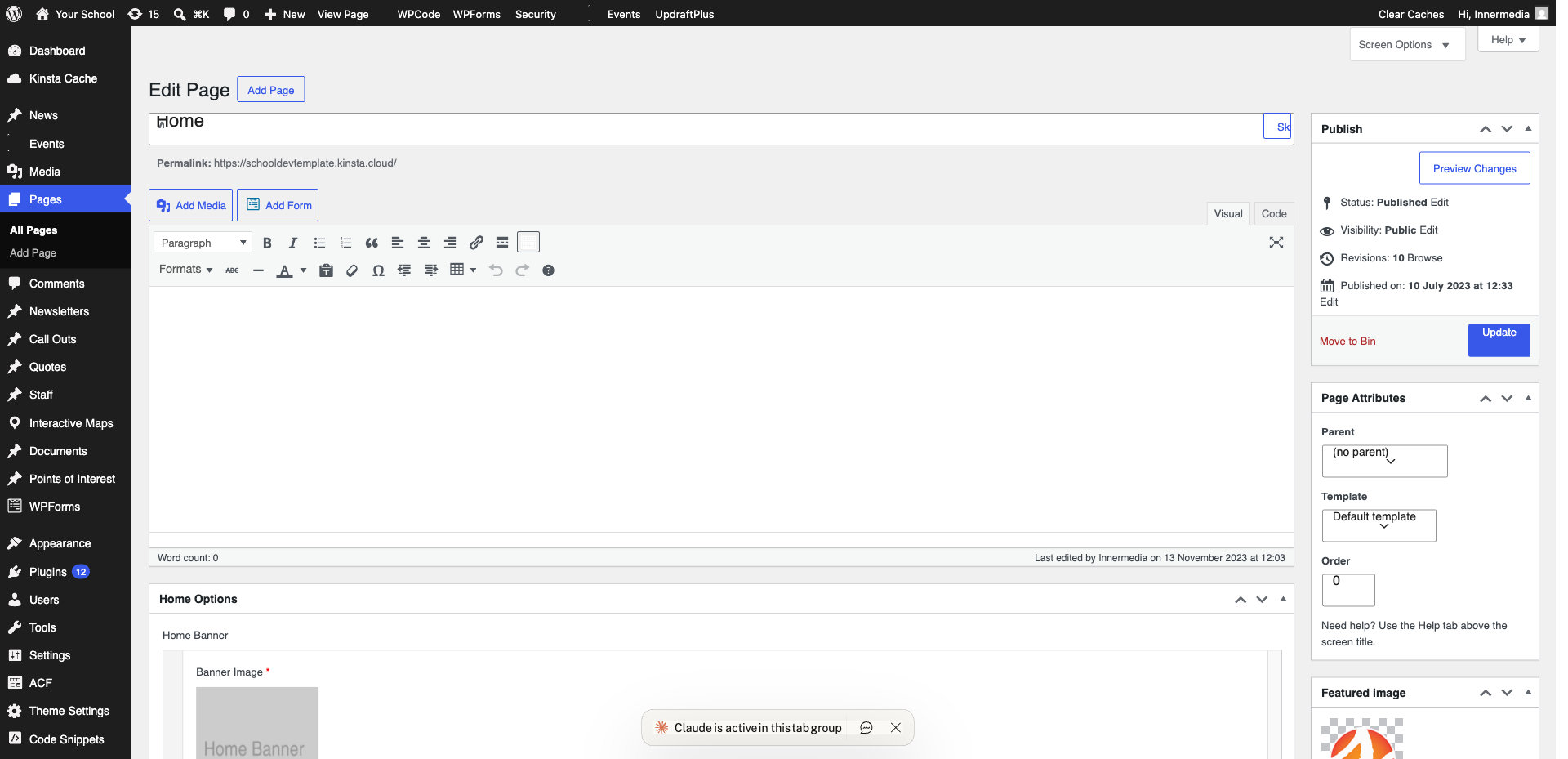
Select the text you want clickable, then click the link icon or press Ctrl+K. Paste the URL and press Enter.
4
Style Your Button
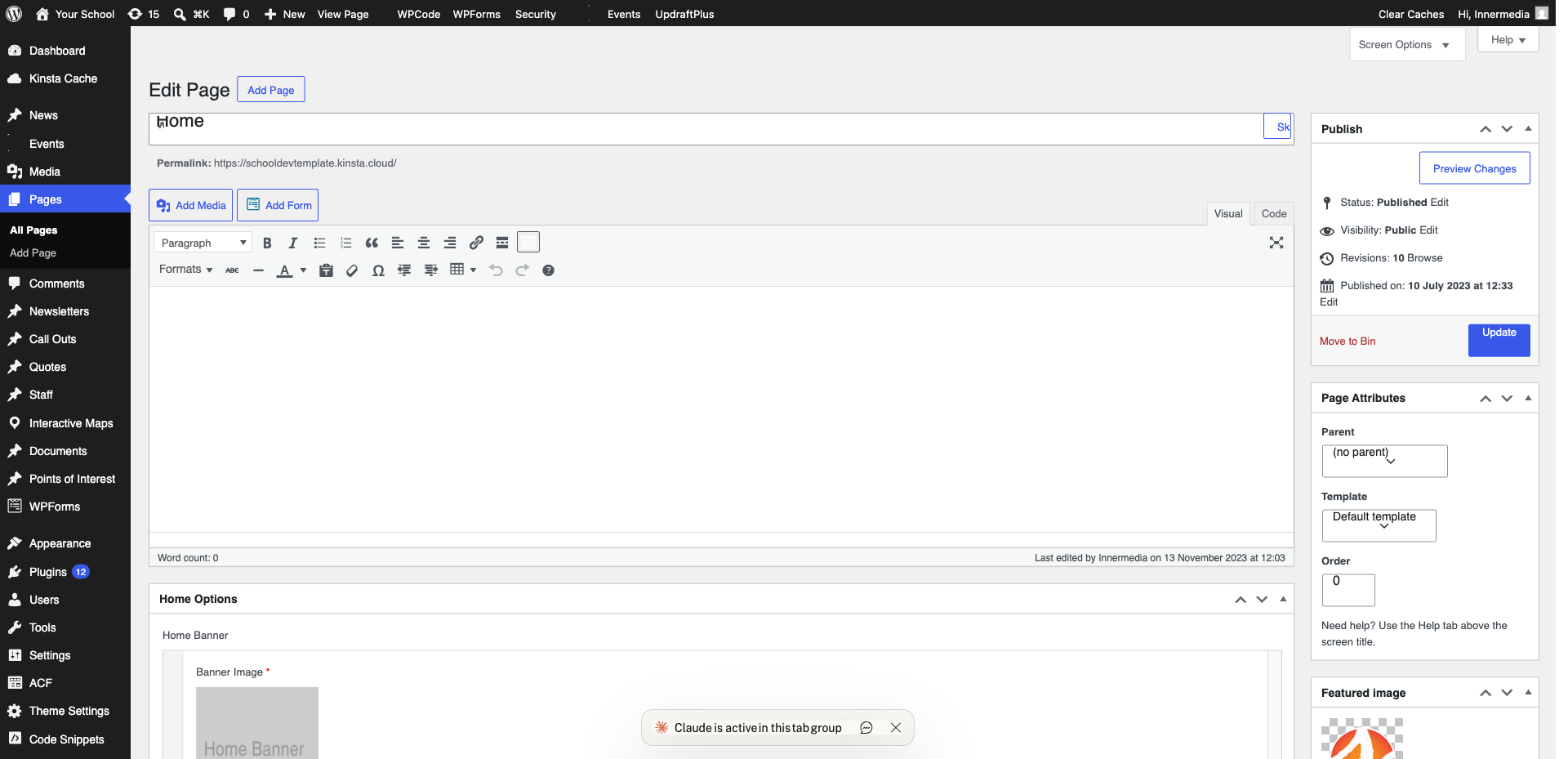
Use the right sidebar to change the button’s colour, border radius, and size. Most Innermedia sites use brand orange (#FF7E16) for primary buttons.
Completed
If you are still experiencing issues, our support team is here to help.
Was this article helpful?