INNERMEDIA
Contact Support
Support Base
Pages & Content
Creating Anchor Links
Step 0 of 3 completed
1
Add an HTML Anchor
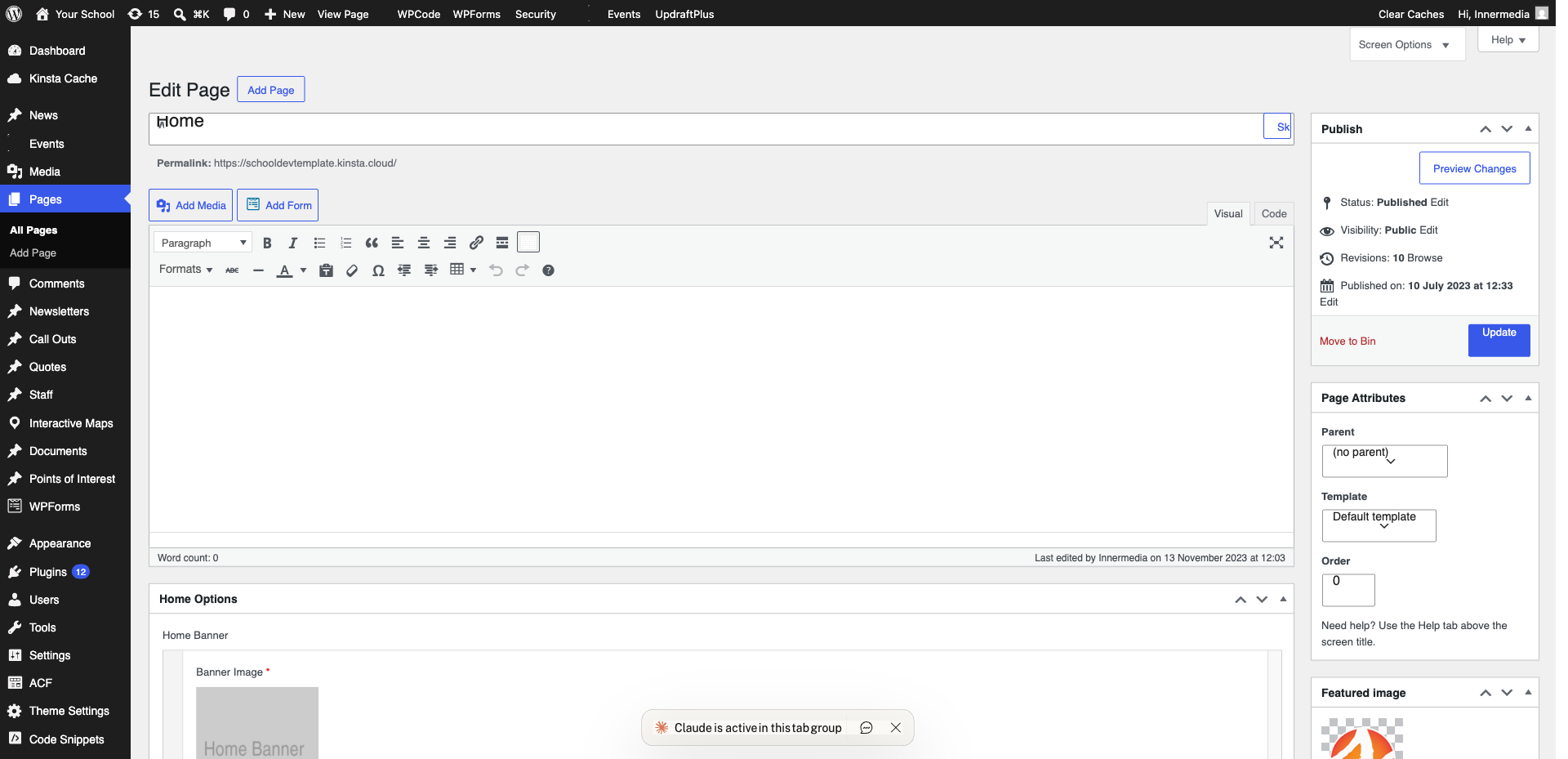
Click the target block, expand ‘Advanced’ in the right sidebar, and type a short ID in the ‘HTML Anchor’ field (e.g. ‘admissions’).
Pro Tip
Use lowercase letters, numbers, and hyphens only. 2
Create the Link
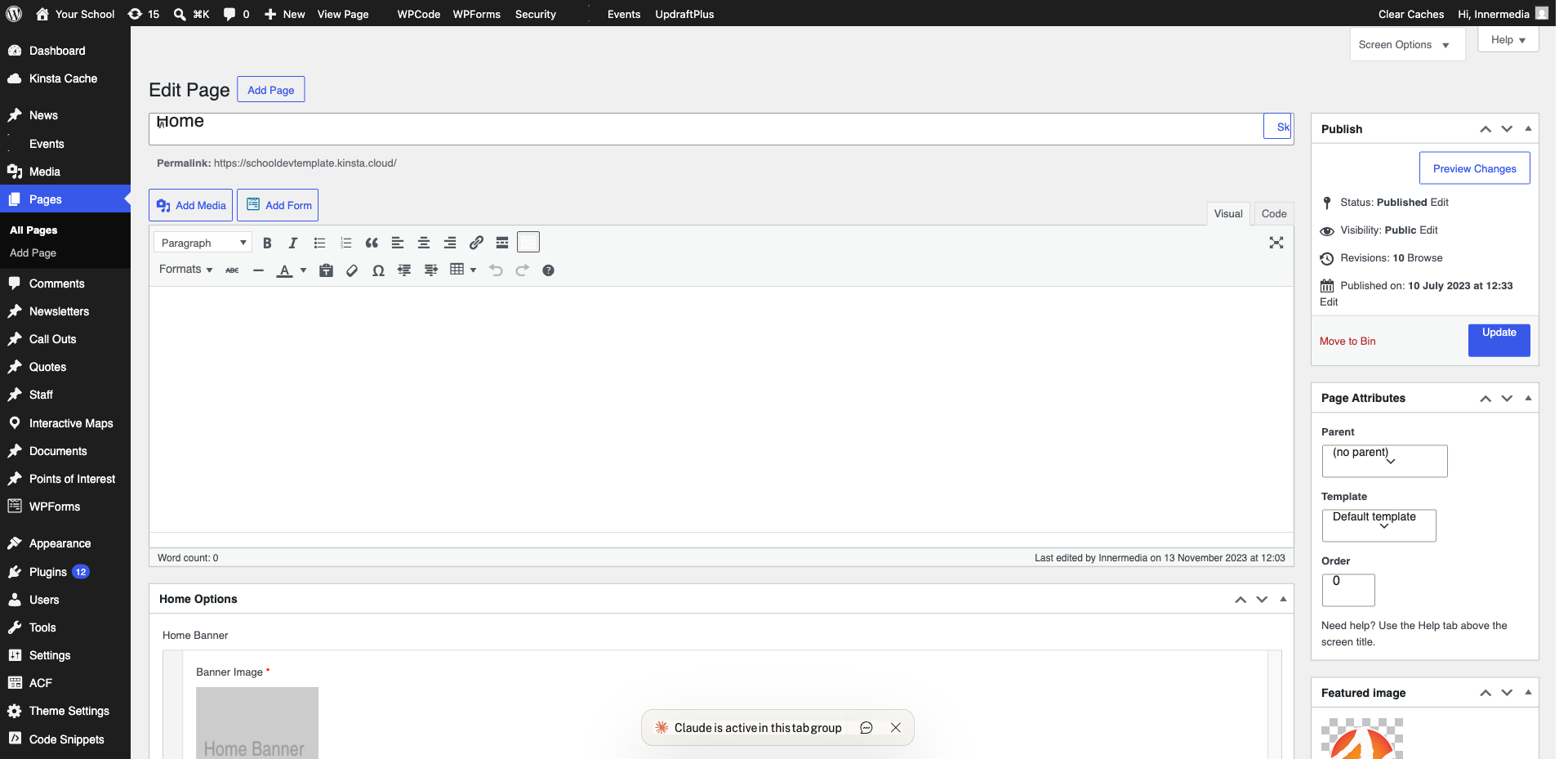
Select your trigger text/button, add a link (Ctrl+K) and set the URL to #your-anchor-name (e.g. #admissions).
3
Test the Anchor
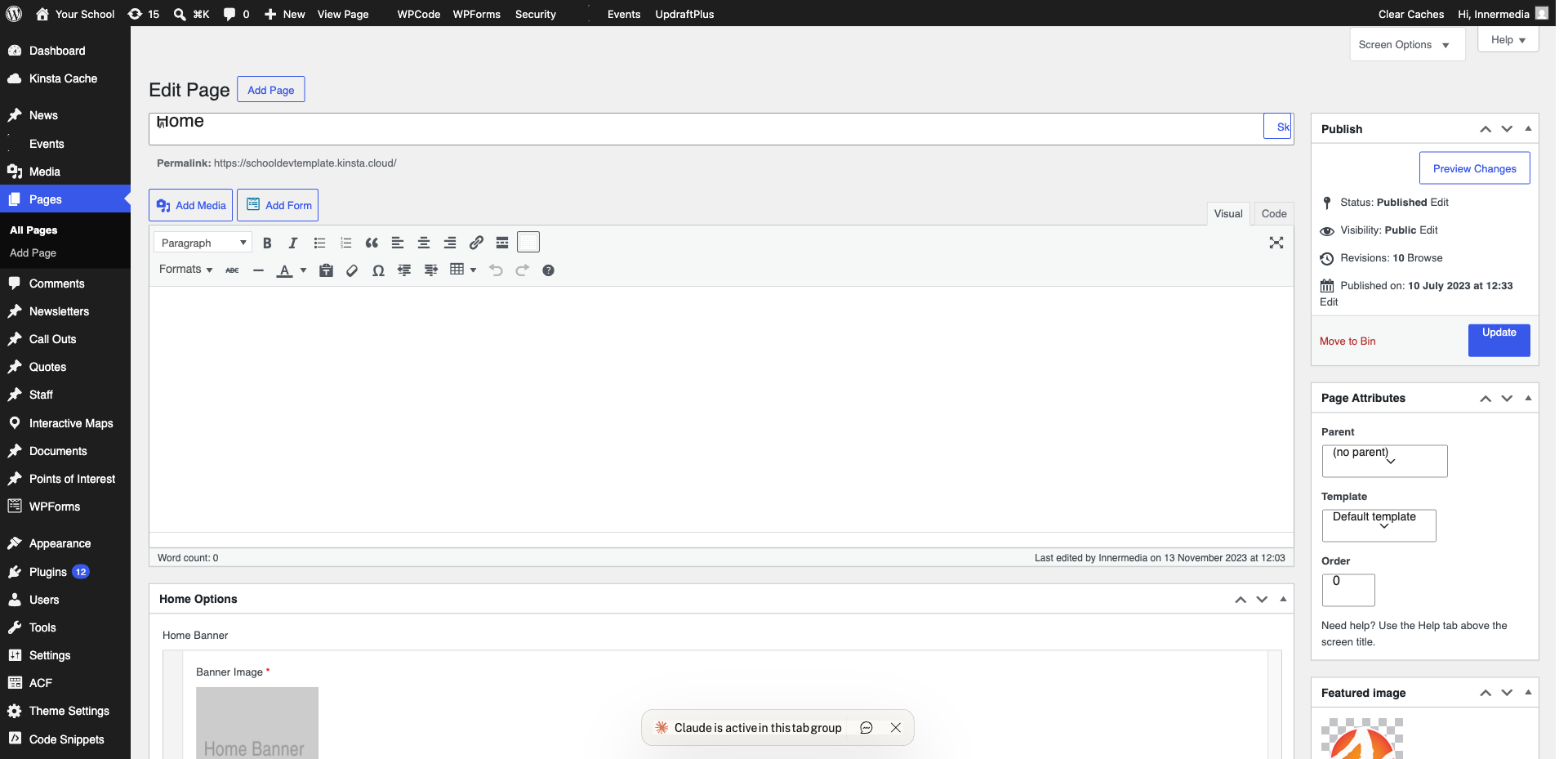
Preview the page, then click your anchor link. The page should smooth-scroll to the target section.
Completed
If you are still experiencing issues, our support team is here to help.
Was this article helpful?