INNERMEDIA
Contact Support
Support Base
Images & Media
How to fix images that look oversized, stretched or distorted
Step 0 of 5 completed
1
Check the image dimensions
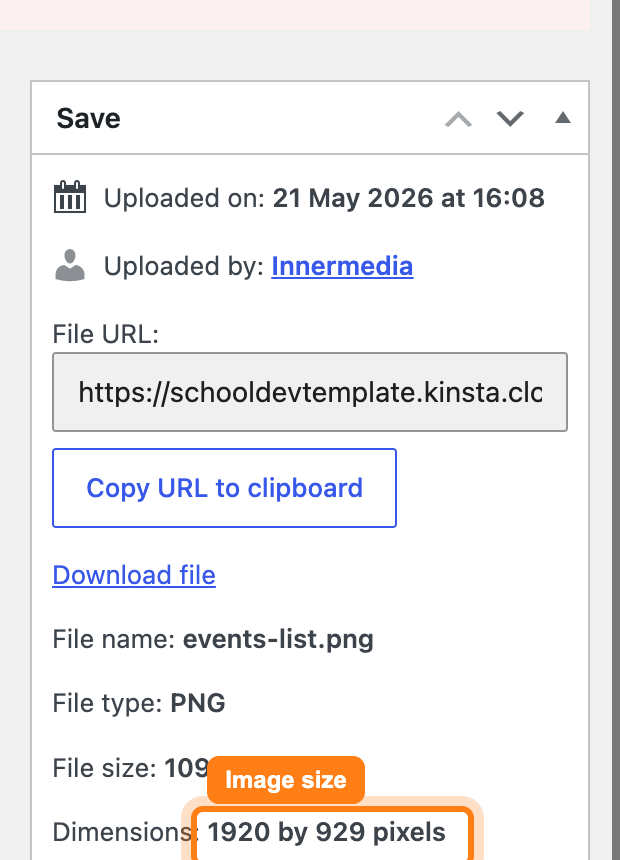
Go to Media → Library and click the image to open it. On the right, check the Dimensions — e.g. 1920 by 929 pixels. Anything much larger than around 2000px wide is bigger than it needs to be for the web.
2
Restore the original image
- Images that look stretched or distorted have usually been affected by Imagify, the plugin that optimises images on your site.
- In Media → Library, click the image to open its Attachment details.
- Scroll down to the Imagify section and click Restore Original to put the unoptimised image back.
Pro Tip
Not sure where the option is, or it is not showing? Contact Innermedia support at this step and we will restore the image for you. 3
Recrop the image
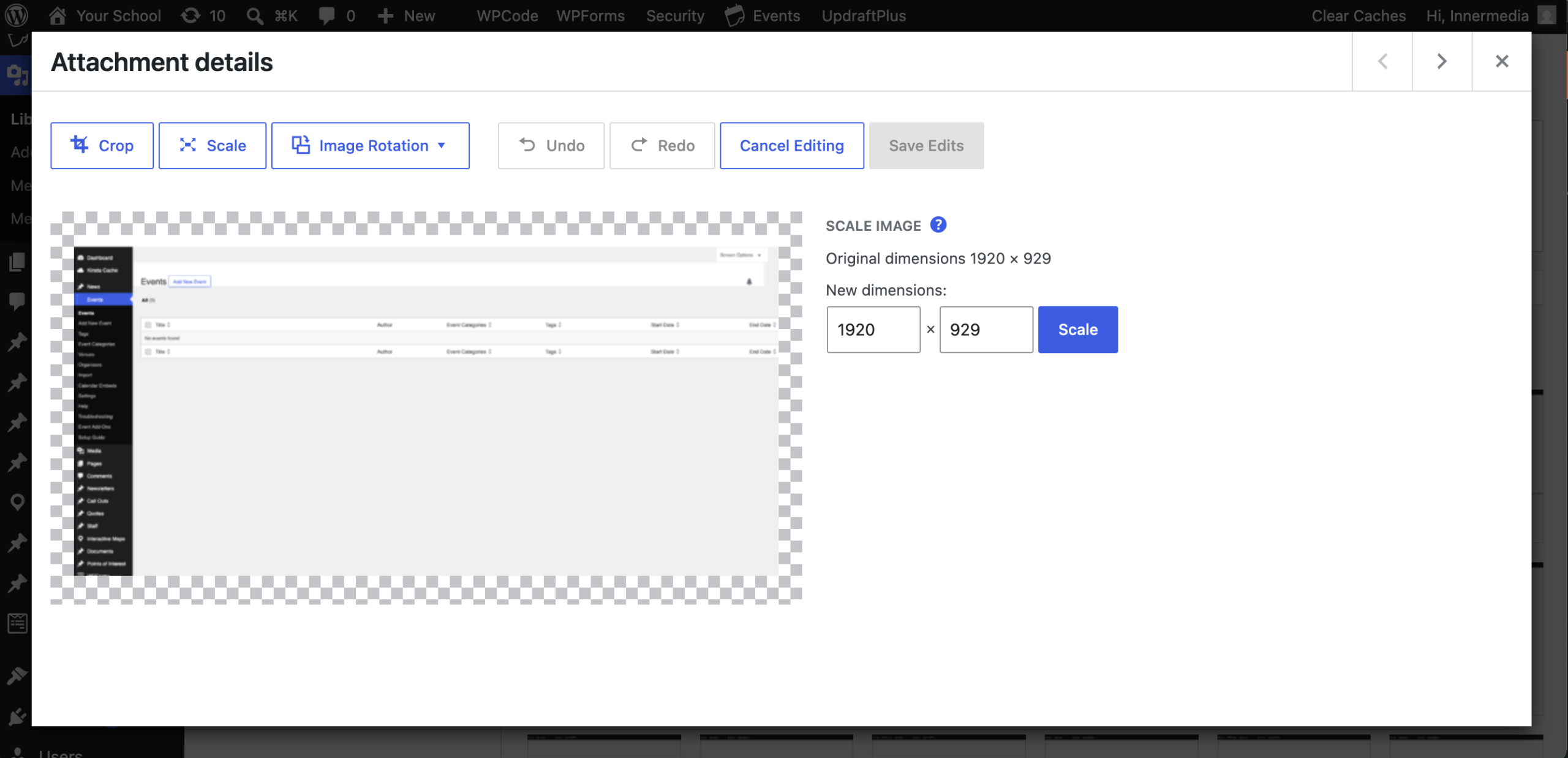
- With the original restored, click Edit Image.
- Crop (or scale) the image to the shape and size you need, then save.
4
Optimise the image again
Once you are happy with the crop, go back to the Imagify section in the image’s Attachment details and optimise the image again (Optimise, or Re-Optimise with Smart compression if that is the option shown), so it is compressed at the right size.
5
Clear caches and check the result
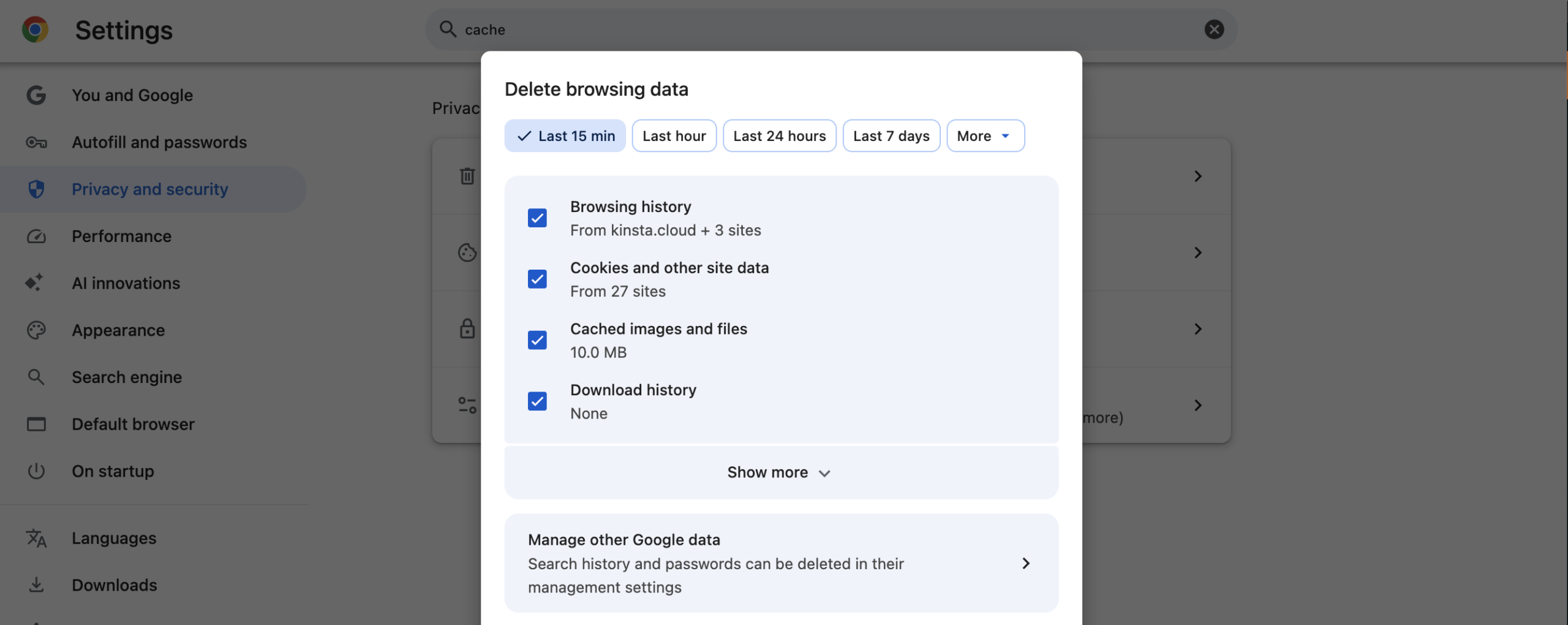
- Clear the site cache, then view the page in a private/incognito window to bypass your browser cache.
- If the old version still shows, clear your browser cache too, or ask us to clear the site cache.
Completed
If you are still experiencing issues, our support team is here to help.
Was this article helpful?