INNERMEDIA
Contact Support
Support Base
Pages & Content
How to set up a site popup
Step 0 of 6 completed
1
Open the Site Alert settings
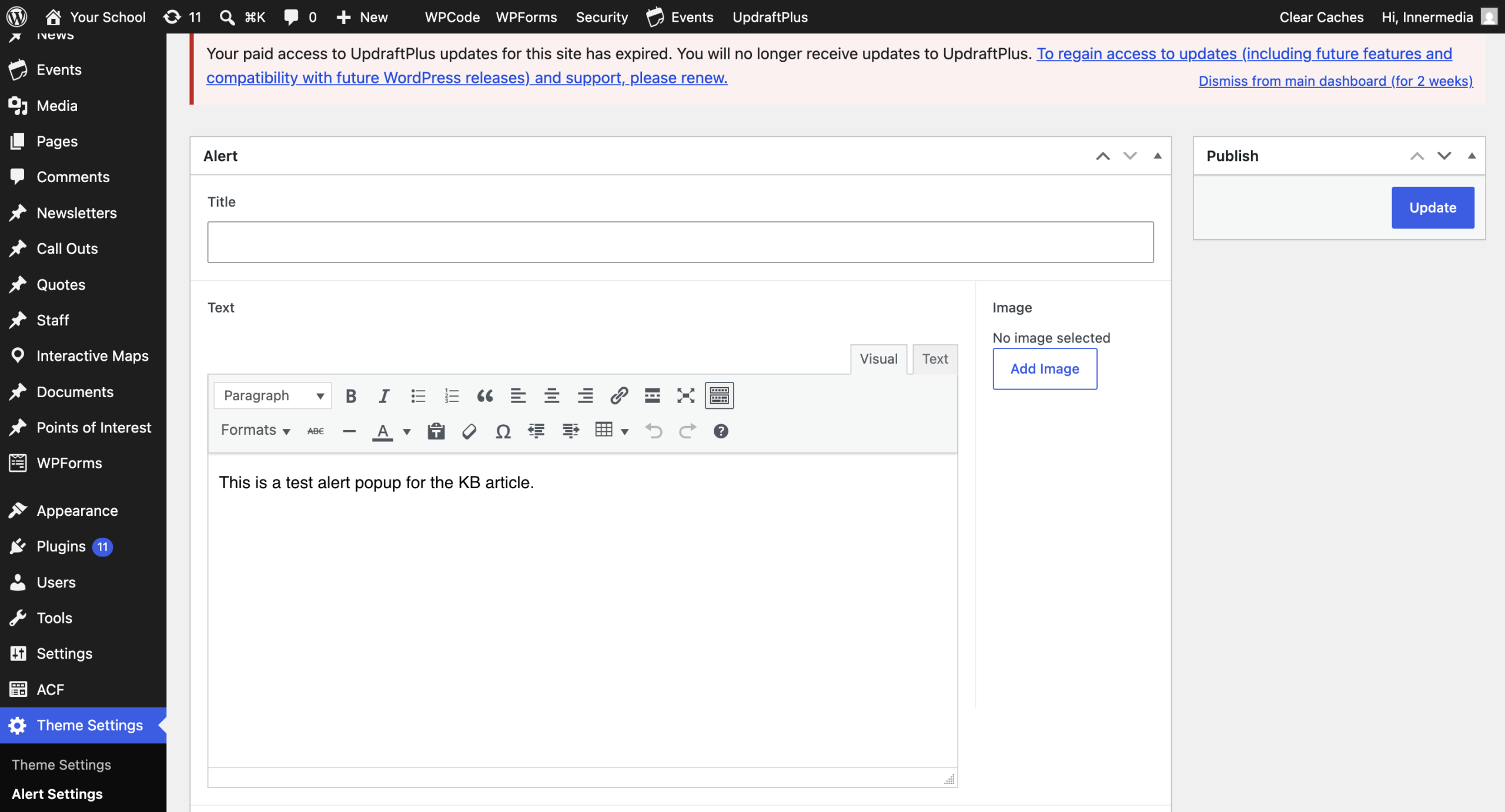
- In the WordPress admin menu, go to Theme Settings > Alert Settings.
- This opens the Site Alert page, where you control the popup that appears to visitors across your whole site.
2
Add your alert content
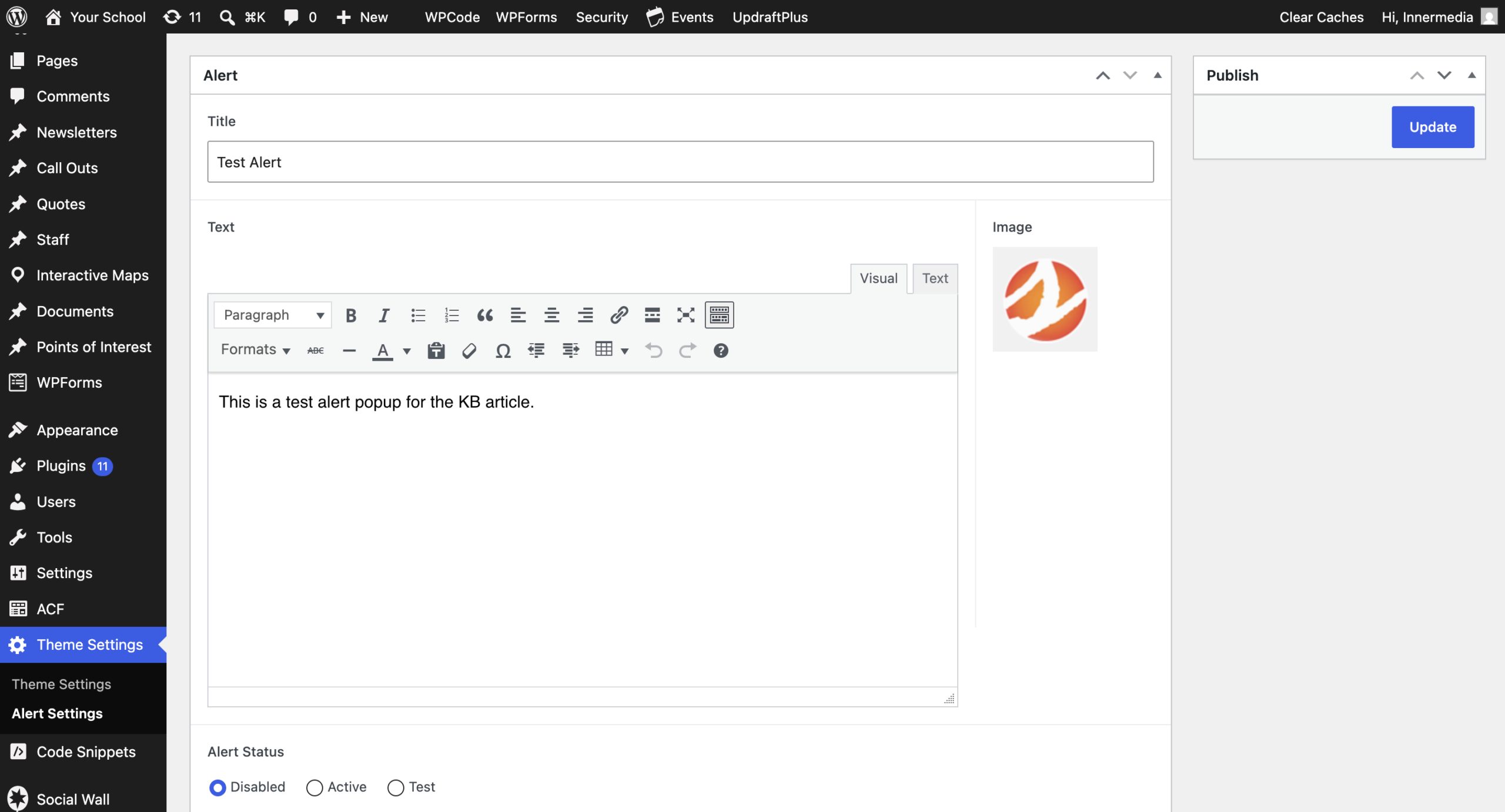
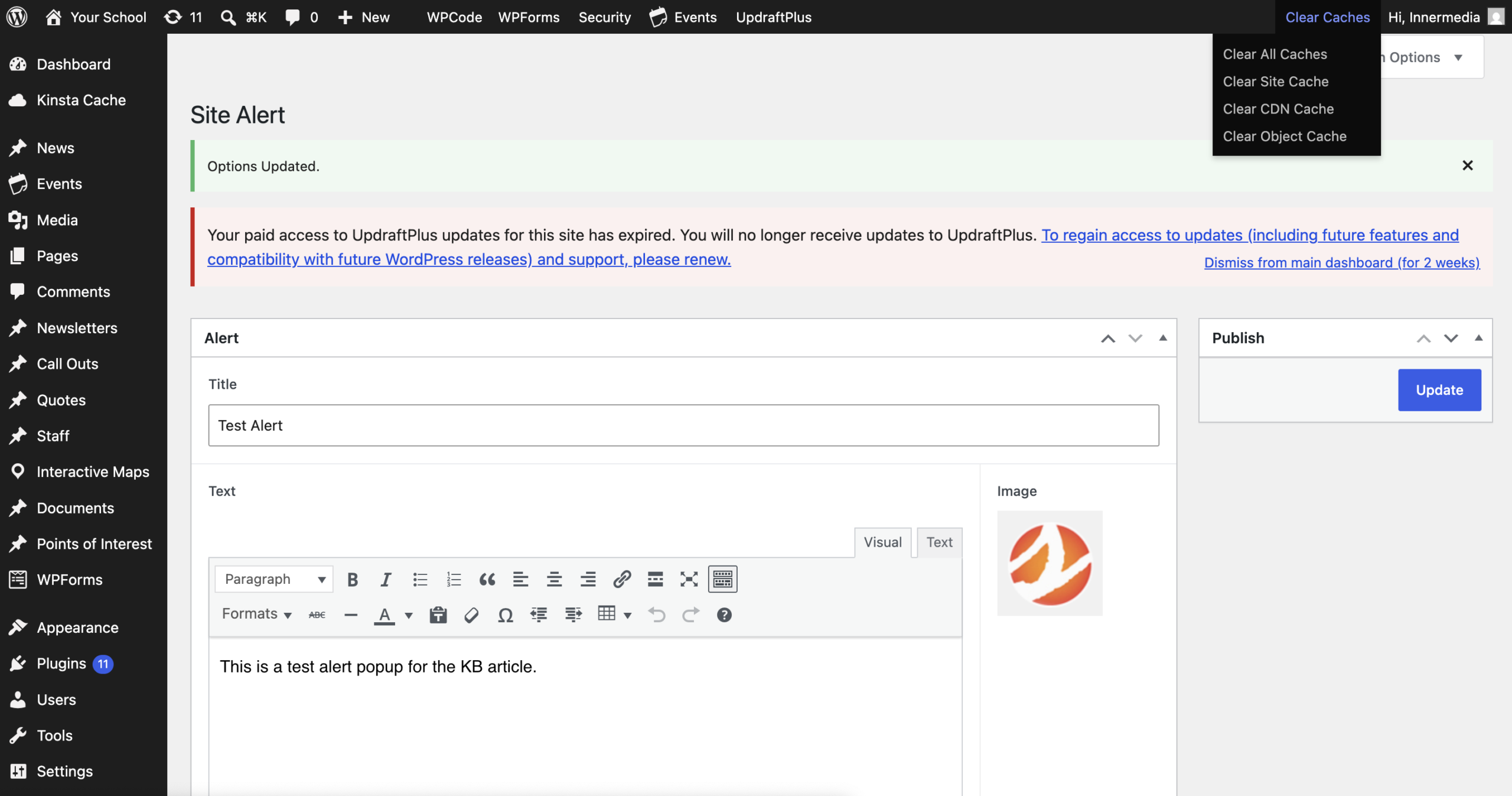
- Enter a Title for the alert.
- Enter the Text you want to show, using the formatting toolbar if needed.
- Optionally click Add Image to include a picture with the alert.
3
Preview it before going live
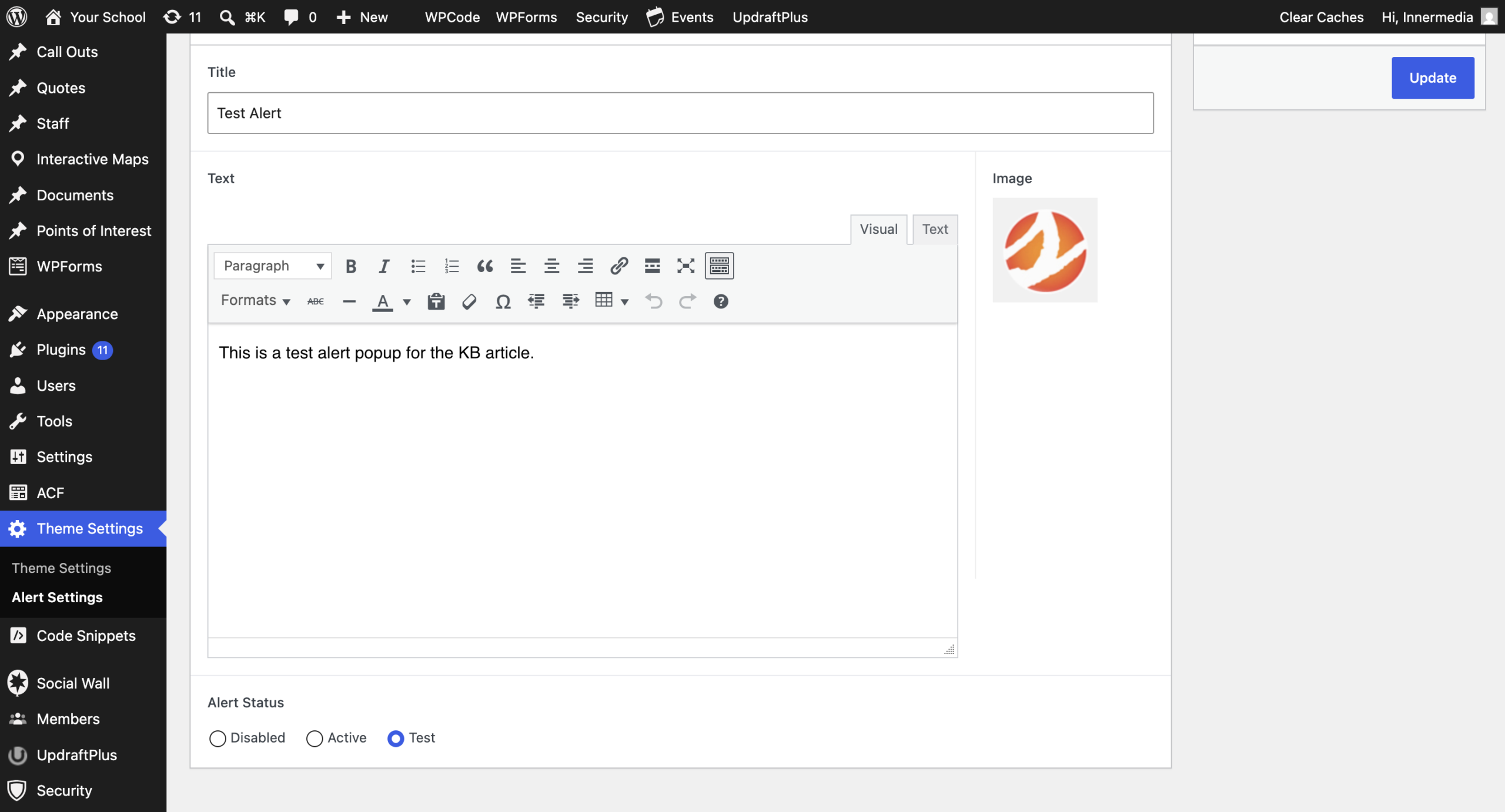
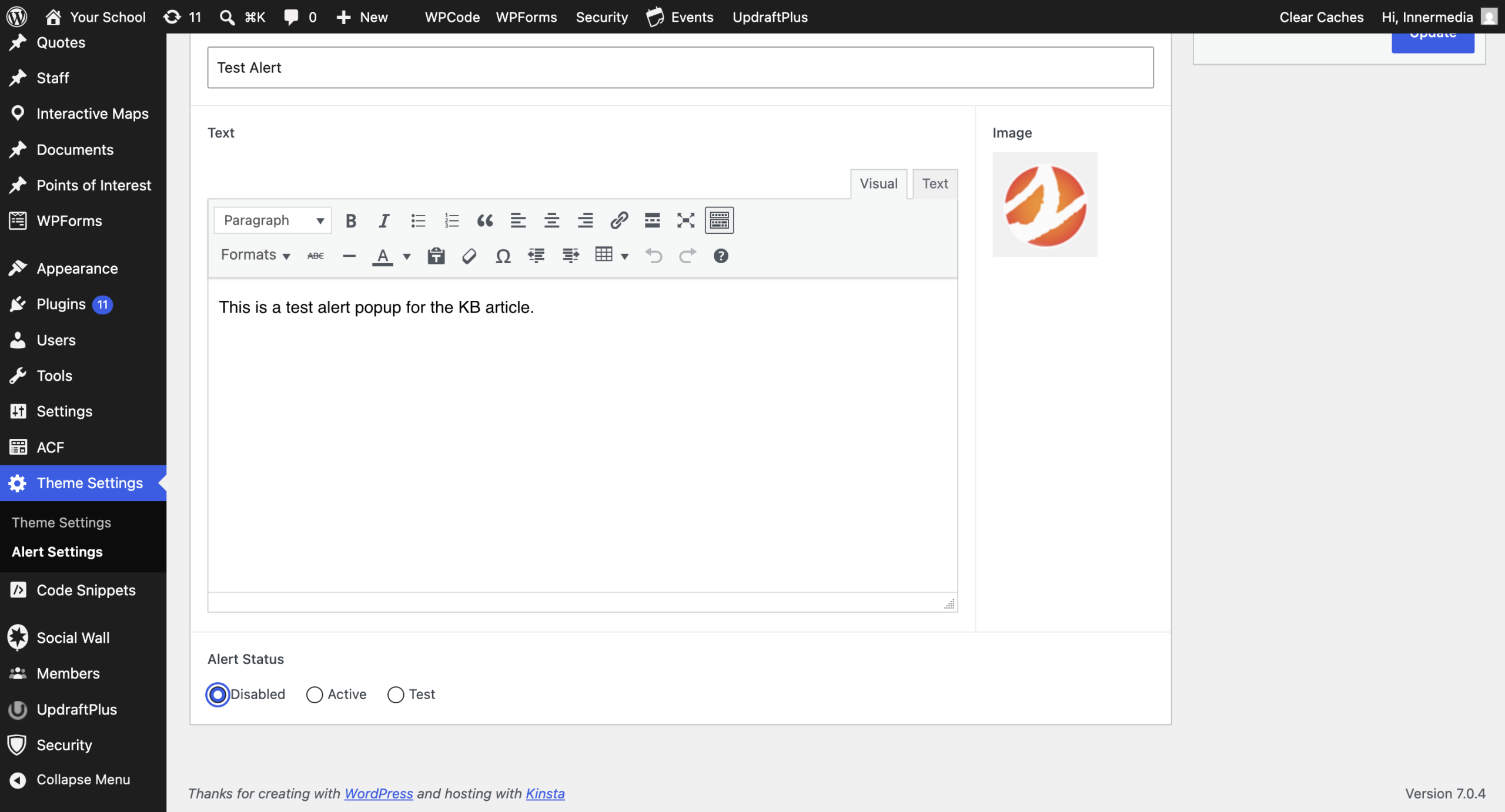
- Set Alert Status to Test.
- Click Update.
- Visit your site while logged in — you’ll see the popup, but logged-out visitors won’t. Use this to check the wording and layout are right before it goes public.
4
Make the alert live
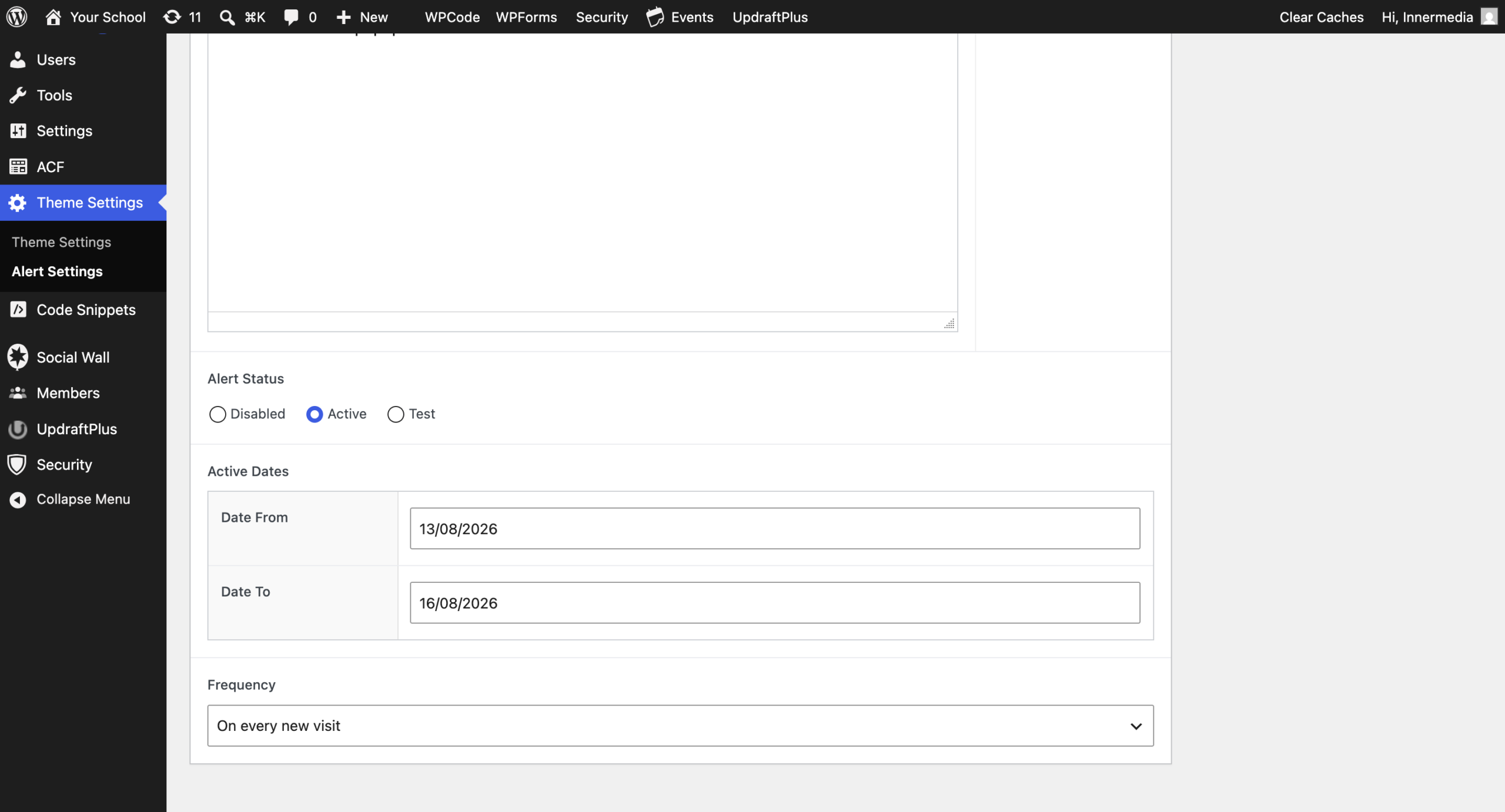
- Once you’re happy with it, set Alert Status to Active.
- Under Active Dates, set a Date From and Date To to control when the alert shows — it will only appear to visitors within this date range.
- Set Frequency to control how often the same visitor sees it: Once a Day, Once a Week, Once a Month, or On every new visit.
- Click Update.
5
Clear the cache to see it live
- Click Clear Caches > Clear All Caches so logged-out visitors see the alert straight away, rather than an older cached version of the page.
6
Turn the alert off
- When the alert is no longer needed, go back to Theme Settings > Alert Settings.
- Set Alert Status to Disabled and click Update.
Completed
If you are still experiencing issues, our support team is here to help.
Was this article helpful?