Managing Cookie Consent & GDPR Banners
UK law (the Privacy and Electronic Communications Regulations, alongside GDPR) requires websites to get informed consent before setting non-essential cookies. This means your site needs a banner that lets visitors accept or decline cookies. Essential cookies (like those needed for the site to function) do not need consent.
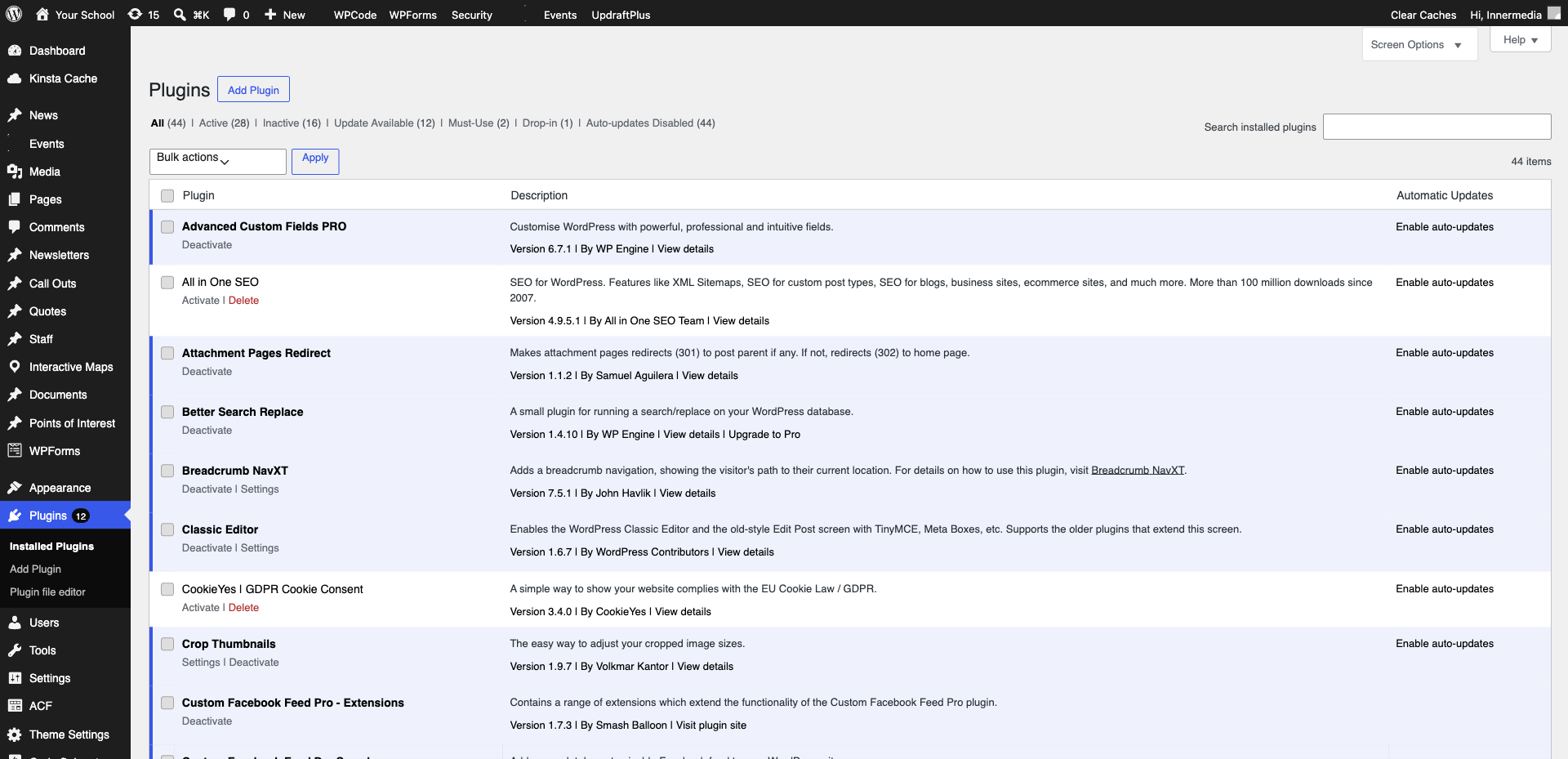
Most Innermedia sites use a cookie consent plugin. Go to Settings → Cookie Consent (or the specific plugin name, e.g. CookieYes, Complianz) in your WordPress dashboard. Here you can manage the banner text, button labels, and which cookie categories are available.
Group your cookies into categories: Necessary (always on), Analytics (Google Analytics, etc.), Marketing (Facebook Pixel, ad tracking), and Functional (embedded videos, maps). Each category should have a clear description of what it does and why.
Open your site in a private/incognito window to see the cookie banner as a new visitor would. Check that accepting and declining cookies works correctly, and that analytics only fire after consent is given.
Completed
If you are still experiencing issues, our support team is here to help.
Was this article helpful?