INNERMEDIA
Contact Support
Support Base
Pages & Content
Previewing Changes Before Publishing
Step 0 of 4 completed
1
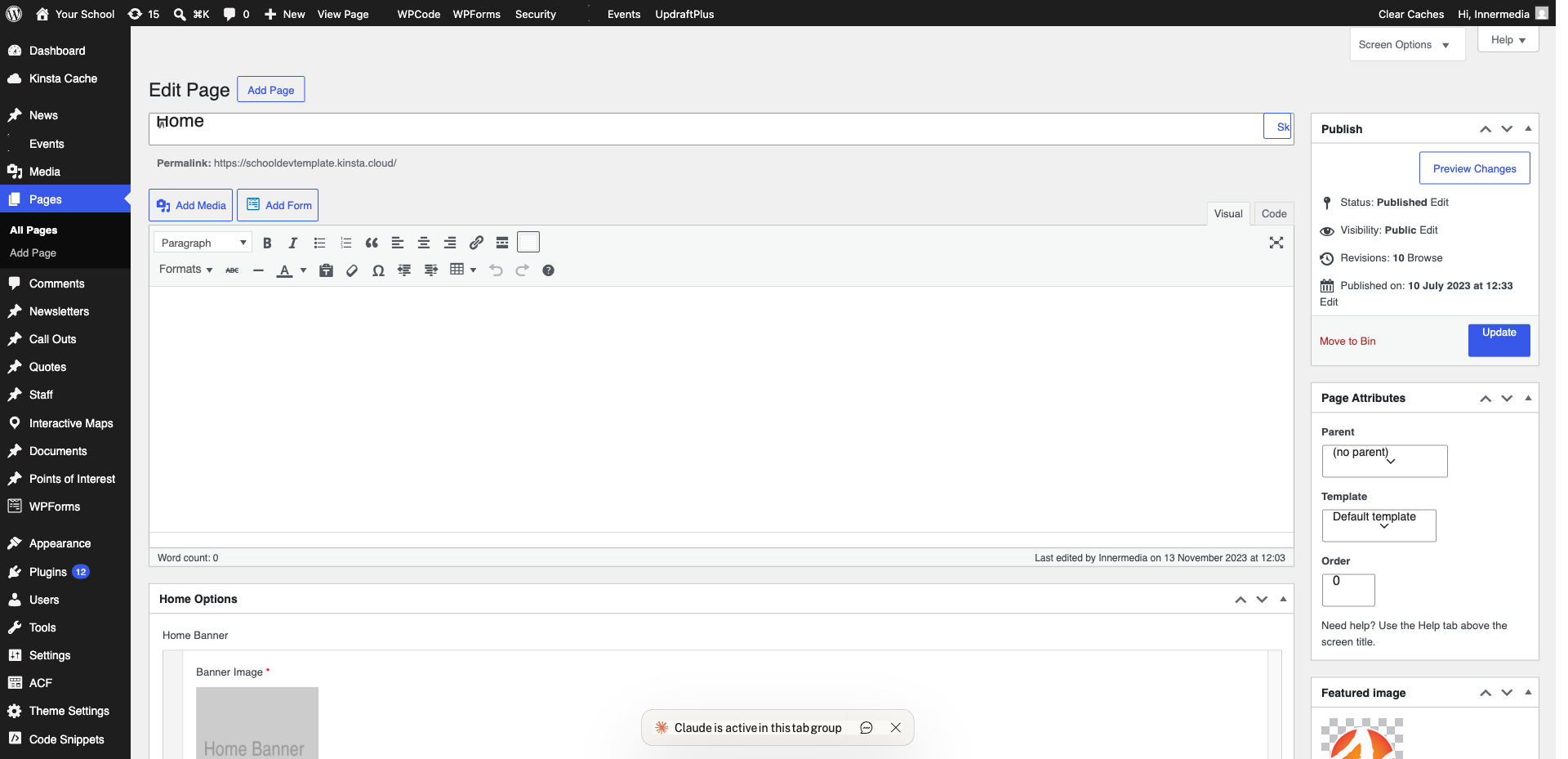
Open Preview
Click the ‘Preview’ button in the top right corner. Choose Desktop, Tablet, or Mobile.
Pro Tip
'Preview in new tab' shows exactly how visitors will see it. 2
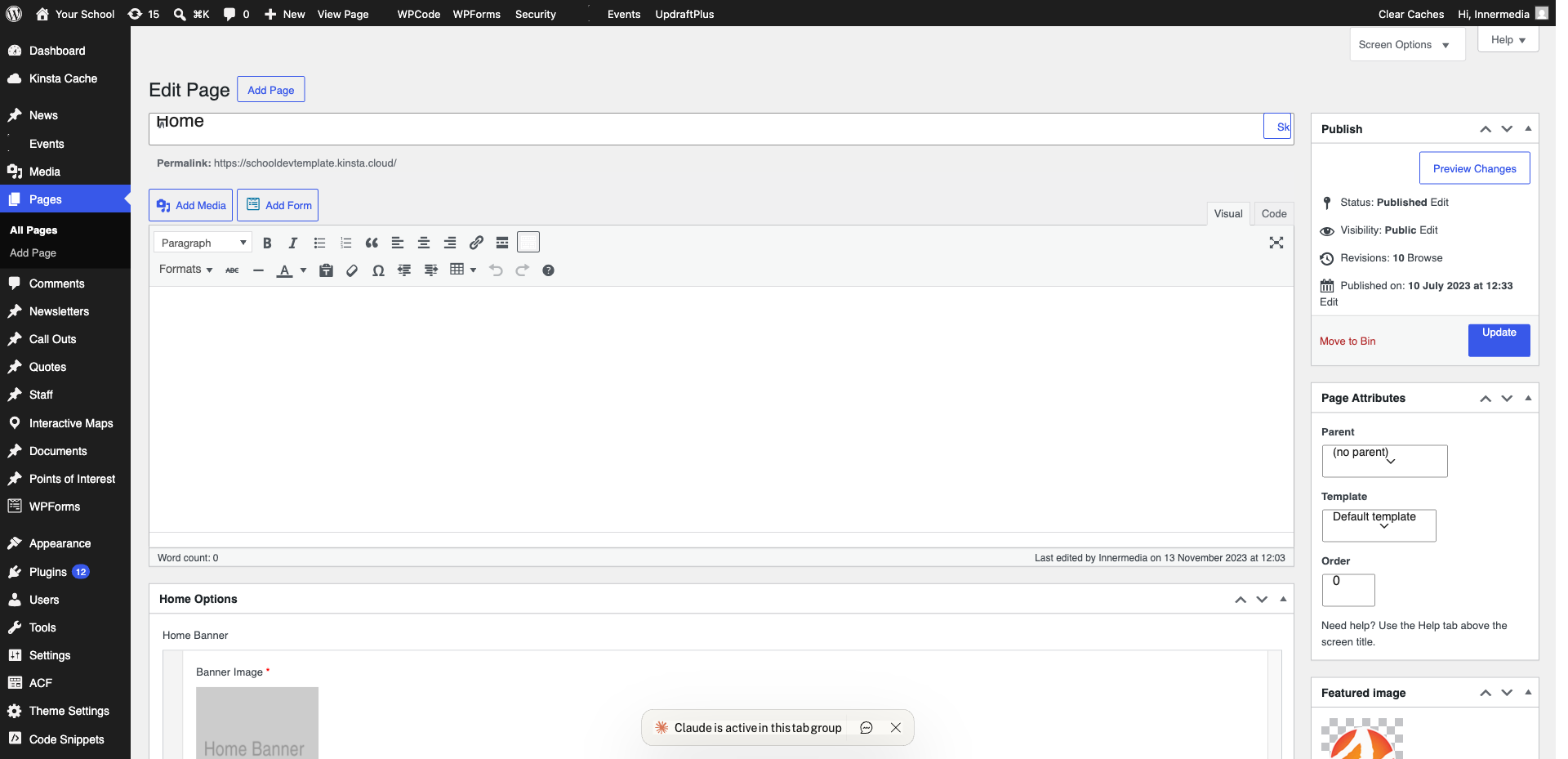
Preview in a New Tab
Click ‘Preview in new tab’ to open the page with your unpublished changes visible.
3
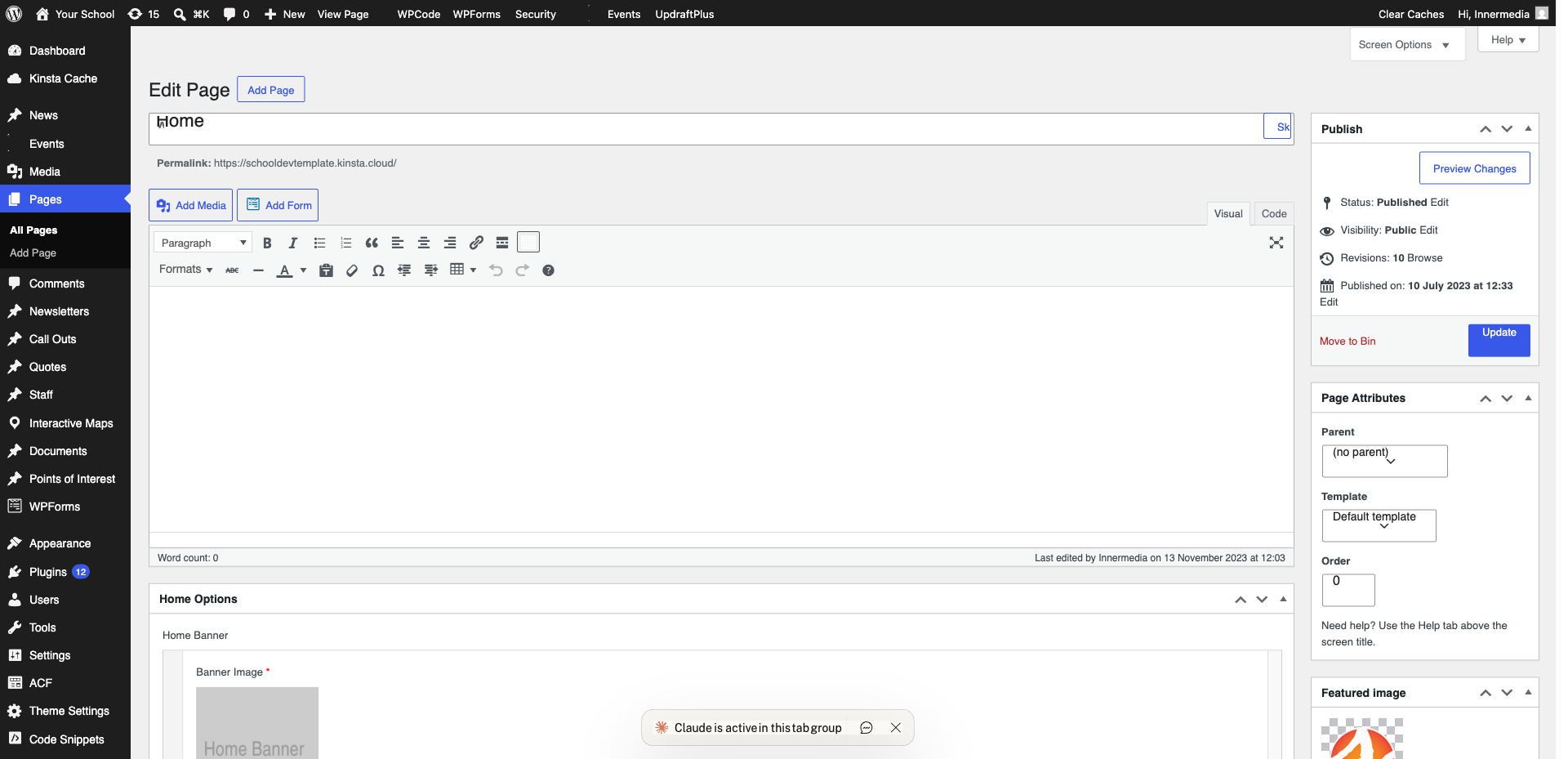
Check on Mobile
Resize your browser or use developer tools (F12) to simulate mobile view.
Pro Tip
Over 60% of school website visitors are on mobile. Always check mobile view. 4
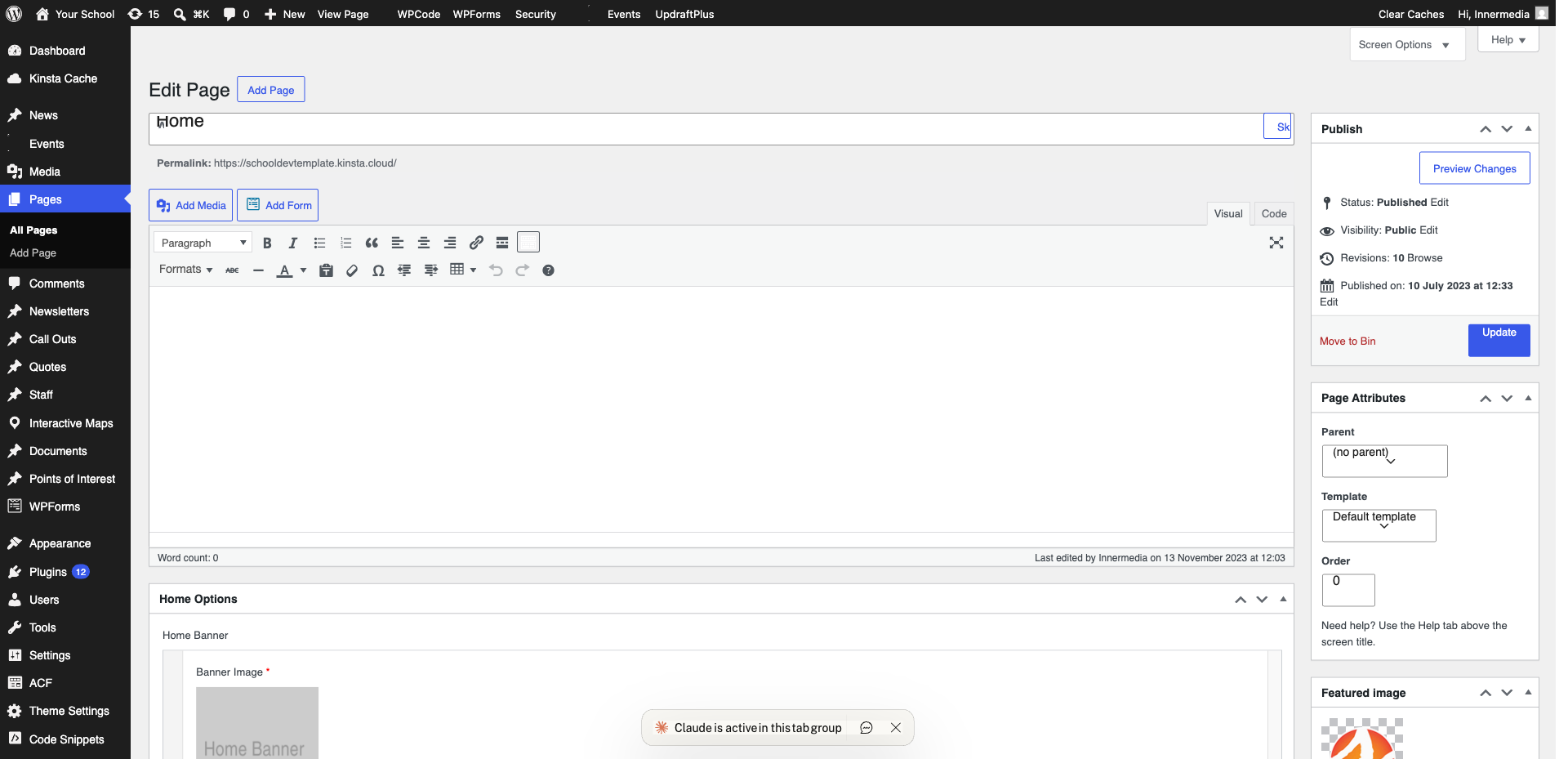
Publish When Ready
Click ‘Update’ or ‘Publish’ to make changes live.
Completed
If you are still experiencing issues, our support team is here to help.
Was this article helpful?