INNERMEDIA
Contact Support
Support Base
Pages & Content
Reordering and cropping staff or governor profiles
Step 0 of 4 completed
1
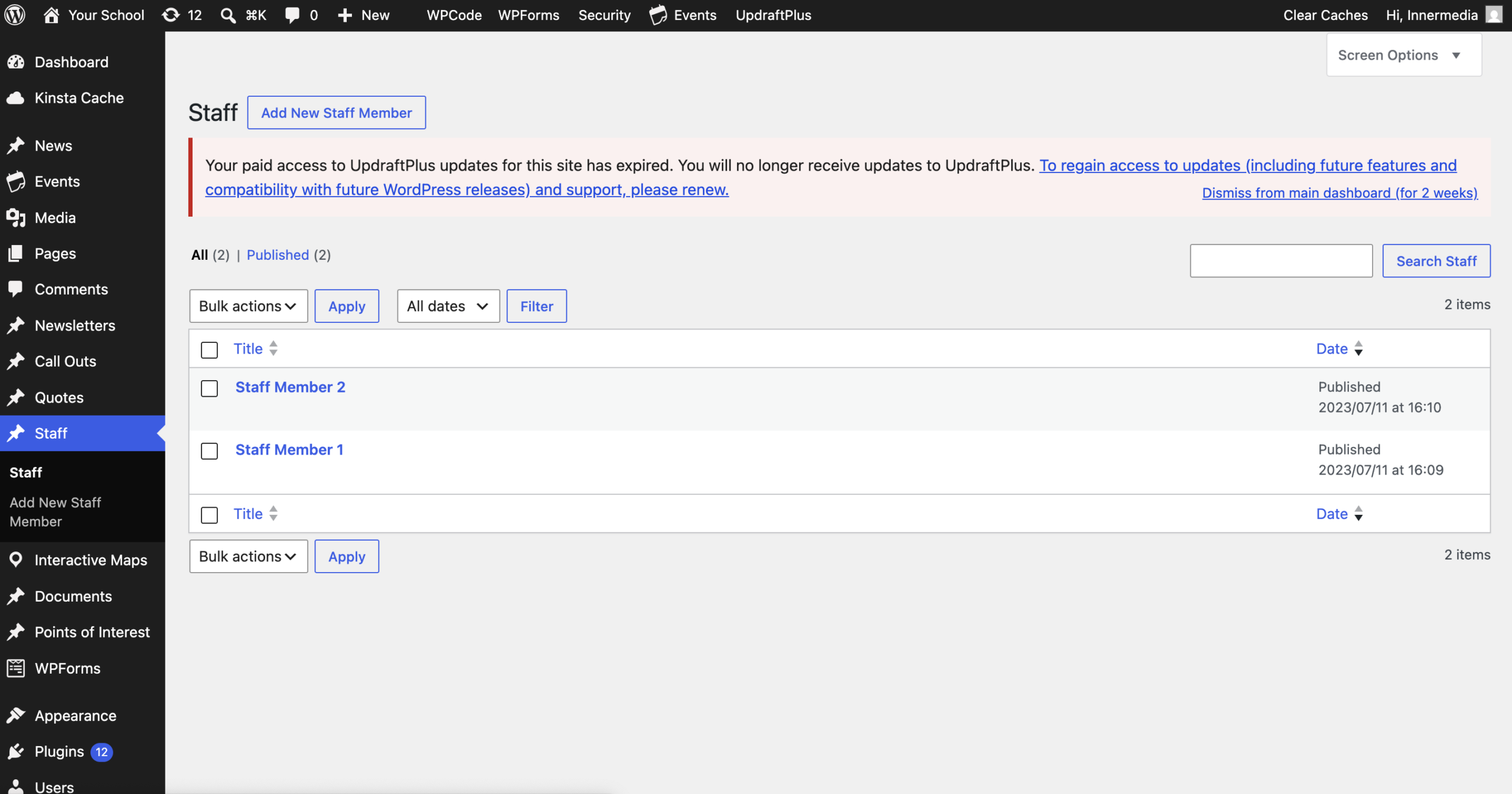
Open the profile you want to reorder
- Go to Staff (or Governors, if your site has a separate menu for this) in the WordPress admin menu.
- Click into the profile you want to move.
2
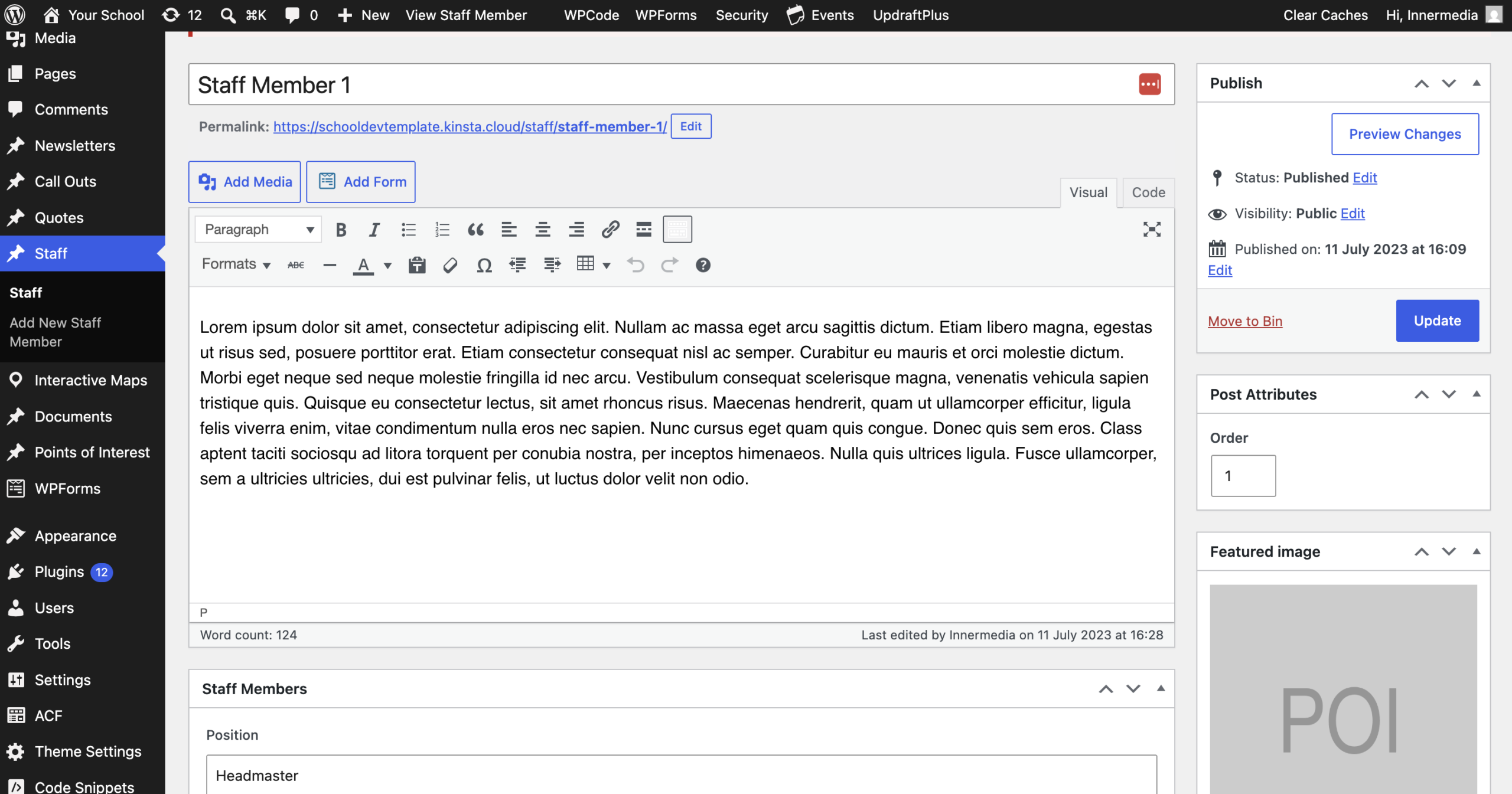
Set its position with the Order field
- In the Post Attributes box (usually on the right of the screen), find the Order field.
- Enter a number — profiles with a lower number appear first.
- Click Update.
- Repeat for each profile until everyone is numbered in the order you want them to appear.
3
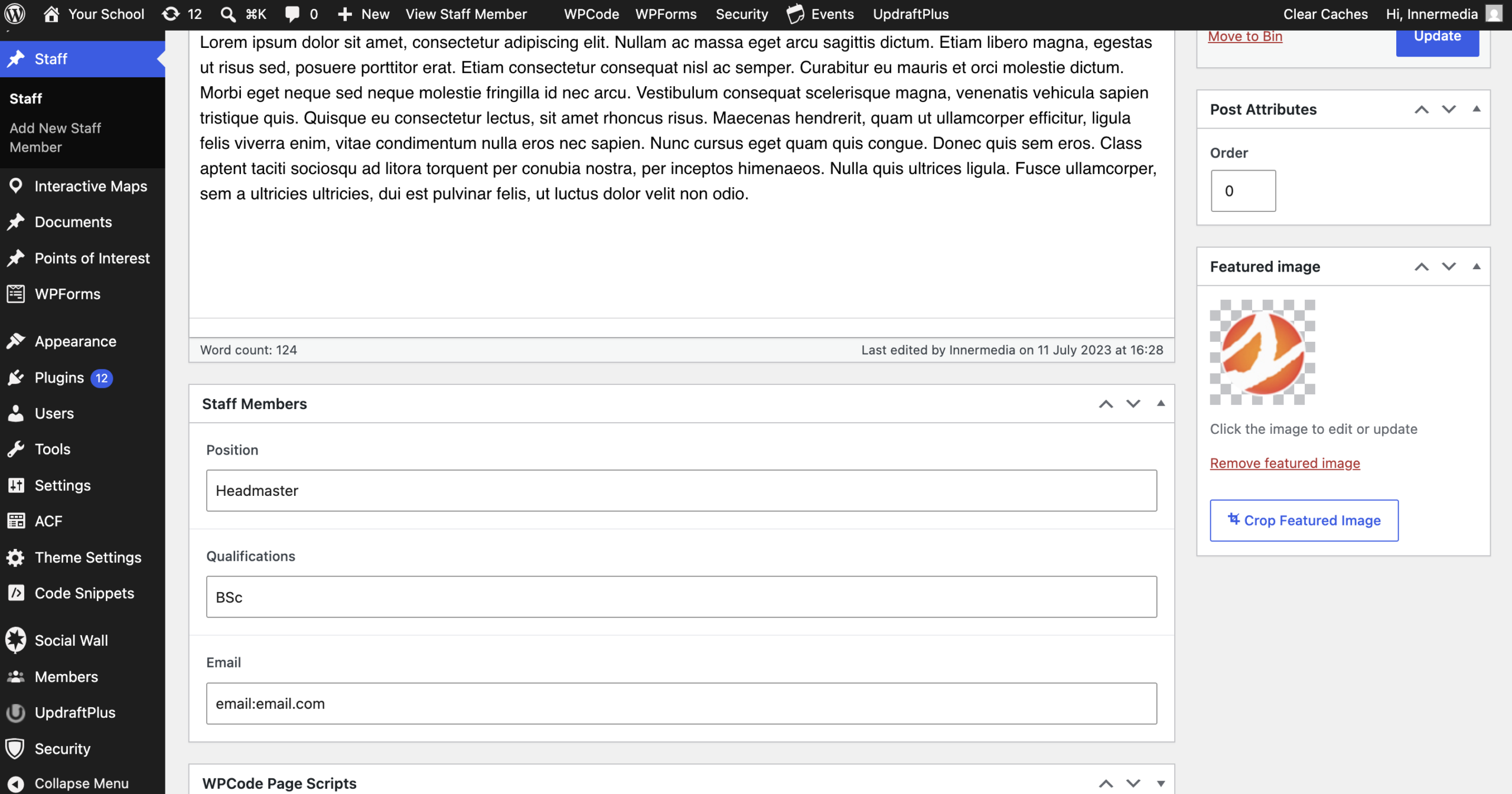
Set the profile photo
- On the same profile, find the Featured Image box and click Set featured image.
- Upload or select the photo, then click Set featured image to confirm.
4
Crop it to fit the circular frame
- Once the photo is set, a cropping button appears just below the Featured Image box — click it.
- You’ll see one or more image sizes to crop. Pick the one that matches the size used on your existing profile photos (crop each one if you’re not sure which is used).
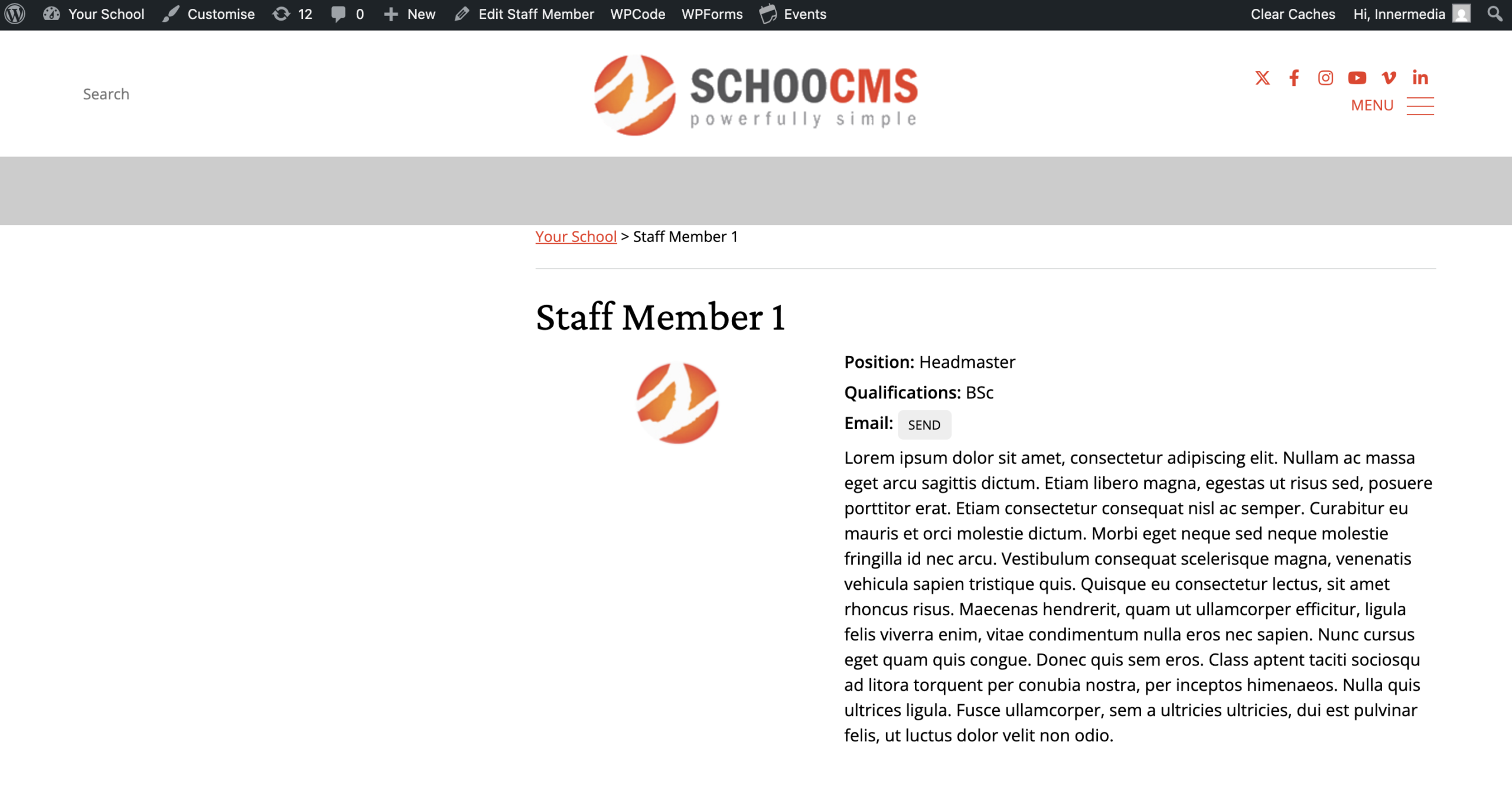
- Drag and zoom to frame the face centrally, then save the crop.
- Click Update on the profile to save.
Completed
If you are still experiencing issues, our support team is here to help.
Was this article helpful?