INNERMEDIA
Contact Support
Support Base
Pages & Content
Reordering Sections & Blocks
Step 0 of 4 completed
1
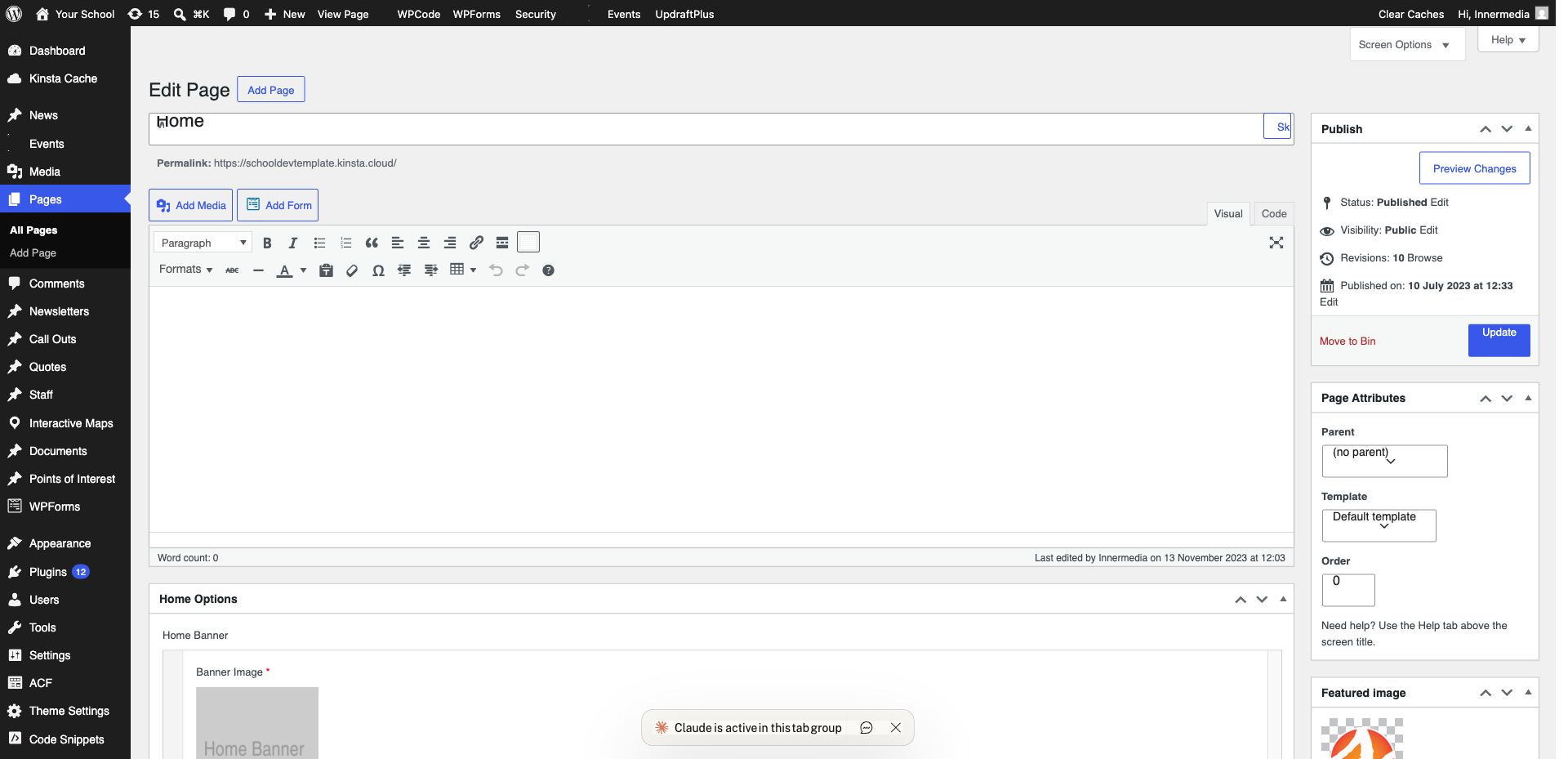
Select the Block
Click on the block you want to move. You will see a toolbar with arrow icons and a drag handle (six dots).
2
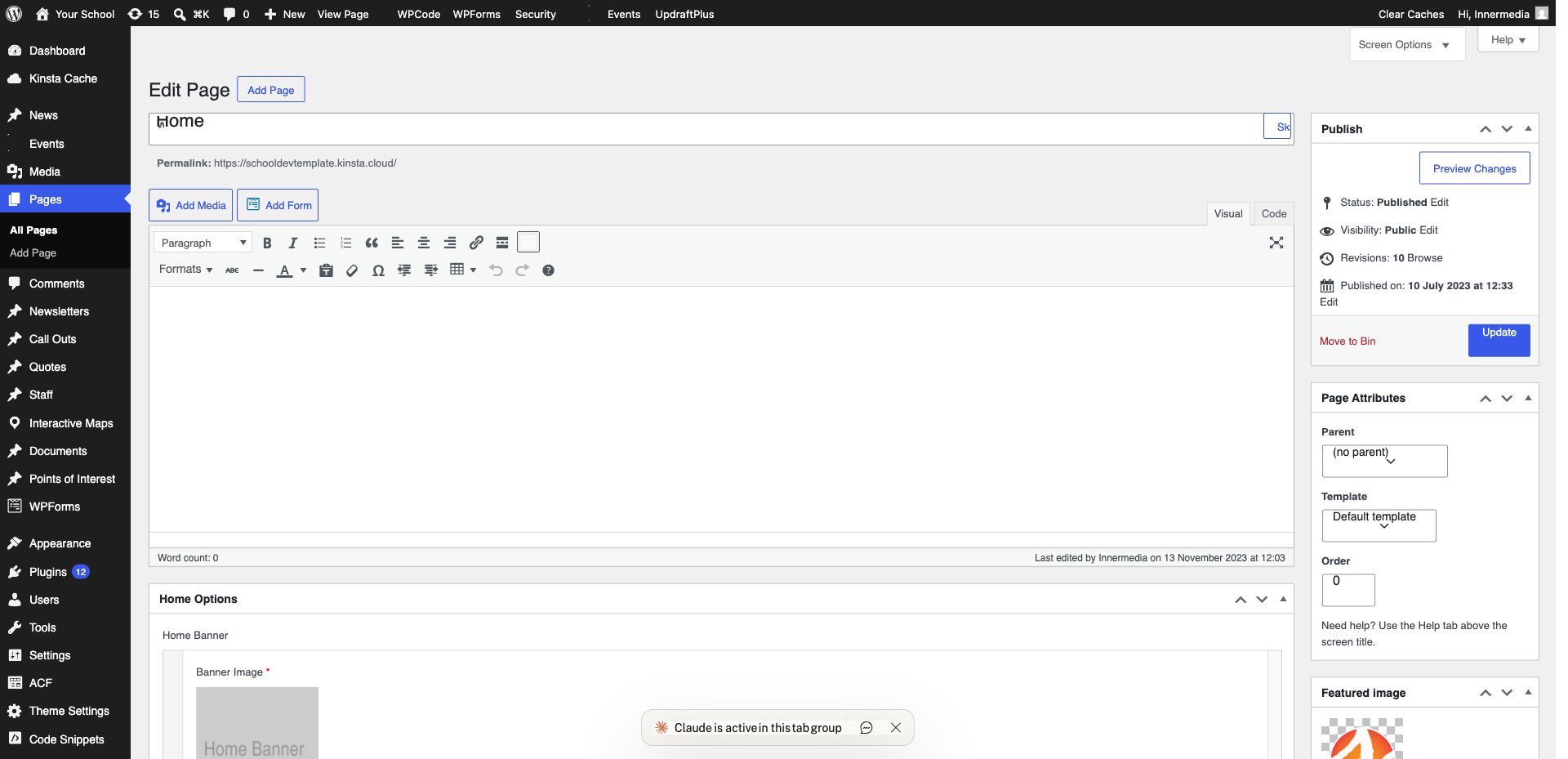
Move Using Arrows
Click the up or down arrows in the block toolbar to move one position at a time.
3
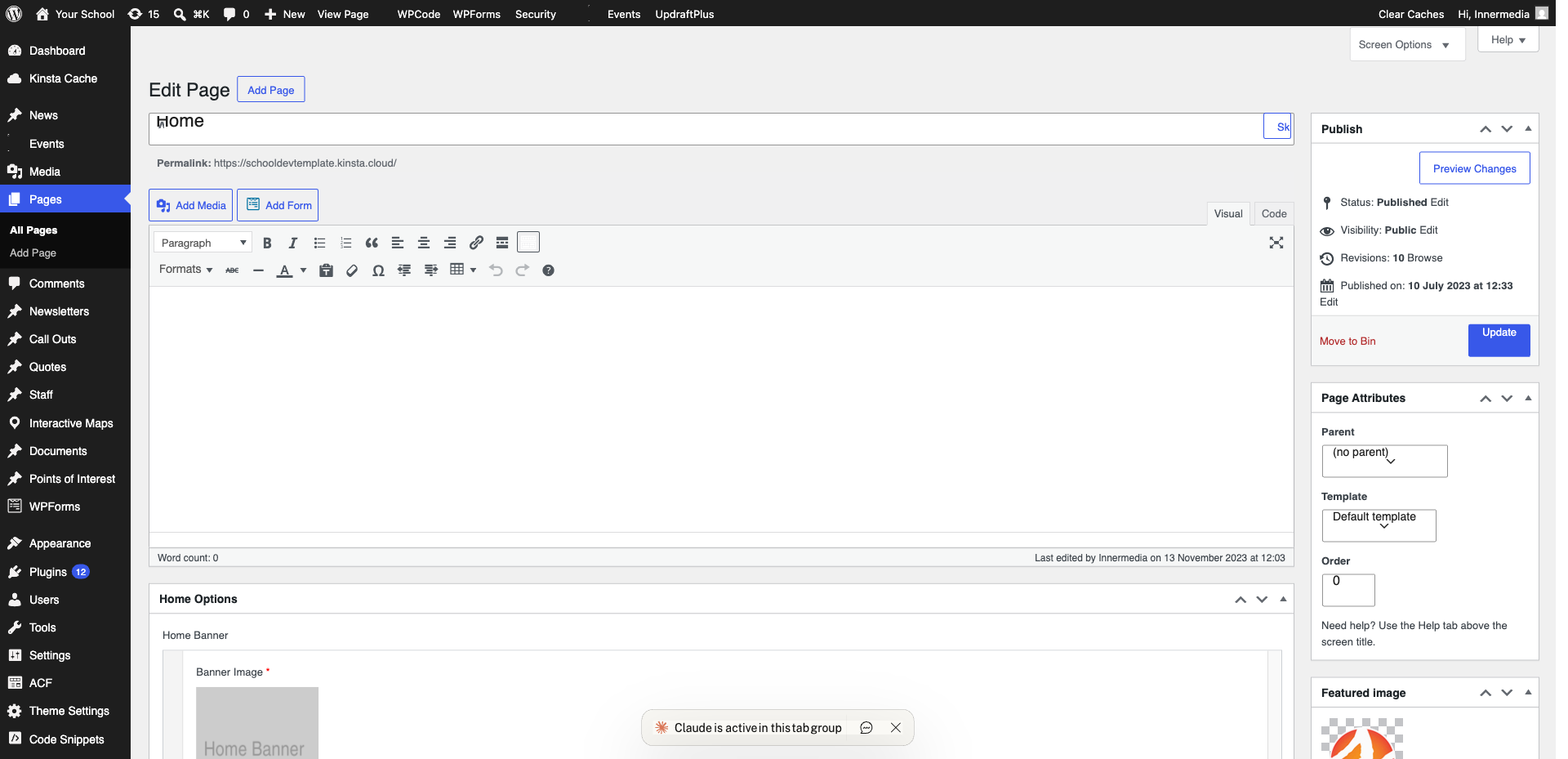
Drag and Drop
Click and hold the six-dot drag handle and drag the block to its new position.
Pro Tip
Use 'List View' to see the block hierarchy and drag entire groups. 4
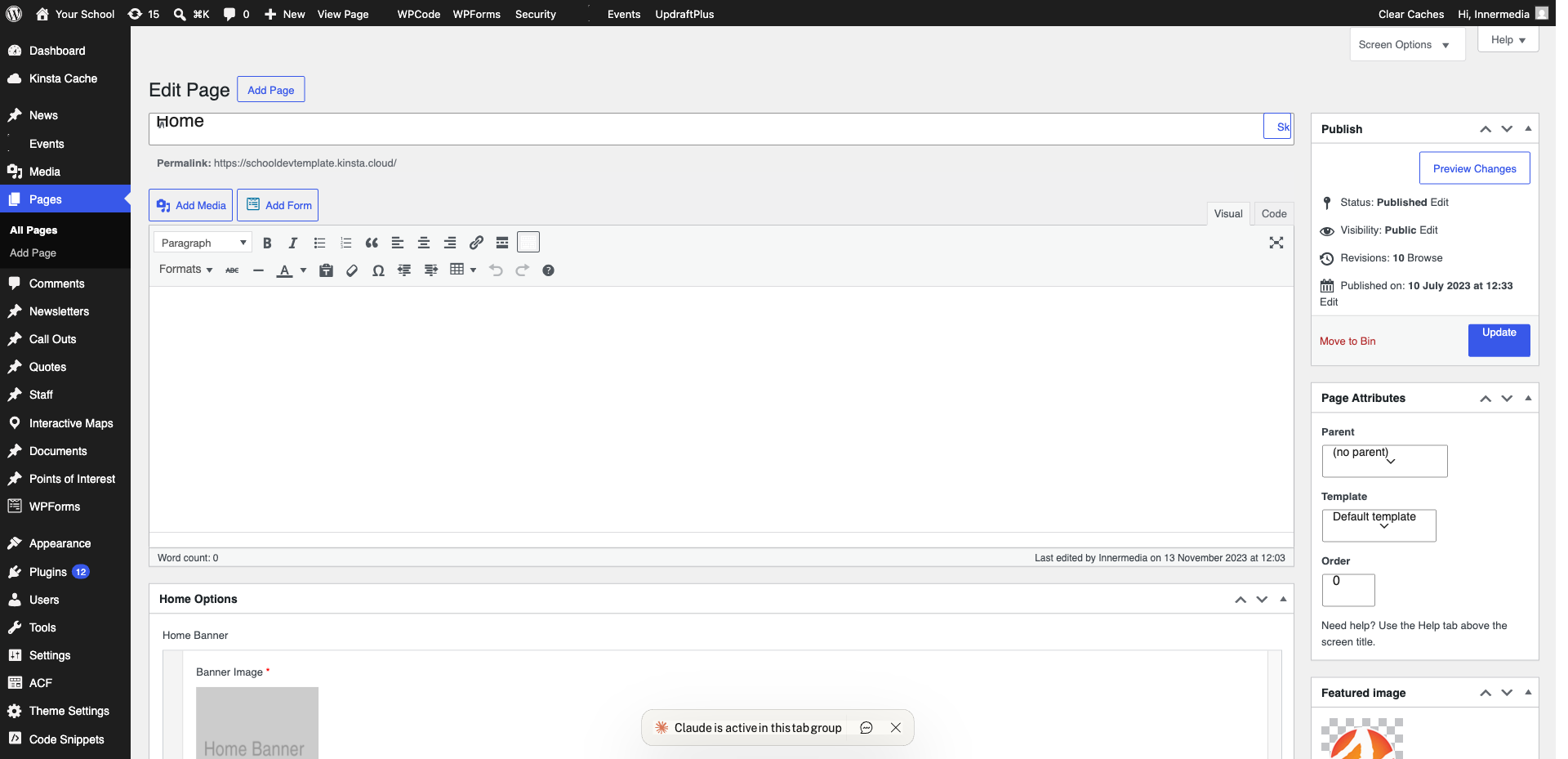
Use List View for Complex Pages
Click the three-line icon in the top toolbar to open List View. Drag blocks here for precise control.
Completed
If you are still experiencing issues, our support team is here to help.
Was this article helpful?