Running a Security Audit
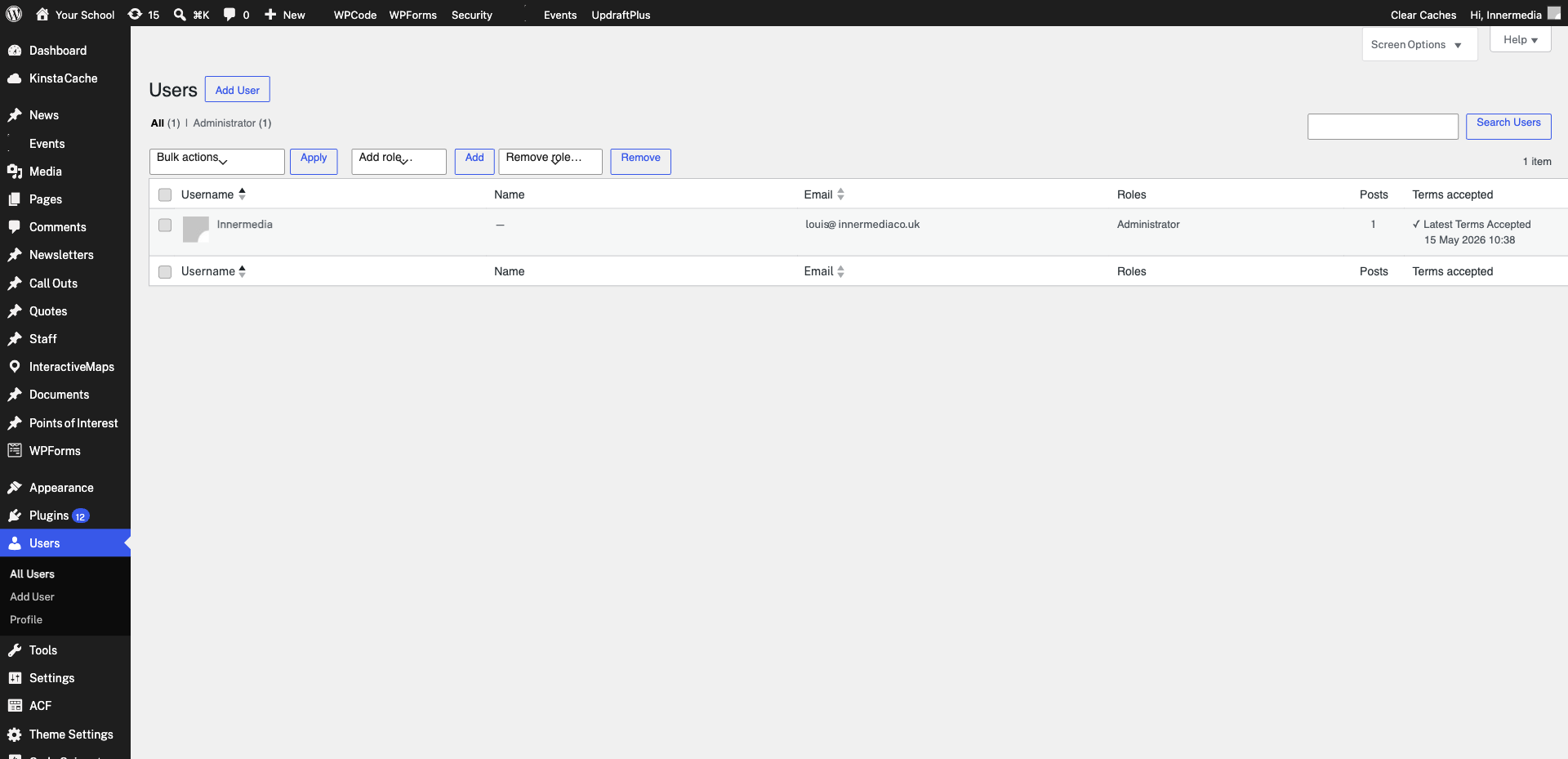
Go to Users → All Users and review every account. Remove any users who no longer need access (former staff, old agency accounts). Check that no one has Administrator access who does not need it.
If your site has a security plugin (e.g. Wordfence, Sucuri), check the login activity log for any unusual patterns — failed login attempts from unknown IPs, logins at unusual times, or access from unexpected countries.
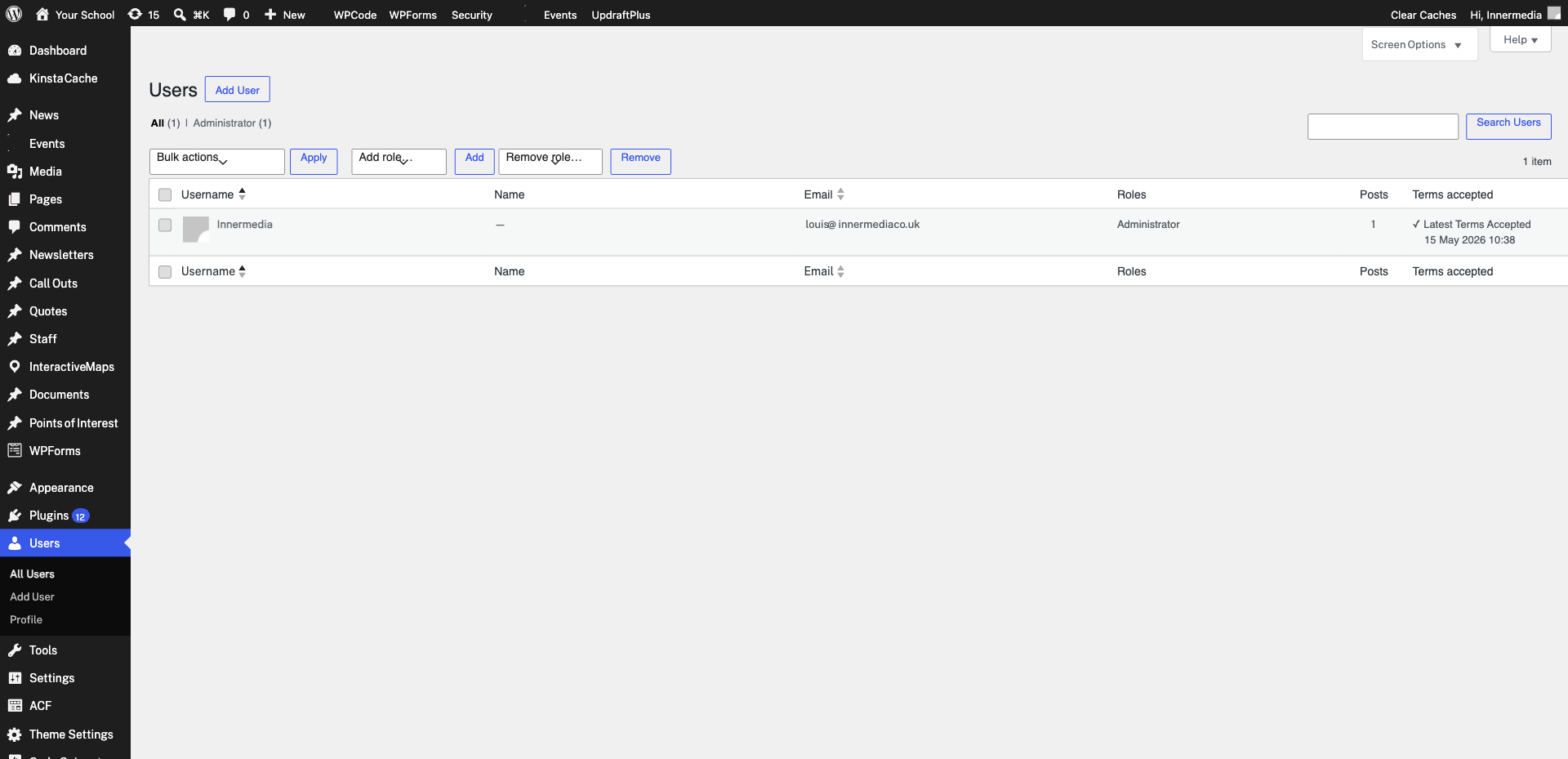
Check that your SSL certificate is active by visiting your site and looking for the padlock icon in the browser address bar. Click it to verify the certificate details. All Innermedia sites include free SSL via Kinsta.
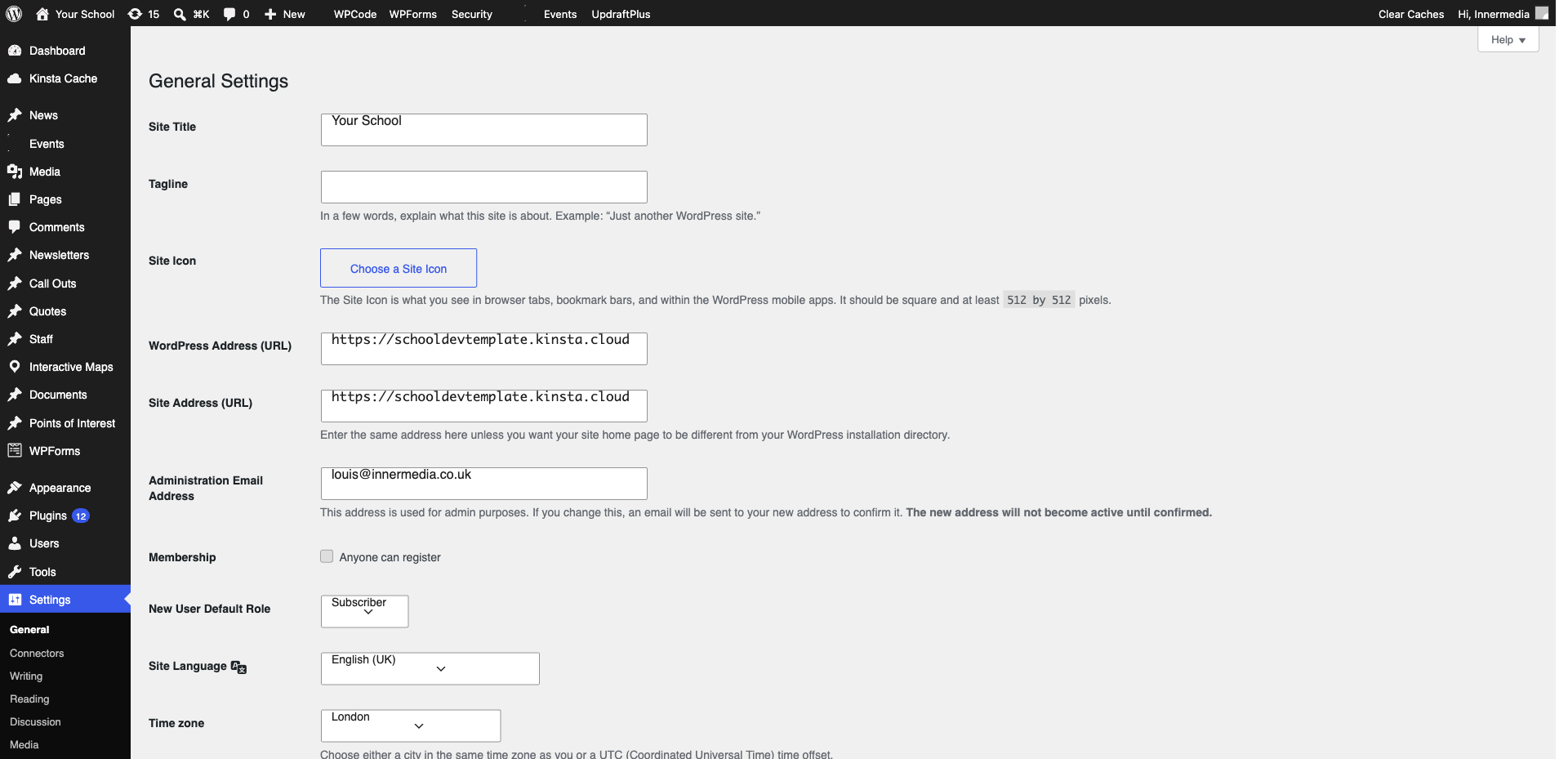
Confirm that automatic backups are running. Innermedia sites on Kinsta have daily automatic backups retained for 30 days. You can check the backup status in your Kinsta dashboard (MyKinsta → Sites → your site → Backups).
If you notice anything unusual — unexpected content changes, new user accounts you did not create, or your site redirecting to strange pages — contact Innermedia immediately at support@innermedia.co.uk. Time is critical with security issues.
Completed
If you are still experiencing issues, our support team is here to help.
Was this article helpful?