INNERMEDIA
Contact Support
Support Base
Pages & Content
Updating Text & Headings
Step 0 of 4 completed
1
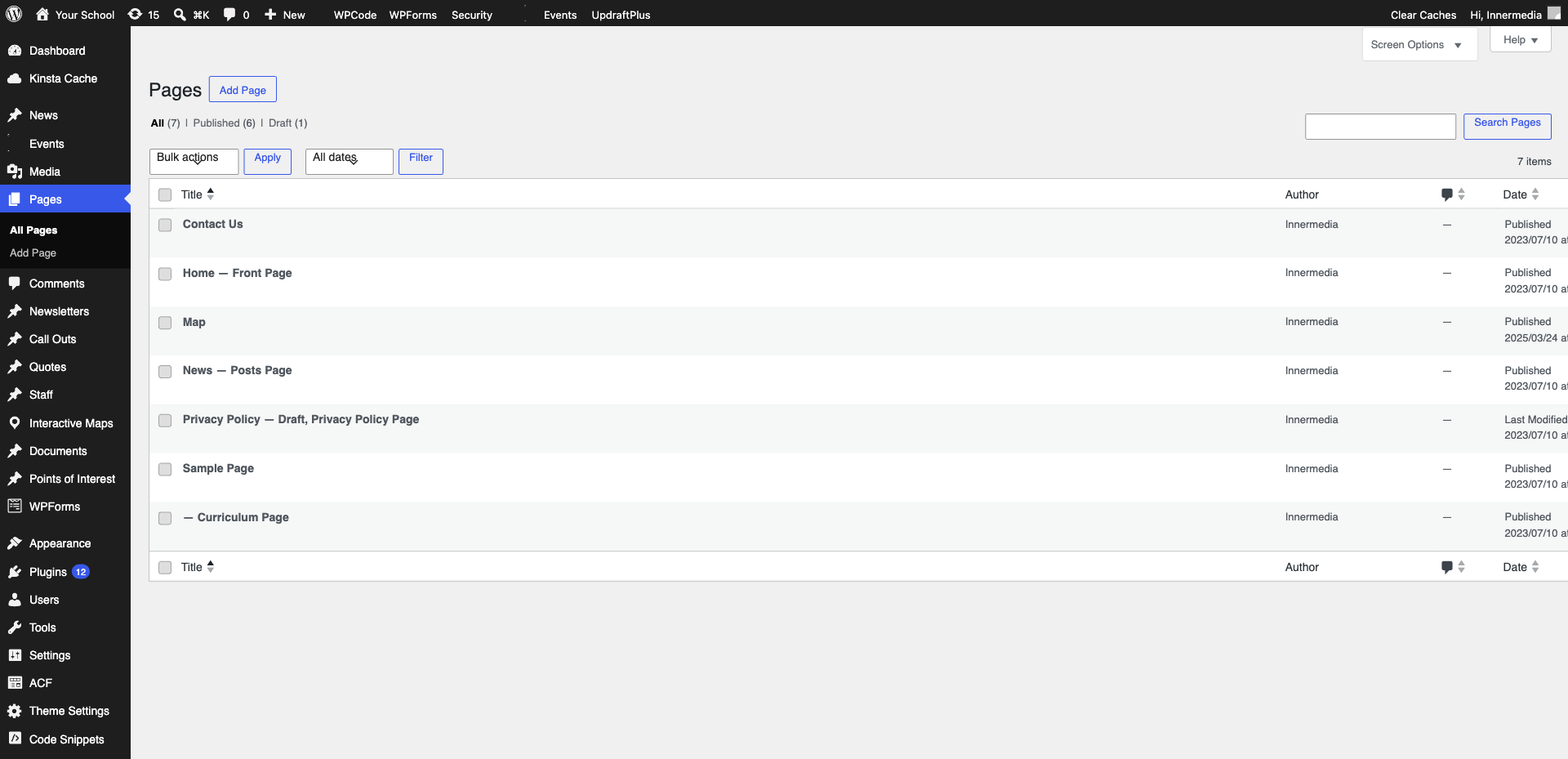
Open the Page for Editing
Go to Pages → All Pages and click ‘Edit’ on the page you want to update.
2
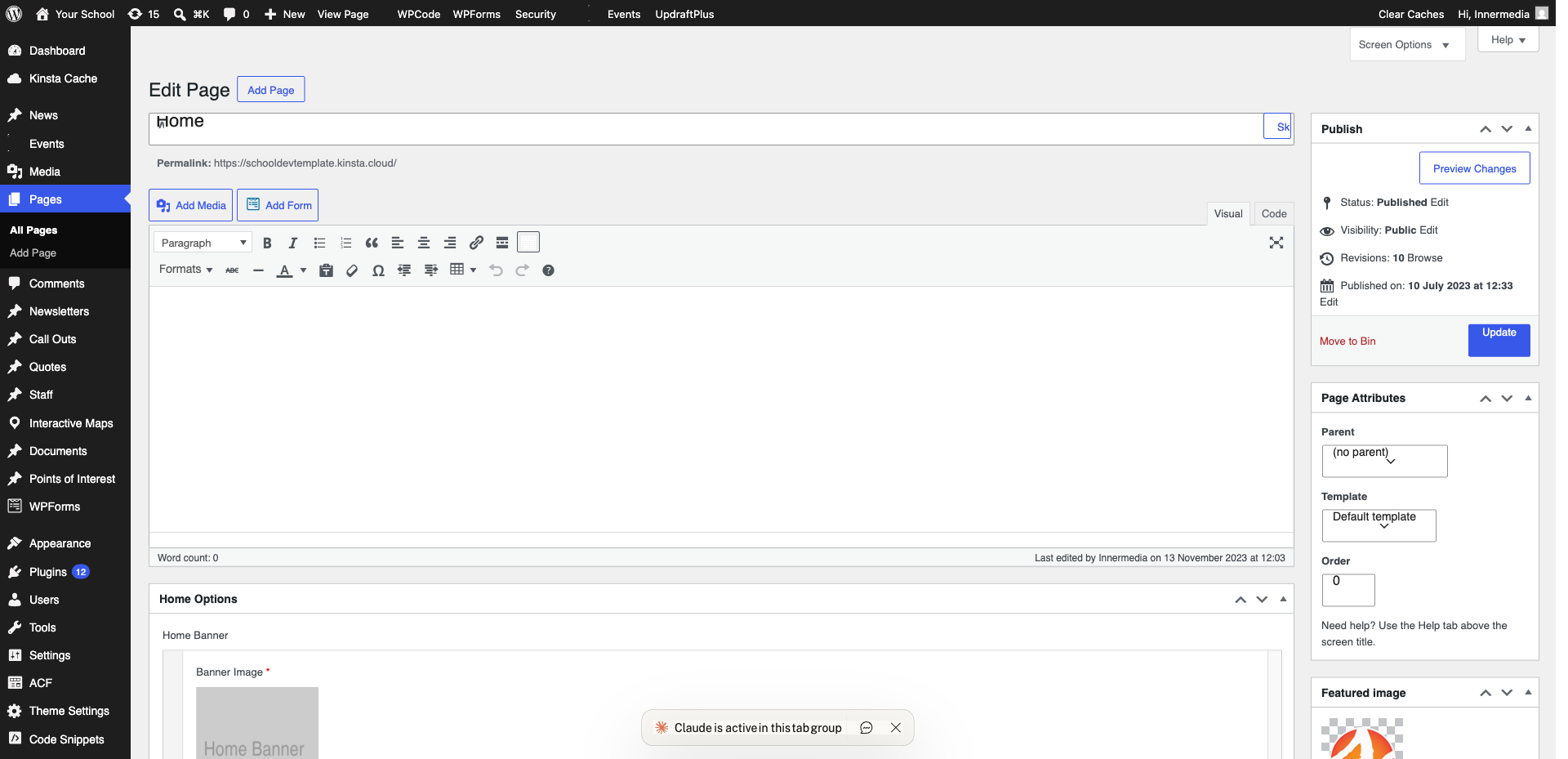
Click to Edit Text
Click directly on any paragraph or heading to place your cursor. Type, delete, or replace text just like a word processor.
Pro Tip
Use Ctrl+B for bold and Ctrl+I for italic. 3
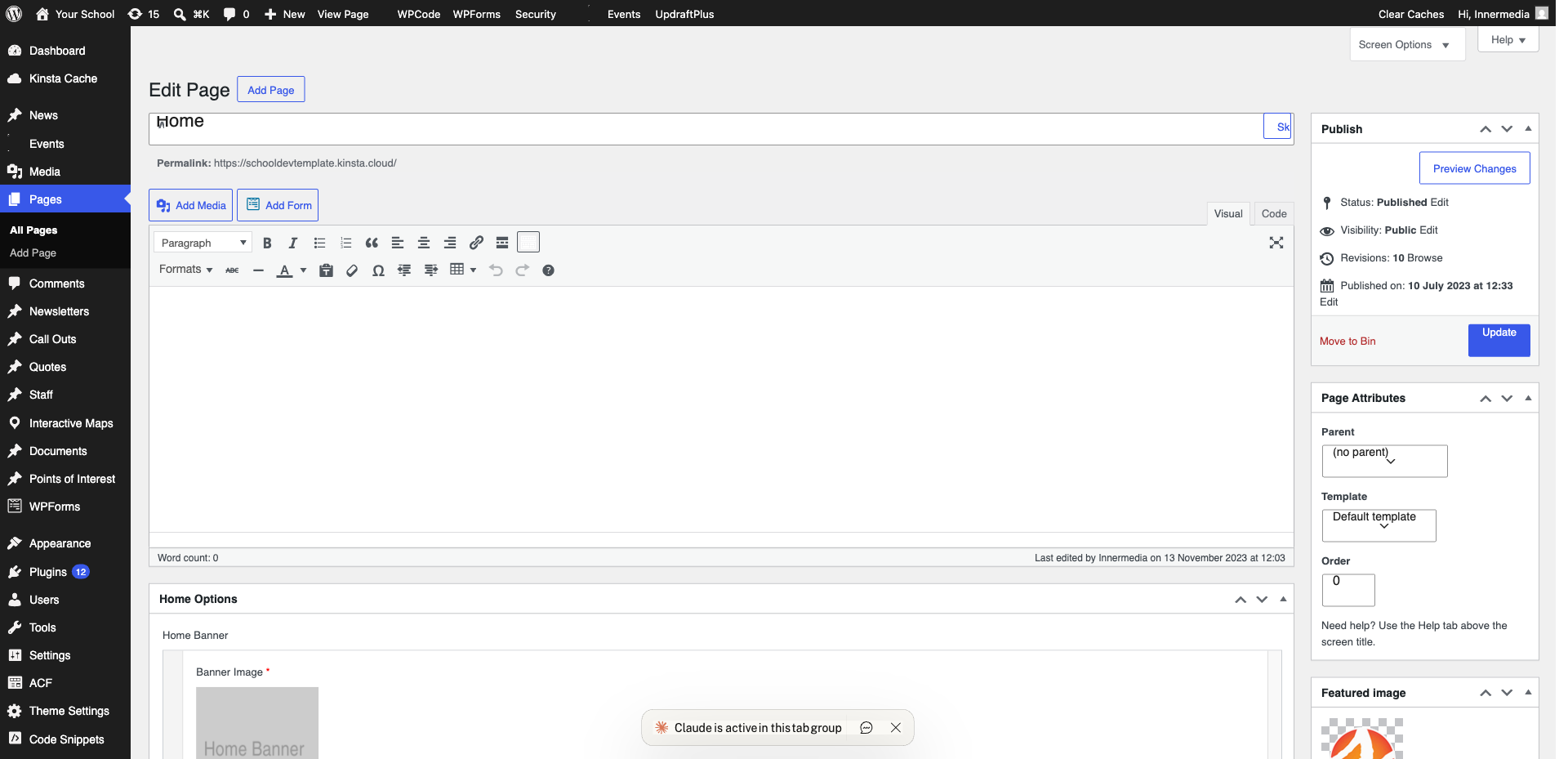
Change Heading Levels
Click a heading block and use the H2/H3/H4 dropdown to change its level. Keep hierarchy consistent.
4
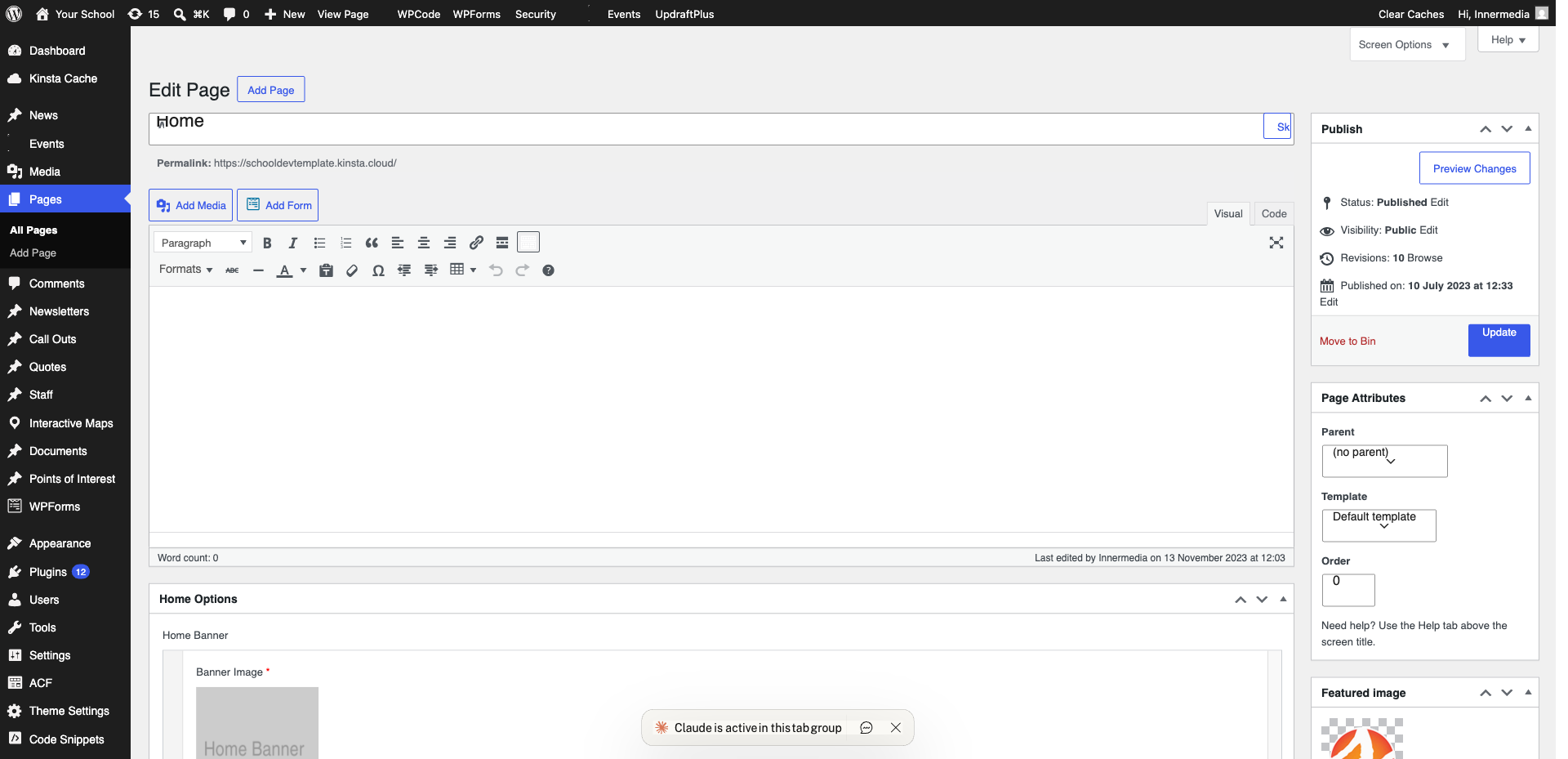
Save Your Changes
Click ‘Update’ to publish your text changes immediately.
Completed
If you are still experiencing issues, our support team is here to help.
Was this article helpful?